
The Practical Mac
Configuring Your OS X Firewall
- 2002.03.05 - Tip Jar
Last week, The Practical Mac explained how to set up a basic firewall using the shareware program BrickHouse. BrickHouse provides an easy-to-use graphical interface to activate and configure the firewall which is built into OS X. Unfortunately, the default settings don't necessarily meet the needs of every user. This article will show you how to tweak your firewall settings to meet your needs.
Microsoft Office v.X
Microsoft built into Office v.X an anti-pirating "feature" which can pose a serious security risk in a network environment. When any Office application is launched, it polls other computers on the network in an attempt to discover whether any other Office installations with the same serial number are present on the network. If another installation with an identical serial number is found, the application displays a message to this effect and won't launch.
Using this mechanism, it is possible for a hacker to create packets and direct them at a particular Office v.X installation, causing any open Office applications to shut down immediately, losing any work in progress. To thwart such an attack, Microsoft recommends, among other things, disabling both incoming and outgoing traffic on UDP port 2222.
Most users would scratch their head and say, "How do I do that?" The Microsoft article certainly does not explain how to do this. Have no fear - BrickHouse allows you to easily apply this and other filters to your firewall.
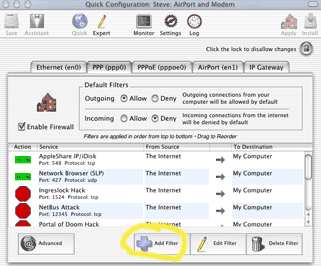
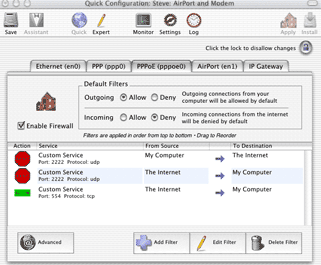
Launch BrickHouse, select Quick Configuration, and click on the tab of the network service you want to add the filter to (AirPort, ethernet, etc.). Select Add Filter from the menu at the bottom of the screen.
The Filter Details screen will appear. In the dropdown box beside Action select Deny. Choose Custom Service and UDP protocol. In the Port box, erase the numbers there and enter 2222. Make sure the Source is My Computer and the Destination is The Internet. Click OK.
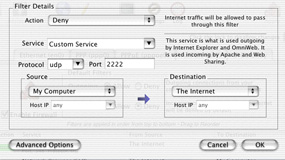
This will prevent your Mac from broadcasting on UDP port 2222.
Now repeat the procedure, except this time change Source to The Internet and Destination to My Computer. Click OK.
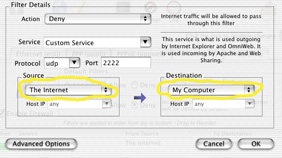
This will prevent your Mac from receive and responding to any packets directed to UDP port 2222.
Over time, you are bound to encounter other programs which will require you to either open or close certain ports on your firewall. For instance, to receive QuickTime streaming video, you must open several ports. Among them is TCP port 554 for Real Time Streaming Protocol (RSTP). There may be other ports which need to be opened to enable QuickTime streams - refer to Apple Knowledge Base articles 60688, 42604, and 106307 for more information. To get you started, we will walk through opening up TCP port 554.
Go back to the Quick Configuration screen and select Add Filter. Change the dropdown menu boxes to Allow Custom Service TCP and change the port number to 554. Set the Source as The Internet and the Destination as My Computer. Click OK.
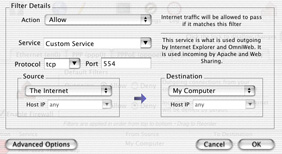
Repeat this step for other ports you wish open. To close ports, follow the same steps, but make sure the Action is set to Deny.
Back at the Quick Configuration screen, select Save, Apply, and Install to save your configuration and enable it to reload each time your Mac boots up.
If, after installing your firewall, you have applications which quit
working, check the support Web site for your particular program. Most
network-enabled programs have technical articles on their Web sites
which will tell you what firewall ports need to be enabled in order for
the program to work. 
About LEM Support Usage Privacy Contact
Follow Low End Mac on Twitter
Join Low End Mac on Facebook
Favorite Sites
MacSurfer
Cult of Mac
Shrine of Apple
MacInTouch
MyAppleMenu
InfoMac
The Mac Observer
Accelerate Your Mac
RetroMacCast
The Vintage Mac Museum
Deal Brothers
DealMac
Mac2Sell
Mac Driver Museum
JAG's House
System 6 Heaven
System 7 Today
the pickle's Low-End Mac FAQ
Affiliates
Amazon.com
The iTunes Store
PC Connection Express
Macgo Blu-ray Player
Parallels Desktop for Mac
eBay

