
The Practical Mac
Setting up a Firewall in OS X
A 'Best of the Practical Mac' Column
- 2002.02.26 - Tip Jar
You're trying to decide if you need a firewall. Perhaps you read The Practical Mac column, Internet Security for the Home User. In that column, we stated that the longer you stay connected to the Internet, the greater your need for a firewall.
If you use OS X as your primary operating system, there is good news. You already own a firewall program and may not even know it!
Mac OS X, or more properly, its underlying Unix OS, contains a built-in firewall program. Configuration of this firewall is typically done at a Unix command prompt. That fact in itself would make it unsuitable for the vast majority of Mac users. After all, many of us first started using a Mac years ago because we did not want to be faced with the DOS command prompt.
However, a very nice GUI-based program exists to allow the user to configure the most popular firewall options from the comfort of their Mac desktop. The program is called BrickHouse, was written by Brian Hill, and is available for a $25 shareware fee. This could be the best $25 you ever spend.
After you have downloaded and installed BrickHouse (and paid for it!), open the program. At the initial screen, you may have to click on the lock icon and enter the administrator password in order to make changes. From the icon menu at the top, select the Assistant.
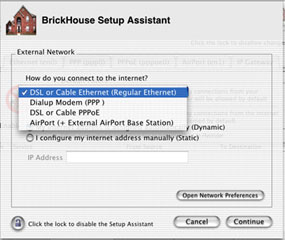
At the first Assistant screen, select your method of connection to the Internet and whether you have a static or dynamic Internet (IP) address. Click Continue.
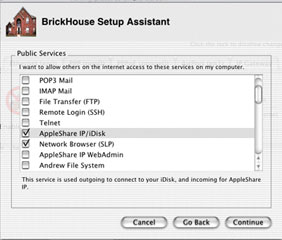
At the next screen, you will be asked for the service that you wish to allow others to access on your Mac. The caption is a bit misleading. It implies that the selections you make here will only pertain to those who try to access your Mac from the Internet. In fact, these settings apply to anyone who tries to access your Mac from anywhere, even on the local network.
If others ever need to connect to your Mac for file sharing or you use iDisk, you should check "AppleShare IP/iDisk and "Network Browser (SLP)." These are the most common services you might need to leave open for access. If your Mac is ever accessed via Timbuktu for remote control or troubleshooting, you will need to check that box as well. We recommend you leave all others unchecked unless you have specific needs for those services. Click continue.
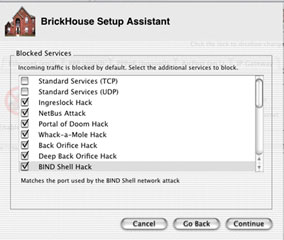
The next screen lists a large number of know hacks and attacks. As a general rule, you want to prevent these kinds of attacks (that is the primary purpose of a firewall, after all), so we recommend you check every box except for the first two, TPC and UDP Standard Services. At some point, particularly if you are on a corporate network, you may encounter a legitimate program which uses the same port(s) as one of these identified attacks and is prevented from working properly due to your firewall. If so, you can always enable access to the necessary port(s) by unchecking the box beside the attack which uses the same port(s). Click Continue.
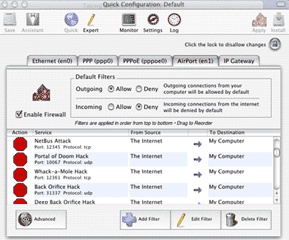
Congratulations! Your firewall is configured and ready to be enabled. Click on Apply Configuration to make your firewall active. Then click on Install Startup Script to create a startup item which will enable your firewall each time you boot up your Mac. Now click Done.
Exit BrickHouse. Your firewall is installed and will be present until you uninstall it. If you decide you wish to uninstall the firewall in the future, simply select Options>Remove Startup File from the menu bar, and it will be gone once you reboot.
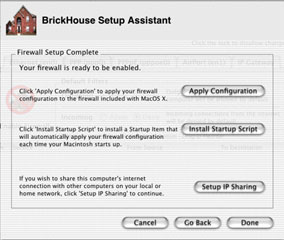
BrickHouse also offers an easy way to set up IP Sharing at this screen. If you have a single Internet connection and wish to share it with other computers (including Windows or Linux PCs) on your network, you can do so by clicking on Setup IP Sharing. The Mac which IP Sharing is setup on has to be running in order for any other computers to access the Internet through IP Sharing.
This could can very useful in a pinch, but for permanent Internet sharing, the better solution is to use a dedicated hardware device such as a router.
It is very important to point out that this only works in OS X. If you reboot into OS 9, the firewall is not present. Any applications running in Classic under OS X are protected, however.
If you use OS 9 as your primary OS, the firewall
recommendations we made in Internet Security for the Home User
still apply to you. 
About LEM Support Usage Privacy Contact
Follow Low End Mac on Twitter
Join Low End Mac on Facebook
Favorite Sites
MacSurfer
Cult of Mac
Shrine of Apple
MacInTouch
MyAppleMenu
InfoMac
The Mac Observer
Accelerate Your Mac
RetroMacCast
The Vintage Mac Museum
Deal Brothers
DealMac
Mac2Sell
Mac Driver Museum
JAG's House
System 6 Heaven
System 7 Today
the pickle's Low-End Mac FAQ
Affiliates
Amazon.com
The iTunes Store
PC Connection Express
Macgo Blu-ray Player
Parallels Desktop for Mac
eBay

