
Mac2Windows
Free VirtualBox for Mac Now a Virtual Contender
- 2008.07.21 - Tip Jar
Short link: http://bit.ly/12573u
Rating: 
Most Mac users who need to run Windows are aware that with the switch to Intel processors, the Mac now has a variety of options. Apple has provided Boot Camp, offering the option for Leopard-users to choose Windows or Mac OS X at startup. And commercial virtualizers Parallels Desktop and VMWare Fusion let Intel Mac users install a wide range of PC operating systems and run them - or a Boot Camp Windows installation - in a virtualized session as a program within OS X.
There's a free virtualization alternative, VirtualBox, which is available for Mac OS X as well as for a range of PC operating systems. But when I looked at it last year, it was a work in progress - with the then-current Mac version offering fewer features than the Windows version. The Mac version lacked support for networking, for instance, meaning no Internet access (among other things). In the end, while it ran Windows and other PC operating systems, the lack of networking and Internet support was a deal-breaker for me; it just couldn't do what I would want from a PC running (virtually) on my Mac.
One Year Better
But a year can make a big difference in software development. Over that time, the VirtualBox project gained the support of Sun Microsystems, and a new version (1.6) was released in May 2008, promising - among other enhancements - "new Mac support". So it's time for another look.
VirtualBox is available in standard binary versions (for Mac OS X, Windows, a variety of Linux distributions, and Solaris/OpenSolaris) and in source code form in an open source VirtualBox Open Source Edition. The binary versions come ready to install and includes "closed source" proprietary code for a number of functions including the virtual USB controllers and remote desktop protocol. These versions are free for home and personal use. Note that version 1.6 is the first Mac version to be described as out of beta; the current 1.6.2 Mac version is a 28 MB download.
Like commercial virtualizers, Parallels Desktop and VMWare Fusion, and like Apple's Boot Camp, VirtualBox is only usable on Intel Macs; owners of older PowerPC Macs will have to use slower emulation software like GuestPC if they need to run Windows on their Macs.
Installing VirtualBox on Your Mac
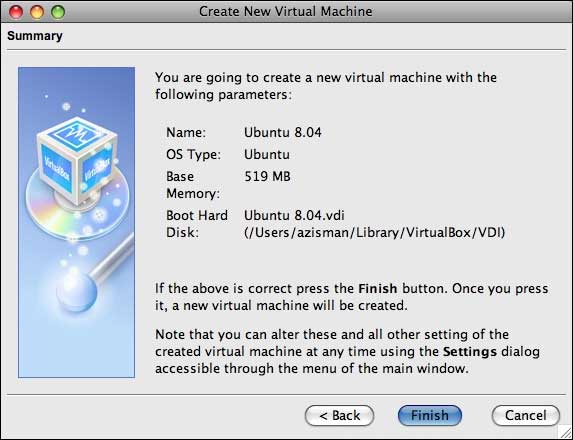
Installation takes up some 56 MB in your Mac's Applications folder - of course, drive space needed will skyrocket once you start creating virtual hard drives. Start it up and click the New toolbar button. You'll be walked through the process of creating a virtual PC on your Mac. I was going to install Ubuntu Linux 8.04.

I was first asked to give my new system a name and select its type from a fairly comprehensive dropdown list that includes Windows versions from 3.1 through Vista and Windows Server 2008, OS/2 (various versions), many Linux distributions (and generic Linux kernel versions), BSD, Solaris, and even plain old DOS.
Pick an amount of RAM to dedicate; the default for Ubuntu is 256 MB - I increased that to 519 MB. Then create a virtual hard drive. There are a few steps to this - I went with the default of creating a dynamically expanding image, which saves space by only requiring as much space on your Mac's hard drive as is actually used at any given moment, up to a maximum that you set. I also accepted the default 8 GB dynamic image; but at the moment, it's only actually using about 3.5 GB of drive space.
Once you've made those choices, you're ready to click Start and install your virtual PC's operating system.
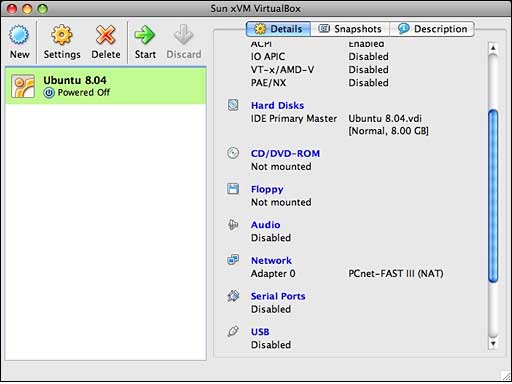
But wait! Before starting it up (and installing your operating system), you probably should poke around the default settings of your new virtual system. You can do that either by clicking the Settings button or by scrolling through the Details listed in the right-hand pane in the VirtualBox window, and clicking on individual items.
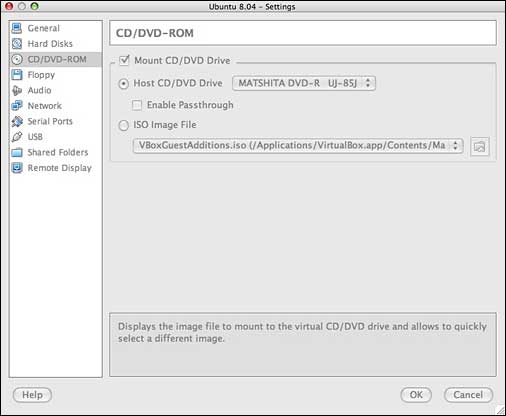
To start with, check the CD/DVD-ROM item; if you are planning to install from a CD or DVD, make sure the Mount CD/DVD Drive item is checked and is pointing to your optical drive. Alternatively, if you've downloaded an image file, for instance, for a Linux distribution, you can select the ISO Image File item, pointing it to your image file's name and location.
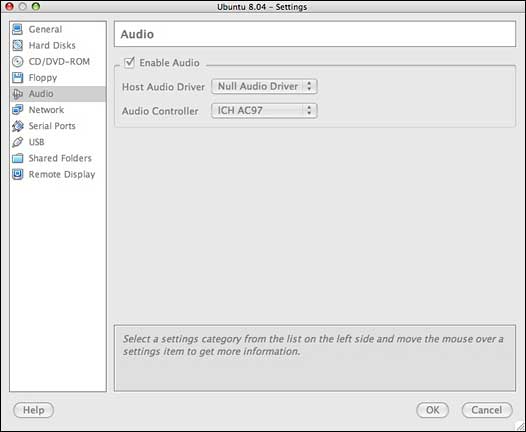
Some of the other defaults are worth a look, as well. The Audio default enables audio, by default virtualizing an AC97 sound card; you can switch that to a Sound Blaster card if you prefer - or if your OS lacks AC97 drivers, like Windows 2000. The defaults also use a "null audio driver" - the result is that your virtualized PC operating system detects audio hardware but doesn't actually make any sounds. Maybe you want that. If not, switch from the null audio driver to the option labeled "Core Audio".
The network adapter is enabled by default; you can choose between several network adapter models, again handy if your operating system lacks built-in support for the default model. Some trial and error may be required - you can always change it after installing your operating system, though your virtual PC needs to be shut down to make any changes.
USB Is Off by Default
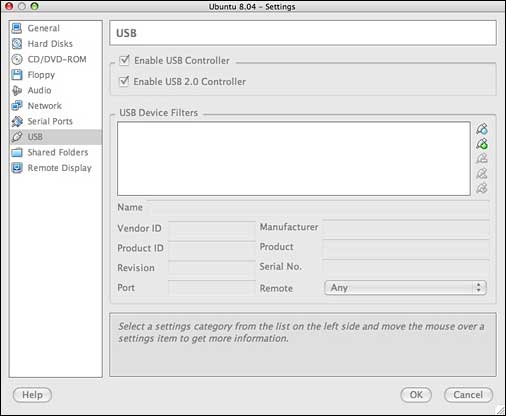
USB controllers are disabled by default; I turned on the USB and USB 2.0 controllers. With USB enabled, you still need to click on the Devices menu - after starting up your virtual session - then click on USB Devices to enable specific hardware like printers.
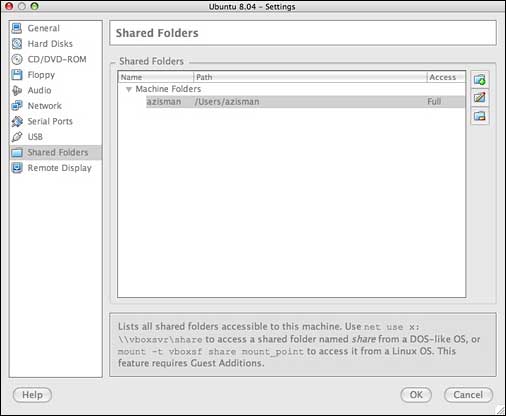
I also set a shared folder, browsing to my home folder on my Mac. When you choose a folder to be shared, a note appears pointing out that this feature requires Guest Additions to be installed (post OS-installation) and telling you how to make use of the shared folder in Windows and Linux installations. In fact, I lacked the Linux-smarts required to actually make this feature work in my Ubuntu installation.
Installing Your Guest Operating System
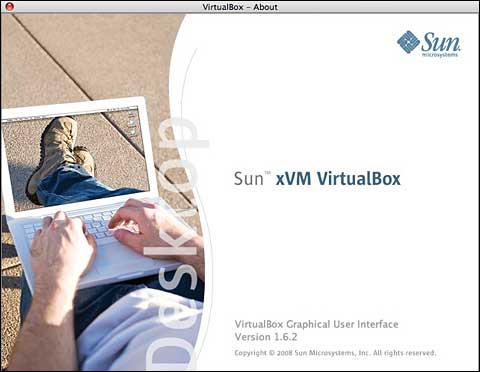
Whew! Finally, it was time to insert my Ubuntu installation CD and click on the green Start arrow. A Sun splash screen popped up as my new virtual PC started its boot process.
Within a few seconds, it started reading the Ubuntu CD to begin installation.
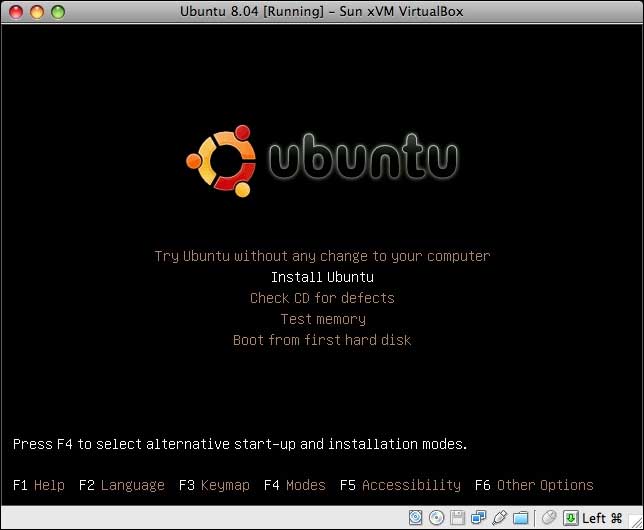
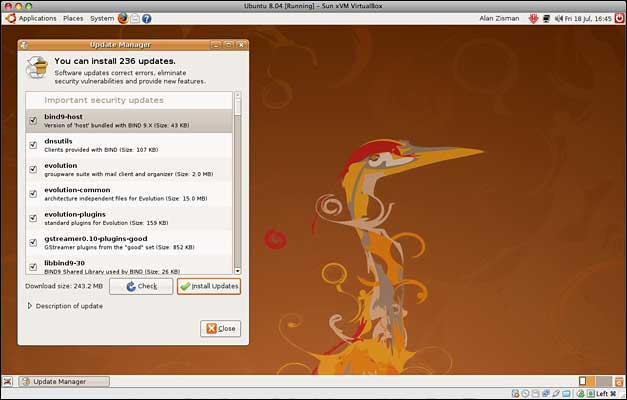
A half hour or so later, I had a working Ubuntu Linux session. Unlike last year's VirtualBox version, networking worked, meaning I had Internet access right out of the (virtual) box. As well, that meant that moments after startup, Ubuntu informed me that there were 236 updates that it wanted to install.
The Importance of Guest Additions
But there was one task I wanted to do first; like commercial virtualizers Parallels and Fusion - and like older Virtual PC or Guest PC - VirtualBox includes Additions, software to integrate the virtualized operating system with its host and to provide better-than-standard video and other functions.
For instance, prior to installing these Guest Additions, when you're working in the virtual session, your mouse and keyboard are captured by that session and not readily available if you want to click in another program window - or even to access the VirtualBox menus. You need to press a key - by default the left Cmd key - to pass control back to the host system.
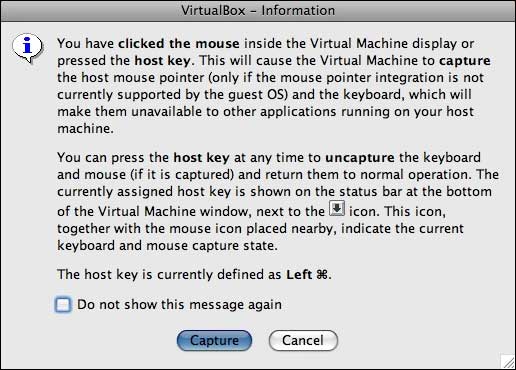
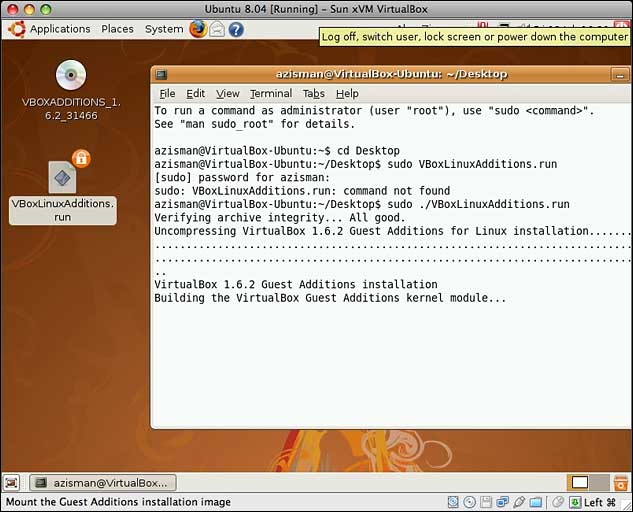
Installing the Additions starts off easily; just click on the Devices menu (after pressing the left Cmd key so you can move the mouse there!) and choose Install Guest Additions. This opens a window to a pre-made virtual CD disc, containing software for Windows and Linux. There's even an OS/2 version. Installing the Windows version seems straightforward, though I didn't try it. Software installations in Linux can be trickier. Here's what I did:
- I dragged the VBoxLinuxAdditions.run file to the desktop
- I opened a Terminal window and typed: CD \Desktop to go to the desktop
- In order to run the Additions file, I typed: sudo ./VBoxLinuxAdditions.run
That worked - sudo is needed in Ubuntu to run as an administrator; you'll be asked for your password. (Other Linux systems may require root access; in Ubuntu, you use your personal password instead.) And the ./ is needed to make the command work, though I don't really understand why. Just trust me!
With that, the additions started installing. Afterwards, a restart was required.
Post-restart, I could seamlessly move the mouse between the guest operating system window and the rest of the Mac without problem. And enhanced video drivers allowed my Ubuntu session to support a higher screen resolution - up to 1280 x 800 (though I ran it at 1280 x 768, which fit better on my 17" iMac desktop).
After clicking on the program's Devices menu's USB Devices item and enabling the printer plugged into my Mac, I was able to set Ubuntu to print to that printer without problem; it was also able to locate and print to the printer shared by a Windows system on my home network.
I lack the Linux smarts to mount the shared folder on my Mac, despite the hints given in the Settings dialogue. Since I have file sharing enabled on the Mac, however, I was able to connect to the same location using Ubuntu's standard Connect to Server option. That's handy since, unlike Parallels or Fusion, you can't just drag files between the Mac and guest desktops (even after installing the Guest Additions); this way, I can move files between the Mac and Ubuntu session.
Some Limitations
You can run your guest operating system in a window or full-screen; after installing the Guest Additions, Windows guest OS's can also run in a "Seamless Mode" that apparently displays running programs in the Dock (I didn't have Windows installed and hence lacked the opportunity to test this).
Unlike Parallels or VMWare Fusion, VirtualBox does not allow you to access a Boot Camp installation in a virtual session - it needs dedicated virtual hard drives. And its seamless mode isn't as sophisticated as Parallel's Coherence Mode or Fusion's Unity feature, both of which make the operating system window seem to disappear, leaving free-floating application windows (this only works with Windows). And while both Parallels and Fusion offer limited DirectX support, allowing users to run some (but not all) 3D Windows games, VirtualBox lacks DirectX support entirely.
But VirtualBox for Mac has grown up; while it doesn't have every feature available in its commercial virtualizer competitors, it offers good performance, networking, and USB support. It should give many users the ability to get work done in Windows, Linux, or other PC operating systems without having to leave the comfort of OS X.
For free. 
Join us on Facebook, follow us on Twitter or Google+, or subscribe to our RSS news feed
Alan Zisman is Mac-using teacher and technology writer based in Vancouver, BC, Canada. Many of his articles are available on his website, www.zisman.ca. If you find Alan's articles helpful, please consider making a donation to his tip jar.
Today's Links
- Mac of the Day: Radius System 100, introduced 1995.03.27. An all-out system designed for graphics professionals.
- Support Low End Mac
Recent Content
About LEM Support Usage Privacy Contact
Follow Low End Mac on Twitter
Join Low End Mac on Facebook
Favorite Sites
MacSurfer
Cult of Mac
Shrine of Apple
MacInTouch
MyAppleMenu
InfoMac
The Mac Observer
Accelerate Your Mac
RetroMacCast
The Vintage Mac Museum
Deal Brothers
DealMac
Mac2Sell
Mac Driver Museum
JAG's House
System 6 Heaven
System 7 Today
the pickle's Low-End Mac FAQ
Affiliates
Amazon.com
The iTunes Store
PC Connection Express
Macgo Blu-ray Player
Parallels Desktop for Mac
eBay

