

Mac Maintenance, Part 1: Protect Your Hard Drive and Data
- 2005.06.29
In order to squeeze as many years of use as possible out of you Mac and keep it zippy, you need to do some basic maintenance. In this three-part tutorial, we will cover some hardware and software maintenance. This article is about your computer's hard drive.
It's important to maintain your hard drive because your operating system, your software, and your data resides on it.
Here is a brutal reality: Your hard drive has mechanical parts that will fail one day. You should not ask yourself if it will fail, but when. There are two cases of data loss that you may face:
- Your disk gets confused by damaged directory structures.
- Your disk crashes.
Protecting Your Directory
The first step is maintaining the directory structures, and it is the easiest step because, unlike a crash, directory damage can be fixed. The directory keeps track of all your files, from the operating system to your tiniest JPEG or Word document. If the directory is damaged, your hard drive doesn't know where everything is and can overwrite or damage files.
Directory damage is sly. It comes in without knocking, and it doesn't let you know about its presence. In fact, data loss can happen several weeks or several months after uncorrected directory damage begins, which makes directory protection mandatory preventive maintenance.
To avoid data loss, you have to start with the right formatting and journaling. Journaling, available under Panther and Tiger, monitors your disk's activity and records it in a log. Should your Mac shut down unexpectedly or should you experience disk problems, recovery will be faster and repair will be easier.
If your disk is already formatted, start up your Mac from the Mac OS X Installation CD - hold down the C key at startup - and use Disk Utility to turn on journaling. TechTool Pro 4 and Cocktail can also do this, as can some other utilities.
If you are reformatting your disk, choose "Mac OS X Extended (Journaled)" before going ahead.
|
|
|

On top of journaling, I add another recommendation when formatting: Split your drive into system and data partitions. Partition 1 should be used for nothing but the Mac OS X system and applications, and partition 2 for your documents. Why? With this kind of setup, you can still access your documents partition to salvage data in case you didn't have a full backup should the system partition run into serious trouble.
Ideally, this kind of split should be done with two hard drives - a "system" drive and a "documents" drive - but I recommend partitions if you are on a budget.
Disk Utilities
|
|
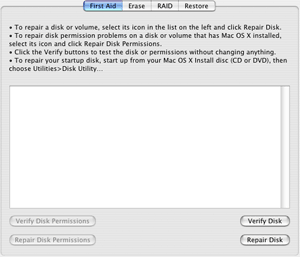
If Disk Utility reports damage that it cannot repair, you have to decide whether you want to back up everything and reformat your drive or if you prefer using a utility to fix it. Most people like to use a utility. Several of them are available, but which one should you adopt - DiskWarrior, TechTool Pro, or Norton SystemWorks?
The answer is tricky, because each of these programs has strengths and weaknesses.
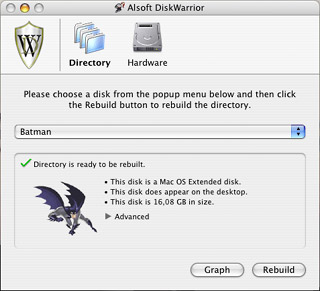 Alsoft DiskWarrior is the pound-for-pound
champion. It draws a graph of your disk directory to let you know
if it needs to be rebuilt. If you rebuild the directory - a task
that takes a bit of time on a system disk - all potential damage
disappears because DiskWarrior discards the old directory and
replaces it with a new one.
Alsoft DiskWarrior is the pound-for-pound
champion. It draws a graph of your disk directory to let you know
if it needs to be rebuilt. If you rebuild the directory - a task
that takes a bit of time on a system disk - all potential damage
disappears because DiskWarrior discards the old directory and
replaces it with a new one.
If you have DiskWarrior handy, just start up your Mac from the DiskWarrior CD. Click on the Directory button, then click on Graph to see the graphic and click on Rebuild to go ahead with directory rebuilding. Doing this once a month or every other month should be enough.
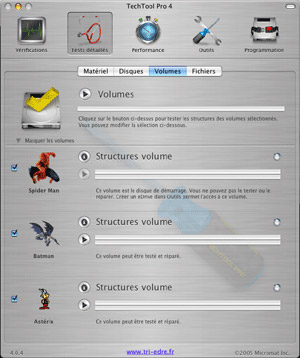 TechTool Pro 4 works differently, because it
separates the job into parts. Under its Tests panel, TechTool can
scan and rebuild volumes structures (this takes a long time). It
can optimize the directory separately using the feature called
Maintenance (found under the Performance panel). TechTool Pro 4
does some nice work, but I have had some trouble with its slow
execution, and it sometimes damaged my directories. On the other
hand, it comes with an amazing set of hardware tests, which we will
look at in a future column.
TechTool Pro 4 works differently, because it
separates the job into parts. Under its Tests panel, TechTool can
scan and rebuild volumes structures (this takes a long time). It
can optimize the directory separately using the feature called
Maintenance (found under the Performance panel). TechTool Pro 4
does some nice work, but I have had some trouble with its slow
execution, and it sometimes damaged my directories. On the other
hand, it comes with an amazing set of hardware tests, which we will
look at in a future column.
Where does Norton SystemWorks stand? I know it has a bad reputation, in part because Symantec is not a good Mac developer, but there are reasons to like it.
Norton, with its Disk Doctor component, tries to "patch" your disk directory instead of rebuilding it completely. That makes Norton the fastest utility for preventive maintenance. The big drawback is that patching is not easy: It is not always a permanent solution and it exposes your directory to additional errors. This is part of the reason why Norton caused trouble when "fixing" some people's disks.
Don't demonize it, however, because apart from speed, it has another major strength. Do you remember the old days, when you used Mac OS 9 and saw a flashing question mark at startup? Your Mac was unable to mount your hard drive, even if a utility was able to "see" it.
This can also happen under Mac OS X, with the difference that when starting up, you get a "Please restart your computer" screen, a Unix crash known as a kernel panic. Believe it or not, Norton Disk Doctor is the best tool when this happens. It fixes a series of major errors and mounts your drive. Just when things looked hopeless, Norton saved your butt...
The final verdict on utilities? If money is not a concern, buy all three, because each of them has different strengths. If you have to pick just one, DiskWarrior is my recommendation. And if you cannot mount your disks correctly, Norton is probably less expensive than bringing your Mac to a technician....
Minimize the Workload
As I stated above, a hard drive can crash because of wear and tear. To prevent this, you have to minimize your disk's workload. The first way to achieve that? Know when to put your Mac to sleep and when to shut it down. The jury is still out on this one, mostly because there are many credible theories about the amount of wear and tear caused by different user habits.
Here are the main points:
- Every time you start up your Mac, the cold hard drive receives an electrical charge and works very hard to get your Mac ready for use. This puts a lot of stress on a drive.
- If you leave your Mac on at all times, your disk remains hot and it keeps spinning, wearing it out slowly.
- If you put the computer to sleep or put the hard drive to sleep, every wake-up process will put some stress on the drive.
There is no perfect solution. Apple recommends you shut a computer down it you don't plan to use it for eight hours or more. Otherwise you may put it to sleep or leave it on. Personally, I have been following Apple's advice, and it has served me well.
Optimize Your Files
Another method to reduce your hard drive's work is to defragment your files and optimize your data. When your files are fragmented (that means your file isn't stored in one place on your hard drive; two or more parts of the file are stored in different places), your hard drive has to work harder to read and write them.
Imagine that all your tools are scattered around your house. Putting them all together in a basement room or toolbox will save you a lot of time and effort when you need to find several of them for a project. With your hard drive, the difference is that additional wear and tear will make it wear out sooner than it should.
What can you do about it? Optimize your data on the disk. I know two tools that do this well: Norton Speed Disk (part of Norton SystemWorks) and TechTool Pro 4's Optimization feature. Both will analyze your files, gather the scattered pieces, and rewrite them without fragmentation to make file access a lesser pain. Your system may also run a bit faster as a result.
There is no consensus about file optimization, because the operation is demanding for a hard drive - it can create more wear and tear than it prevents if done too often. Therefore it is crucial to take a good look at the graphics produced by the optimization tool before going ahead with the whole process. Defragment and optimize your disk only when fragmentation is severe. For most users, this will only be necessary two or three times a year.
Verify Your SMART Status
Are you smart?
What I mean to ask is whether your disk passes the SMART test. SMART (Self-Monitoring Analysis and Reporting Technology) can allow a small piece of software to take a quick look at your drive and let you know when it is about to fail. When you get a warning, it means that your drive may crash soon. It is nice to know it beforehand.
|
|

Note that SMART doesn't work with external USB or FireWire
drives. 
Next Week: Mac OS X Maintenance
Links
- Computer Equipment: Turning It Off Versus Leaving It On, Apple
- Alsoft DiskWarrior, US$79.95
- TechTool Pro 4, US$97.97
- Norton SystemWorks, US$129.95
- SMARTReporter, free
Join us on Facebook, follow us on Twitter or Google+, or subscribe to our RSS news feed
Michel Munger is a journalist who lives in Montréal. He discovered the Mac in 1994, and his work on a PC reminds him every day why he embraced Apple's platform. Munger has also authored some MacDaniel columns.
You can learn more about him on his personal website.
Today's Links
- Mac of the Day: PowerBook 1400, introduced 1996.10.01. Considered by many the best pre-G3 PowerBook with a small footprint and great keyboard.
- April 26 in LEM history: 00: Improving the user experience - Mac a gaming machine? - 01: From Luddite to Low End Mac - The best really low budget Macs - 02: Palm Desktop 4.0 - 04: Yes, Macs are different - Maximum eMac RAM - 05: G4 upgrades for G3 'Books - 06: iBook leads to on-the-spot conversion - $10 PowerBook G3 - 07: Digital hub report card
- Support Low End Mac
About LEM Support Usage Privacy Contact
Follow Low End Mac on Twitter
Join Low End Mac on Facebook
Favorite Sites
MacSurfer
Cult of Mac
Shrine of Apple
MacInTouch
MyAppleMenu
InfoMac
The Mac Observer
Accelerate Your Mac
RetroMacCast
The Vintage Mac Museum
Deal Brothers
DealMac
Mac2Sell
Mac Driver Museum
JAG's House
System 6 Heaven
System 7 Today
the pickle's Low-End Mac FAQ
Affiliates
Amazon.com
The iTunes Store
PC Connection Express
Macgo Blu-ray Player
Parallels Desktop for Mac
eBay

