
The Practical Mac
Take Off Your Glasses and Enjoy the Web
- 2010.02.16 - Tip Jar
Follow Low End Mac's blogs: LEMblog and Low End Mac Services.
I thought I was going blind. All of a sudden one day, I had to get within point-blank range of my Mac to see what was on the screen. This can't be good.
Or maybe I just need new glasses. Yeah, that must be it. Except that I just had an eye exam six months ago and did not need new glasses then, plus I wasn't having trouble seeing anything else - and I don't wear glasses for up-close work anyway.
Then I discovered the culprit: my new 15" MacBook Pro. Why was my MacBook Pro causing vision problems? Well, it wasn't exactly the cause. The real cause was what my new 15" MacBook Pro had replaced, namely my previous primary Mac, a 20" iMac (Early 2006). While I don't for a minute regret the move to a portable Mac as my primary machine, the portability I gained did come at the expense of a lot of screen real estate.*
I needed a heavy-duty Mac magnifying glass.
For most of my productivity programs, it was easy to compensate by just increasing the magnification of whatever document I was working on. For example, Microsoft Word 2008 has a dropdown box on the toolbar that allows you to easily change the zoom level.
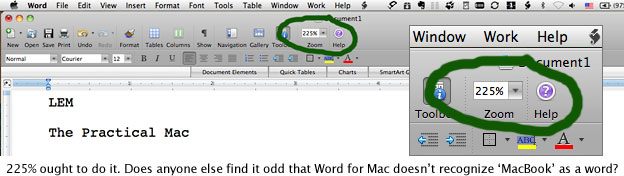
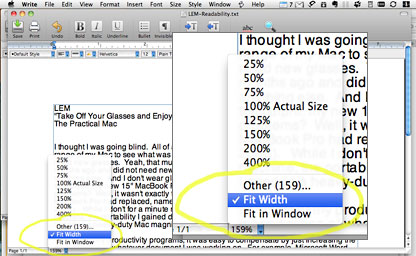 Many other programs, including Pages, Photoshop, and Mariner
Write (right) include the same functionality. If the zoom box is not
located in a toolbar across the top of the app, it is usually in the
lower left-hand corner of the document window.
Many other programs, including Pages, Photoshop, and Mariner
Write (right) include the same functionality. If the zoom box is not
located in a toolbar across the top of the app, it is usually in the
lower left-hand corner of the document window.
What About the Web?
That did the trick for most of my apps, but it didn't help when it came to web browsing. Fortunately, there are plenty of solutions for this problem - and none of them require permanently mounting a giant magnifying glass in front of your Mac's screen. The first solution I found is called Readability and comes in the form of a link placed on your browser's toolbar. Strictly speaking, Readability does not magnify what is on the screen. Rather, it works its magic by removing the clutter around what you're reading to make it easier to read (though, as you will see, Readability can also be configured to magnify the resulting text).
Installation is quick and easy. To begin, go to the Readability website. Readability is compatible with every browser I tested on Snow Leopard, including Safari, Camino, Firefox, OmniWeb, Opera, Chrome, Flock, and iCab.
Alas, I could not get it to work with any OS 9 browser (I tried iCab, Netscape 4.77, and Internet Explorer 4.5). More than likely this is due to some combination of Readability's use of JavaScript and Cascading Style Sheets. Though iCab supports certain versions of both of these technologies on OS 9, apparently they are not the right ones. It didn't work with NCSA Mosaic on System 7.5.3 either, but then one wouldn't really expect that, would they?
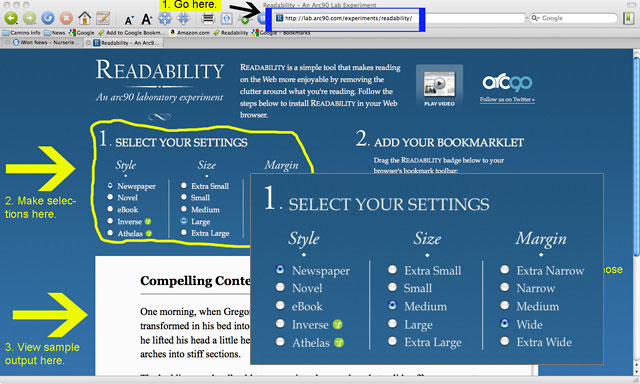
The Readability home page.
At the Readability home page, you need to select how you want your Readability-enhanced text to look. There are several options, including newspaper, ebook, and novel. There are also choices for how large you want the text to appear and the size of the margins. The layout of sample text on the page changes to reflect the choices you make in these boxes. When you get everything set the way you want it, simply drag the Readability button to your browser's bookmark toolbar. Setup is complete; now it's time to take Readability for a test drive.
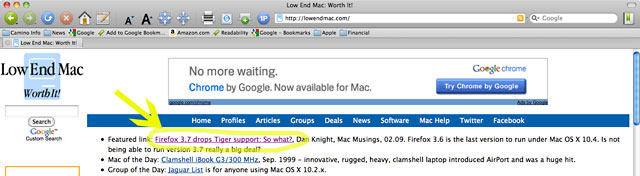
To test my installation, I started at (where else!) lowendmac.com. At the home page, I clicked on the Featured Link to read about Firefox 3.7 dropping support for Tiger. If you have followed the Readability installation instructions to this point and have it installed, feel free to try it out on this article.
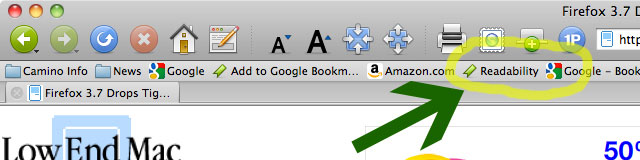
For easiest use, put Readability in your browsers bookmark bar.
Once the page containing the article you wish to read loads completely, click "Readability" in the bookmark toolbar. Voilà! It's just like reading the newspaper (or a novel or an ebook). Any links contained in the article continue to work, although if you click a link within an article being viewed in Readability, the link takes you to a normally rendered page, not a Readability-enhanced version.
Graphics and even videos contained within the article itself will usually be displayed properly.
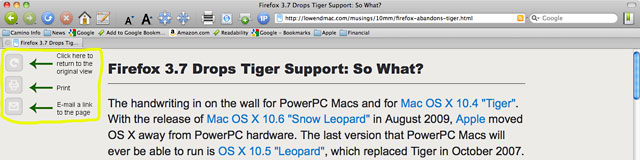
An article rendered using Readability.
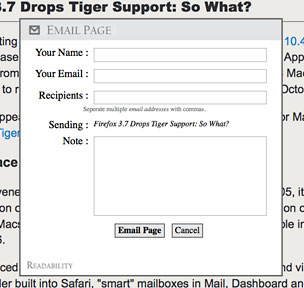 At the top left corner of the window are three
buttons. These allow you to return to the original view, print, or
email a link to the article. Selecting the link to email the page
causes the
At the top left corner of the window are three
buttons. These allow you to return to the original view, print, or
email a link to the article. Selecting the link to email the page
causes the 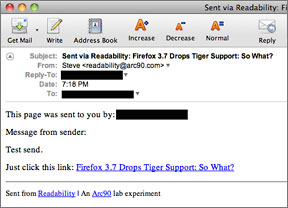 link
to be emailed through Readability's servers via a popup dialog box
rather than activating an email client on your Mac. The image on the
right shows how the resulting email appears on the recipient's Mac.
link
to be emailed through Readability's servers via a popup dialog box
rather than activating an email client on your Mac. The image on the
right shows how the resulting email appears on the recipient's Mac.
Also note that Readability was designed for pages containing a main article, not for home pages. If you click on Readability while on a "busy" home page, it will warn you that murky waters may lie ahead. The results can be unpredictable if you choose to continue. Some pages look almost okay (the Low End Mac homepage for one, although Readability leaves out the featured links at the top), while others are almost totally devoid of any useful content (such as CNN.com).
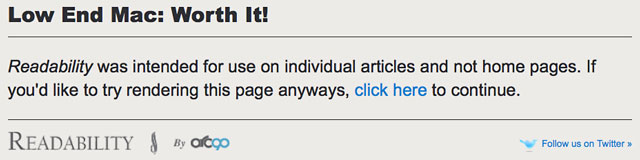
Readability is not intended for website home pages.
In addition to the obvious benefit of making online articles easier to read, Readability has another benefit. I often archive interesting and useful online articles for future reference. I do this by using OS X's built-in Print to PDF ability. By first loading the page in Readability and then saving it as a PDF, the resulting file is less cluttered.
For best results when archiving online articles:
- Select the Print option (if there is one) on the web page itself. This is critical in situations where the article continues on following screens; otherwise, you will only capture the first page of the article. This button is usually located at the top of the article, near the title, though sometimes it is at the end. Occasionally, articles won't have this feature at all.
- Next, click Readability in your browser's bookmark toolbar.
- Select Print page at the Readability screen.
- Then choose Save as PDF in the print dialog box.
Readability will preserve the page title. However, because not all webmasters are diligent in properly naming pages, be sure to check the filename as you are saving. Give it a meaningful title that will be easy to understand when you need to retrieve the article months or years in the future. This will prevent you from accumulating dozens of files named untitled-2, untitled-3, etc. on your hard drive.
In future columns I will be taking a look at additional solutions to
the problem of the shrinking display, particularly when using web
browsers. In the meantime, happy surfing! (And take off those glasses.)

* The 20" iMac has a 1680 x 1050 pixel, 99 pixel-per-inch (PPI) resolution. The 15.4" MacBook Pro has a 1440 x 900 pixel, 110 PPI resolution, giving it less pixels and smaller ones.
About LEM Support Usage Privacy Contact
Follow Low End Mac on Twitter
Join Low End Mac on Facebook
Favorite Sites
MacSurfer
Cult of Mac
Shrine of Apple
MacInTouch
MyAppleMenu
InfoMac
The Mac Observer
Accelerate Your Mac
RetroMacCast
The Vintage Mac Museum
Deal Brothers
DealMac
Mac2Sell
Mac Driver Museum
JAG's House
System 6 Heaven
System 7 Today
the pickle's Low-End Mac FAQ
Affiliates
Amazon.com
The iTunes Store
PC Connection Express
Macgo Blu-ray Player
Parallels Desktop for Mac
eBay

