

Organize Your Files and Never Lose Track of Them in OS X
- 2005.09.01
Your computer is a mess. There are icons all over your desktop, and your files are not well organized. You have been using Mac OS X for years, and yet you have the impression that you don't know how to use it to keep your screen's real estate clean.
In the first incarnation of iBasics, I showed you how to unclutter Mac OS 9 (see Organize Your Files and Never Lose Track of Them), now let's give this topic a spin under Mac OS X.
Sure, Spotlight (introduced in Tiger) is great, but having a well-organized environment is extremely important to save time and facilitate backups. It also gives you this great feeling when you know where everything is.
The first step is building a new folder structure to store your files. As I stated in previous columns, I recommend that you either use two hard drives or two partitions on a single hard drive (put your system software and all your applications on one, and save your work files - text, music, video, etc. - on the other). That way your data is safe if your startup disk crashes.
The other major advantage of splitting the software from the data is that you can build a better folder structure than the default one created by Apple.
Should you choose to organize your files by project, by company (if you work as a freelancer or consultant), by file type, or something else? My advice is to organize everything by theme, and then by project or company, depending on what kind of things you do.
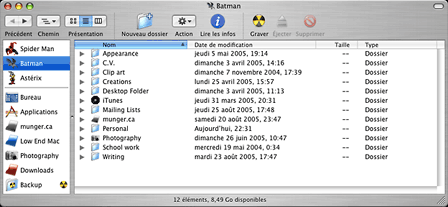
Work files organized by type.
Take a good look at my screen shot for an example. I do a bit of writing for different print and online publications. I put everything in my Writing folder, with subfolders for the different publications. In the Personal folder, I put types of files together (recipes, budget files, etc.). The same goes for the Creations (graphics), School work, and other folders.
As you can see, organizing files in a folder structure by themes gives you a good amount of flexibility once the main themes have been chosen. Whether projects, files used for different organizations, or types of files have to be put together in subfolders, they will be easy to find - most of the time without ever reaching for Spotlight.
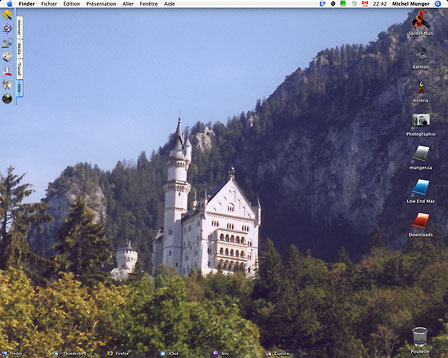
An uncluttered desktop (click for larger view).
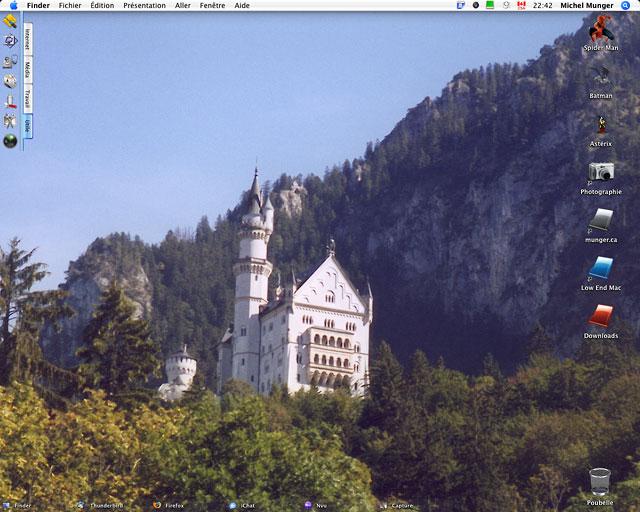
How can you keep your desktop clean? Once your folder structure is right for you, it' is quite easy to keep icons off the desktop, putting only a few key aliases under your hard disk icons. To create an alias, just click on a folder and while holding down the mouse button, press the Option and Apple key. A small arrow will appear under the bottom left corner of the folder's icon. Just drop the alias on the Desktop (or anywhere else you want) and release everything.
What I gave you is the hard but efficient way to do things. If you need some extra help, Mac OS X and third-party software can come to the rescue, especially to launch programs and consult your frequently-used items and folders.
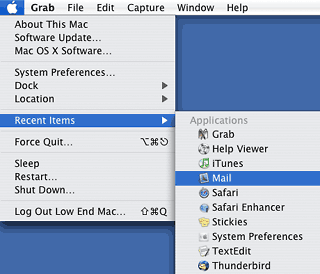 In the Finder
In the Apple menu you have a list of recently-used applications and documents called Recent Items. This is especially useful as a launcher if you always seem to use the same programs. Whenever you select one of the items from the Recent items menu, it will be opened. If you pull down the Apple menu and select System Preferences and then click on Appearance, you are given the option to decide whether you want Recent Items or not, and how many of them (up to 50) you may want to appear. Don't hesitate to use the Clear Menu command if you need to clear all the items.
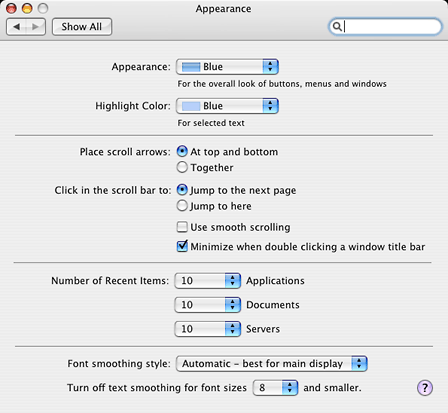
Appearance settings
If you are still new to Mac OS X and want to put a window away temporarily, click on the yellow button in the top left corner of any window to send it to the Dock. A multimedia effect will move the window to the Dock. You can open the window again with a single click on it in the Dock.
Do you believe that Apple has put too much eye candy around its windows with the brushed metal interface, the buttons, and the sidebar filled with folders? Get rid of all of those by clicking on the lozenge-shaped button in the top right corner of a Finder window for a bare bones appearance. In most applications, the same button will have the same behavior to get rid of all toolbars.
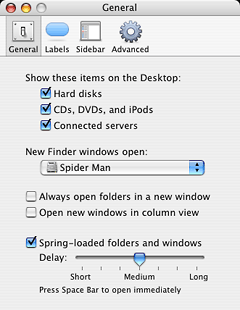 If you somehow found
the way to turn on the "feature" that opens every folder in a new
window, you can turn it off by pulling down the Finder menu,
selecting Preferences, and clicking on the General button. Then you
just need to uncheck the button where it says "Always open folders
in a new window". Whenever you click on a folder after that, the
Finder will use the existing window to display its contents.
If you somehow found
the way to turn on the "feature" that opens every folder in a new
window, you can turn it off by pulling down the Finder menu,
selecting Preferences, and clicking on the General button. Then you
just need to uncheck the button where it says "Always open folders
in a new window". Whenever you click on a folder after that, the
Finder will use the existing window to display its contents.
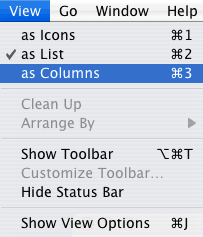 Another way to use your
windows more efficiently is to pull down the View button and choose
Columns. This will give you columns to display the folders and
files in Finder windows. The path works this way: to the left, you
will ultimately find your hard disk drives, and to the right, your
folders and files will be listed.
Another way to use your
windows more efficiently is to pull down the View button and choose
Columns. This will give you columns to display the folders and
files in Finder windows. The path works this way: to the left, you
will ultimately find your hard disk drives, and to the right, your
folders and files will be listed.
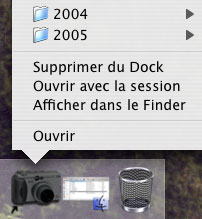
The Dock
I hate the Dock, but most OS X users find it useful. With single drag and drop moves, the Dock can store icons for frequently-used applications and folders. Take any application icon and drag it to the first part of the Dock, to the left of the separator. Now you will be able to launch it with a single click. This is much better than putting the icon on the Desktop. Do the same thing with folders to the right of the separator, and you will be able to view its content and open items with a control-click (or a right-click on multibutton mice).
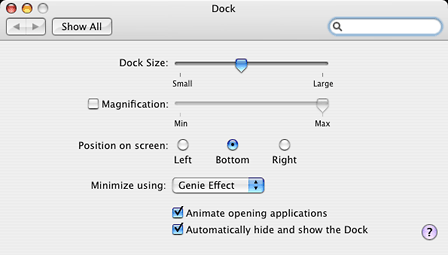
Dock options
To customize the appearance of the Dock, pull down the Apple menu and select System Preferences. Click on the Dock button. You can put the Dock to the left of the screen, at the bottom (which is the default) or on the right. You can choose to have it displayed at all times or only when you move you mouse around it, and adjust its size.
DragThing
Do you want a Dock on steroids? For users who need more power and limitless ways to personalize their own docks, DragThing (US$29) can be a wise investment. With its added flexibility, you can create multiple docks, give them any appearance, and put them anywhere on your screen. You can use them to hold applications, folders, hard drives, and other things, and make them behave the way you want.
As a bonus, DragThing allows you to put a Trash icon on the Desktop - you can even rename it - and it has a neat function to hide windows when you switch between applications. I may write more about DragThing in a later column. I've been using it for more than five years, and I don't want to work with any other launcher.
Most of the above tips are fairly basic, but they can help you
become more organized and more productive on your computer.

- Link: DragThing (US$29)
Join us on Facebook, follow us on Twitter or Google+, or subscribe to our RSS news feed
Michel Munger is a journalist who lives in Montréal. He discovered the Mac in 1994, and his work on a PC reminds him every day why he embraced Apple's platform. Munger has also authored some MacDaniel columns.
You can learn more about him on his personal website.
Today's Links
- Mac of the Day: Performa 5200, introduced 1995.04. The first PowerPC all-in-one was also one of the worst Macs ever made.
- June 13 in LEM history: 00: Dark side of cable modems - 01: File transfer - 02: 10 tips for more efficient Mac use - OS X from a Linux perspective - 03: Text browsers - Hard drive upgrade tutorials - Switching to OS X - 03: Apple's first Mac OS on Intel project - 06: Moving files to your vintage Mac - 07: Parallels 3 narrows the gap - 08: Environmentally responsible Mac retirement - Old Mac data retrieval
- Support Low End Mac
About LEM Support Usage Privacy Contact
Follow Low End Mac on Twitter
Join Low End Mac on Facebook
Favorite Sites
MacSurfer
Cult of Mac
Shrine of Apple
MacInTouch
MyAppleMenu
InfoMac
The Mac Observer
Accelerate Your Mac
RetroMacCast
The Vintage Mac Museum
Deal Brothers
DealMac
Mac2Sell
Mac Driver Museum
JAG's House
System 6 Heaven
System 7 Today
the pickle's Low-End Mac FAQ
Affiliates
Amazon.com
The iTunes Store
PC Connection Express
Macgo Blu-ray Player
Parallels Desktop for Mac
eBay

