

Become a Mac Mail Power User
- 2005.08.24
Apple Mail, which ships with every version of Mac OS X since Apple first released it, is the most commonly used application on the platform. It is well known, but some features are often overlooked.
- Why IMAP Beats POP3
- Smart Mailboxes
- Flagged Messages
- Bounce Messages
- Rebuild a Mailbox
- Append Messages
- Modify the Quote Level
- Previous Recipients
- Connection Doctor
Why IMAP Beats POP3
When people set up email accounts, their first impulse is to select the POP (technically called POP3) configuration. The POP account type is quite simple: your mail waits for you on the mail server, and every time you check your mailbox, you download your email to your computer and delete it from the server (unless you asked the application to leave it there).
The big drawback to POP mail is that once your messages are deleted from the server, you can't access them from anywhere other than that computer. Even if you leave it on the server, any edits, priority changes, flags, and other changes won't be reflected by the copy on the server.
This is where you should consider using IMAP instead of POP. IMAP leaves the mail on your server when you view it, and it synchronizes every folder (or mailbox) on your computer with the content on the server for you to access any message instantly. When you send mail and make change to your messages, everything is saved on the server.
This is much better than a POP configuration if you use more than one computer, especially if you have access to your email from a Web interface. IMAP allows both your email software and the Web interface to "share" every bit of information, thus adding flexibility.
Another huge advantage: Should you decide to use a different email client - such as Eudora, Microsoft Entourage, Mozilla Thunderbird, or GyazMail - you won't have to import your email! Everything is sitting on the server, so the only task is to set up access to the account in your new program.
You should also benefit from one more thing: Your service provider makes regular backups and restores the data if a server crashes and loses anything. You won't have to back your messages up yourself - your ISP will do it for you.
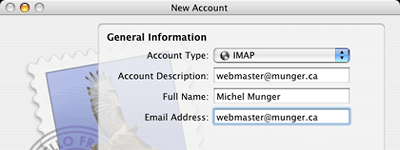 If your email
account is already active, it is not too late to switch. Pull down
the File menu and click on Add Account. Right besides Account Type,
click on the popup menu and select IMAP. Proceed to create your
account with your login information. Fine tune the account
preferences and filters to your liking. Recreate your folders in
the new account (by pulling down the Mailbox menu and selecting New
Mailbox), and they will be remembered on the server when you access
them using a Web interface.
If your email
account is already active, it is not too late to switch. Pull down
the File menu and click on Add Account. Right besides Account Type,
click on the popup menu and select IMAP. Proceed to create your
account with your login information. Fine tune the account
preferences and filters to your liking. Recreate your folders in
the new account (by pulling down the Mailbox menu and selecting New
Mailbox), and they will be remembered on the server when you access
them using a Web interface.
After that, all you have to do is drag and drop your messages from your old POP folders to the IMAP mailboxes, and they will be visible in the newly created account. Everything will also be copied to the server.
Normally, Internet providers support both POP and IMAP on the same servers, but some of them require that you use a separate address for IMAP. If your default configuration does not work with IMAP, contact your ISP to obtain the appropriate server address.
After recreating your account with IMAP, just delete the old POP settings. Pull down the Mail menu and select Preferences. Click on the Accounts button. In the window, select the POP account and reach for the button with a minus (-) sign on it. Click on OK to confirm the deletion.
Smart Mailboxes
Now that you know how to use a better type of account, there are plenty of other things you can do in Mail.
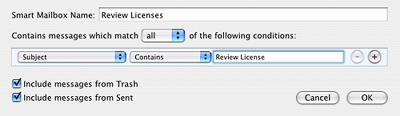 One of my
favorite features is the Smart Mailboxes. These work the same way
than the Smart Playlists in iTunes and Smart Folders in the Finder.
By giving specific criteria to a mailbox, you tell Mail to regroup
certain types of messages together for easy viewing in one
window.
One of my
favorite features is the Smart Mailboxes. These work the same way
than the Smart Playlists in iTunes and Smart Folders in the Finder.
By giving specific criteria to a mailbox, you tell Mail to regroup
certain types of messages together for easy viewing in one
window.
The example from my setup (see screen shot) uses the subject line attribute for a smart mailbox. For the iBasics column, I sometimes request software review licenses in order to try software I would not use for my personal needs, and I like to keep track of both the messages I sent and received about it. By creating a smart mailbox, I can regroup the messages easily because I include Review License in the subject line of every related message.
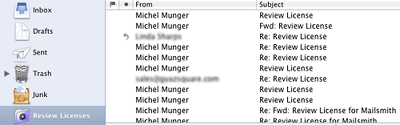 To create a smart mailbox, pull down the Mailbox
menu and select New Smart Mailbox. Then give the mailbox a name and
select the criteria that should be used. The possibilities are
limitless. When you want to add criteria, click on the plus (+)
sign in the window. Use the minus (-) sign to remove anything.
To create a smart mailbox, pull down the Mailbox
menu and select New Smart Mailbox. Then give the mailbox a name and
select the criteria that should be used. The possibilities are
limitless. When you want to add criteria, click on the plus (+)
sign in the window. Use the minus (-) sign to remove anything.
After creating your smart mailbox, you will notice that the folder icon is slightly different from the standard icon. It differentiates your smart mailboxes from the ordinary mailboxes.
Flagged Messages
A good way to mark the importance of a message in Mail is to flag it. Most email software will support this, and the flag will be easily noticeable. If you use an IMAP setup, your Web interface should normally show the flagged status, as mine does (see screen shot).


Bounce Messages
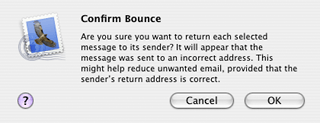 Someone sent you
a message, and you don't want to correspond with that person
anymore. You can bounce the message and pretend that your account
no longer exists.
Someone sent you
a message, and you don't want to correspond with that person
anymore. You can bounce the message and pretend that your account
no longer exists.
Open the message and pull down the Message menu. Then select Bounce. Click OK. This will send the original sender a message called "Returned mail: User unknown" as if the delivery failed.
 Rebuild a Mailbox
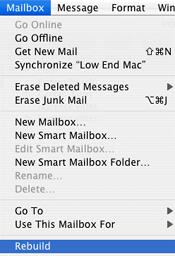
When viewing messages, do you have the impression that something is wrong with it? Or do you have a lot of mail going in and out of a mailbox? It may be a good thing to rebuild the mailbox every once in a while to keep it small and clean.
To do this, make sure that the mailbox is selected in the left column of Mail's main window. Then pull down the Mailbox menu. Select Rebuild. Depending on the size of the mailbox and the number of messages inside it, it can take some time to rebuild.
Append Messages
You have had a lengthy exchange with a colleague, and you want to forward it all to another colleague and add a comment on top of it. How can you do that without opening every single message and doing a tedious copy-paste job? Mail will tackle it better than Ray Lewis could take down any running back.
Make sure that the messages you want to quote are selected in the mailbox. Pull down the File menu and select New Message. Fill out the recipient field and give it a subject line. Then pull down the Edit menu and select Append Selected Messages. Magically, all the text will appear in your new message. Add your comment on top of it and hit Send.
Modify the Quote Level
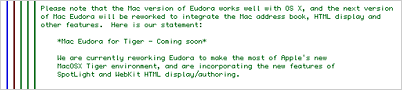 When a message
is forwarded several times or when an email exchange gets long, the
quoting level can be high. In Mail, you get different quoting lines
in different colors (see example on right).
When a message
is forwarded several times or when an email exchange gets long, the
quoting level can be high. In Mail, you get different quoting lines
in different colors (see example on right).
Want to decrease the level a bit? Just pull down the Format menu and highlight the Quote Level item. Then select Decrease Level. You can also increase the level if you'd like.
Previous Recipients
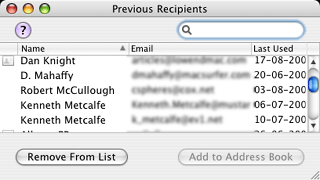 Someone has exchanged email with you,
and you didn't add that person to your Address Book. You don't have
his/her email address anymore, and you need to get in touch
again.
Someone has exchanged email with you,
and you didn't add that person to your Address Book. You don't have
his/her email address anymore, and you need to get in touch
again.
What can you do?
Pull down the Window menu and select Previous Recipients. Mail will display a neat little window with all the names and addresses of people you have sent messages to, along with a few buttons to send new messages.
Connection Doctor
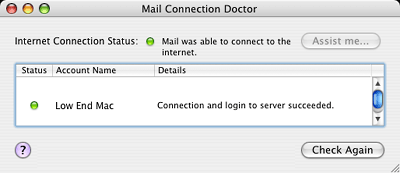 You think that your mail server is down, and
you're not familiar with network tools? You can easily verify your
server's status. Pull down the Window menu and select Connection
Doctor. Mail will check your Internet connection and try to contact
your mail server. You will soon know if your connection is still
working and if the mail server is down.
You think that your mail server is down, and
you're not familiar with network tools? You can easily verify your
server's status. Pull down the Window menu and select Connection
Doctor. Mail will check your Internet connection and try to contact
your mail server. You will soon know if your connection is still
working and if the mail server is down.
As you can see, Apple Mail can do much more than we usually think. By the way, don't forget to control-click (or right-click with a multiple-button mouse) on the main toolbar and select Customize Toolbar. Apple Mail is one of the applications that give you the most options to add and delete toolbar buttons.
Enjoy using Mail! 
- Link: Eudora
- Link: GyazMail
- Link: Microsoft Entourage
- Link: Mozilla Thunderbird
Join us on Facebook, follow us on Twitter or Google+, or subscribe to our RSS news feed
Michel Munger is a journalist who lives in Montréal. He discovered the Mac in 1994, and his work on a PC reminds him every day why he embraced Apple's platform. Munger has also authored some MacDaniel columns.
You can learn more about him on his personal website.
Today's Links
- Mac of the Day: Performa 5200, introduced 1995.04. The first PowerPC all-in-one was also one of the worst Macs ever made.
- June 13 in LEM history: 00: Dark side of cable modems - 01: File transfer - 02: 10 tips for more efficient Mac use - OS X from a Linux perspective - 03: Text browsers - Hard drive upgrade tutorials - Switching to OS X - 03: Apple's first Mac OS on Intel project - 06: Moving files to your vintage Mac - 07: Parallels 3 narrows the gap - 08: Environmentally responsible Mac retirement - Old Mac data retrieval
- Support Low End Mac
About LEM Support Usage Privacy Contact
Follow Low End Mac on Twitter
Join Low End Mac on Facebook
Favorite Sites
MacSurfer
Cult of Mac
Shrine of Apple
MacInTouch
MyAppleMenu
InfoMac
The Mac Observer
Accelerate Your Mac
RetroMacCast
The Vintage Mac Museum
Deal Brothers
DealMac
Mac2Sell
Mac Driver Museum
JAG's House
System 6 Heaven
System 7 Today
the pickle's Low-End Mac FAQ
Affiliates
Amazon.com
The iTunes Store
PC Connection Express
Macgo Blu-ray Player
Parallels Desktop for Mac
eBay

