

Fine Tune iTunes for Superior Sound Quality
- 2005.08.18
Putting audio on a computer probably was one of the coolest inventions since sliced bread. With a bit of hardware and software, you can take your favorite songs, arrange them for a CD, shuffle them and play them on your home stereo, or take them on the road on your iPod.
But how do you ensure that you get quality sound the whole time? How do you make sure you don't eat up too much storage space?
Pick the Right Encoding
Everything starts with encoding. Say that you have a CD in your hand or a choice to make when purchasing music online, and you need to rip the songs to your hard drive without eating up too much space on your hard drive and/or iPod.
Let's be blunt: The MP3 format is technologically archaic. The AAC format (also called MP4) and its more modern compression allow users to get better sound while using less disk space.
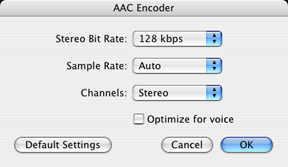 Using AAC instead of MP3 was mainly Apple's
recommendation at first, but it turned out to be the right one. I
am a bit of an audio nut, and throughout the years I tried pretty
much all the formats. My conclusion is that AAC at the 128 kbps bit
rate is the best possible compromise.
Using AAC instead of MP3 was mainly Apple's
recommendation at first, but it turned out to be the right one. I
am a bit of an audio nut, and throughout the years I tried pretty
much all the formats. My conclusion is that AAC at the 128 kbps bit
rate is the best possible compromise.
You get great sound quality, even on a home stereo system, using up about a megabyte of disk space for a minute of music. On my own setup, I have about 1,500 songs and they take up to 6.8 GB of space, while a smaller collection of high-quality MP3 files ate up 10 GB.
For equal sound quality, the AAC format means serious megabyte savings.
Why AAC?
Should you work with uncompressed CD audio files (AIFF)? If you can afford 600 MB to 700 MB to store the number of songs a commercially released CD can hold, sure.
Should you rather use the Apple lossless format? It will reduce the amount of space needed by about 50%. Again, it's a question of storage. If ripping a CD requires 300 MB, ripping 10 CDs requires 3 GB.
For most users, AAC gives much more bang for your buck at 60-80 MB per CD, and on a good stereo system, only audiophiles will really notice a difference in sound quality in comparison with a CD, AIFF file, or lossless track.
You may use lower quality MP3 files (at 96 or 128 kbps bit rate) if you encode files for a computer with small speakers, but anyone who wants quality sound from their iPod, uses good computer speakers, or burns CDs should go with AAC at 128 kbps.
To set up your sound import preferences, pull down the iTunes menu when iTunes is active, and select Preferences. Click on the Importing button. Choose AAC Encoder and in the Setting popup menu, choose High Quality. For the spoken word or podcast, you can use the Podcast preset.
When you are done encoding your music in AAC, you have a perfect music library for playback, CD burning and transfers on an iPod.
Burning to CD
Burning a CD on the Mac is simple with all the integration offered by iTunes, but there are a couple of hurdles to jump in order to make sure that everything is kosher for best sound quality.
Most CD and DVD players available on store shelves support MP3 playback. But for the reasons stated above, you should still avoid using MP3, even when it means not being able to squeeze 200 songs onto a CD.
You want quality, right? Then, you should favor audio CD as your burning format. When you burn a CD from AAC files, iTunes will convert the music into standard audio CD files, which means that you can put up to 80 minutes of music on a CD.
To change your burning preferences, pull down the iTunes menu and select Preferences. Click on Burning and click on the Audio CD radio button.
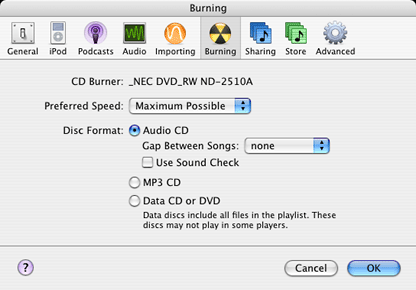
In the same window, you get a popup menu that allows you to change your CD burning speed. Which to choose? Unless you had bad experiences with it in the past, pick the fastest speed. Today's burners are made to burn discs at their fastest speed, and some manufacturers will even warn you that if you burn CDs at much lower speeds, they may not work. In addition, slower speeds mean more time to burn the disc....
Playback
Any self-proclaimed audio nut (that would be me) will tell you that there is more to playback than just pressing the Play button. To make sure that your sound comes out right, your software and hardware have to be fine tuned. The right bass settings or wrong sound effects can change everything.
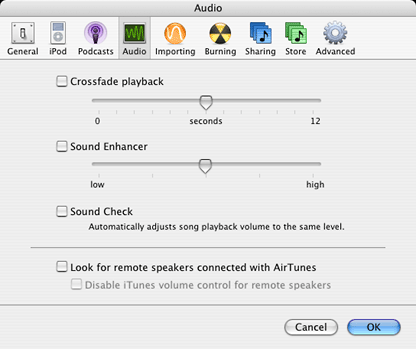
In the iTunes preferences, click on the Audio button. Apple offers you a few "special effects". My advice? Don't use them.
Crossfade playback may be okay if you like to overlap the ending of each song with the beginning of the next, but stay away from the Sound Enhancer. It distorts sound. I wouldn't use Sound Check either. The best way to adjust the volume is to do it manually so it will be just right to you.
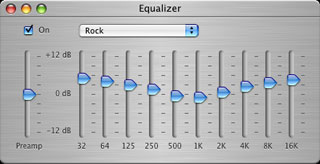 The next thing to
do is to use the Equalizer efficiently. When you pull down the
Window menu, you can select the Equalizer, and then a window that's
filled with sliders will appear. If you already know how to use
these, you don't need my help.
The next thing to
do is to use the Equalizer efficiently. When you pull down the
Window menu, you can select the Equalizer, and then a window that's
filled with sliders will appear. If you already know how to use
these, you don't need my help.
If you are not too sure what to make of the equalizer, Apple has done a good job by providing a bunch of good presets. Just choose the preset that goes with the style of music that you are listening to and click on okay. By the way, Rock will do fine with anything heavier than rock, such as punk and metal. There also is a preset for small computer speakers.
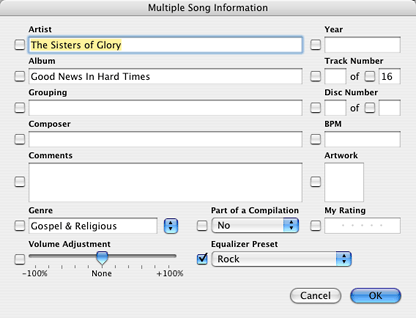
To avoid messing around with the equalizer every time you listen to a different style of music, you should associate your songs with the appropriate equalizer setting. Select the single song or a group of songs, Control-Click (or right-click with a two-button mouse), and select Get Info. In the bottom right corner (see image above), there is the Equalizer Preset option. Click on the small checkbox on the left and choose the preset. Do this for every song or group of songs and you are done.
Now that you are done fine tuning iTunes, enjoy your music! 
Join us on Facebook, follow us on Twitter or Google+, or subscribe to our RSS news feed
Michel Munger is a journalist who lives in Montréal. He discovered the Mac in 1994, and his work on a PC reminds him every day why he embraced Apple's platform. Munger has also authored some MacDaniel columns.
You can learn more about him on his personal website.
Today's Links
- Mac of the Day: Performa 5200, introduced 1995.04. The first PowerPC all-in-one was also one of the worst Macs ever made.
- June 13 in LEM history: 00: Dark side of cable modems - 01: File transfer - 02: 10 tips for more efficient Mac use - OS X from a Linux perspective - 03: Text browsers - Hard drive upgrade tutorials - Switching to OS X - 03: Apple's first Mac OS on Intel project - 06: Moving files to your vintage Mac - 07: Parallels 3 narrows the gap - 08: Environmentally responsible Mac retirement - Old Mac data retrieval
- Support Low End Mac
About LEM Support Usage Privacy Contact
Follow Low End Mac on Twitter
Join Low End Mac on Facebook
Favorite Sites
MacSurfer
Cult of Mac
Shrine of Apple
MacInTouch
MyAppleMenu
InfoMac
The Mac Observer
Accelerate Your Mac
RetroMacCast
The Vintage Mac Museum
Deal Brothers
DealMac
Mac2Sell
Mac Driver Museum
JAG's House
System 6 Heaven
System 7 Today
the pickle's Low-End Mac FAQ
Affiliates
Amazon.com
The iTunes Store
PC Connection Express
Macgo Blu-ray Player
Parallels Desktop for Mac
eBay

