
Apple Archive
Image Previews, One More Place Where Windows Trumps Macs
- 2004.10.15
Windows offers a number of things that the Mac doesn't - viruses, spyware, massive system crashes, insanely complex hardware incompatibilities, devices that for no apparent reason aren't recognized by the systemÖ.
But along with all of the bad things, there are a number of positive features, such as image previews or thumbnails.
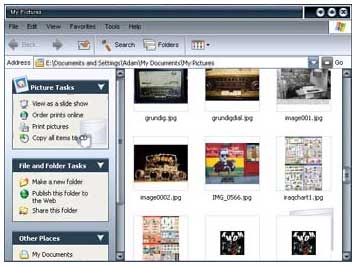 When you save a picture file in
your "My Pictures" folder, Windows will actually show a fairly
large-size thumbnail of the photo so you know exactly what photo
you're about to open.
When you save a picture file in
your "My Pictures" folder, Windows will actually show a fairly
large-size thumbnail of the photo so you know exactly what photo
you're about to open.
In Mac OS 9, not only is the preview too small to be of any help, it's also completely inconsistent. If you created or edited the image with a specific application, it may or may not save with a preview. If it does, great. If not, then you've probably got some sort of generic icon telling you which application the image will open up in.
How about OS X, though? OS X handles images much better than OS 9, but image previews remain inconsistent. If you want a see a preview of the image, you have to switch to column view and actually select the image in question! For someone, such as me, who prefers icon view, this is a pain.
Yes, Microsoft actually got something right. In Windows 2000 and XP, image handling is very good. All images have previews, and they're large previews if you select the "View Thumbnails" option, which is on by default for the My Pictures folder.
Why is this so important? If you've got a digital camera, you probably know that it saves its images with names like DSCN00683.JPG. That name right there clearly tells you that it's a picture of a yellow Volkswagen.
This is part of the reason the image preview is so useful. In Windows, if you'd like, you can look through your My Pictures folder filled with "DSCNxxxx.JPG" files until you come across the picture of the car and then rename it something more descriptive - yellowbeetle.jpg, perhaps - without opening each file to see if it's the correct one.
What happens if you're trying to open the file from Photoshop or another graphics editor? In Mac OS 9, you often don't have the option to view previews or thumbnails of the image in the "Open" dialogue box. In the rare occasions that you do, chances are the image you're thinking about using won't have a preview available.
Mac OS X improves this a little bit; usually a preview will be shown if you click once on the item you're considering opening. But that's one extra step, and while it may sound like I'm complaining about loose threads, it is a true annoyance.
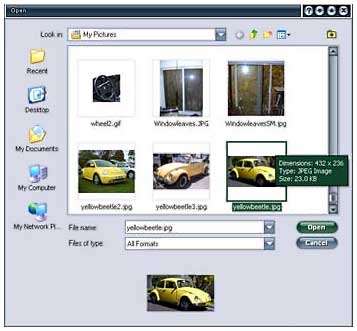 One of my favorite step/time-savers in
Windows XP is that you can choose to see thumbnails of the images
you might want to open in the Open dialogue box. How are you
supposed to remember the difference between yellowbeetle.jpg,
yellowbeetle2.jpg, and yellowbeetle3.jpg? Opening each one and
looking at is a pain and a waste of time. Thankfully you can see
each image - without even having to click on it - right there in
the Open dialogue box.
One of my favorite step/time-savers in
Windows XP is that you can choose to see thumbnails of the images
you might want to open in the Open dialogue box. How are you
supposed to remember the difference between yellowbeetle.jpg,
yellowbeetle2.jpg, and yellowbeetle3.jpg? Opening each one and
looking at is a pain and a waste of time. Thankfully you can see
each image - without even having to click on it - right there in
the Open dialogue box.
Until Apple figures out how to simplify their image handling (and I'm not talking about iPhoto - rather, direct in-Finder dealings with image files), there is one thing that you can do in Mac OS X to make things more bearable. Since Mac OS X typically shows thumbnails on its image icons, if you increase the size of the icon you can get a decent-sized thumbnail image. If you only do it to your pictures folder, the rest of the system will remain unchanged. This way, the next time you try to figure out what the difference between yellowbeetle.jpg versions 1, 2, and 3, you'll be able to see it right there.
About LEM Support Usage Privacy Contact
Follow Low End Mac on Twitter
Join Low End Mac on Facebook
Favorite Sites
MacSurfer
Cult of Mac
Shrine of Apple
MacInTouch
MyAppleMenu
InfoMac
The Mac Observer
Accelerate Your Mac
RetroMacCast
The Vintage Mac Museum
Deal Brothers
DealMac
Mac2Sell
Mac Driver Museum
JAG's House
System 6 Heaven
System 7 Today
the pickle's Low-End Mac FAQ
Affiliates
Amazon.com
The iTunes Store
PC Connection Express
Macgo Blu-ray Player
Parallels Desktop for Mac
eBay

