
Zis Mac
Alan Zisman on the Mac
Pinnacle Video Capture for Mac an Easy Way to Digitize Videotape
- 2009.02.02 (updated) - Tip Jar
Follow Alan Zisman on Twitter.
One of the problems of our digital age is switching formats.
Dealing with file formats is one side of it - I've got documents I created in the late 1980s and early 1990s using Ami Pro, the first full-featured Windows word processor, predating Microsoft's Word for Windows. It offered easy page layout features that still surpass anything Microsoft builds into any version of Word. But working with those documents today - whether on a Mac or Windows - is a bit of a chore. (Thank you, DataViz, for file converter utilities like Maclink Plus and Conversions Plus for Windows).
Hardware formats also continue to evolve, leaving users in a bit of a quandary. I've got data on 5-1/2" and 3-1/2" floppy disks, and on 100 MB Zip disks. Music on 33, 45, and 78 rpm vinyl records, 8-track and cassette tape, and CD audio discs. Video on various camcorder tapes - analog and digital, VHS cassettes, and DVD. (There are lots of other formats for these things - these are just the ones I have to deal with).
Many of us end up with shelves of records, tapes, videotapes, and more, along with stereo players, VCRs, and all the rest of the hardware needed to access the content that took us years and lots of money to accumulate. But it gets harder and harder to get parts when that 8-track player breaks down and pressure's on to downscale. Moreover, there's a lot that you can do with that old content if it's in new, digital formats.
When my daughter Kate (now 27) had her 8th birthday, she and her friends performed as 'The Black Band', pretending to play instruments and singing along with their favourites, The MiniPops - a group of preteen British kids singing pop songs who were big in their elementary school that year. My wife and I videotaped The Black Band and eventually copied the footage onto a VHS tape that we filled with clips of our family in that era.
Analog Video to Mac
Not long ago, Kate's best friend Molly, a charter Black Band member, asked if I'd posted the clips on YouTube yet. I hadn't - the delay being the need to get the clips from that old VHS tape onto my Mac. As a result of her prodding, I purchased a Pinnacle Video Capture for Mac (about $99).
There are more sophisticated video capture devices for Mac users - for consumers, Elgato's EyeTV lineup, for instance, promises better image quality and features like a built-in TV tuner, useful for watching TV on your Mac. (And, of course, there are all sorts of pro-level products at pro-level prices). But the 640 x 480 output promised by the Pinnacle device is about as good a quality as I could expect from the old videotapes I wanted to digitize, and it's price is more affordable that the more feature-laden alternatives.
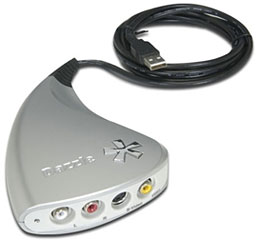 The hardware is simple: a roughly triangular silver-plastic
case with four inputs on one end and a cable with a USB connector on
the other.
The hardware is simple: a roughly triangular silver-plastic
case with four inputs on one end and a cable with a USB connector on
the other.
Pinnacle's Mac hardware apparently is identical to its Windows-equivalent, the Dazzle DVC-170; it even has 'Dazzle' stamped on top of the case. Only the software varies. I haven't tried it on a Windows system to see if it will work, but if you can get the Windows software, that ought to be the case. Nothing on the outside of the box mentions 'Dazzle', but that's how Pinnacle refers to the device in the ReadMe file.
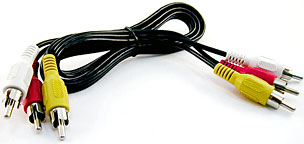 The connectors consist of an S-Video jack and three RCA jacks:
red and white for audio, yellow for video. Connection cables are not
included, but I had a 3-wire RCA cord in the garage, perfect for
connecting the Dazzle to my VCR.
The connectors consist of an S-Video jack and three RCA jacks:
red and white for audio, yellow for video. Connection cables are not
included, but I had a 3-wire RCA cord in the garage, perfect for
connecting the Dazzle to my VCR.
A software CD is included; installation is simple - drag the Pinnacle Video Capture utility to the Application folder, and you're done. The CD also has ReadMe files in various languages that outline minimum hardware and operating system requirements: Pinnacle suggests at least a 500 MHz G4 and Mac OS X 10.4.10, iTunes 7, and QuickTime 7.2. The utility needs about 50 MB of drive space, while saved video files take about a gigabyte per hour.
The ReadMe files also give a quick introduction to using the software with the device - and a quick introduction is all you need. This simplicity is either a blessing or a curse, depending on your needs.
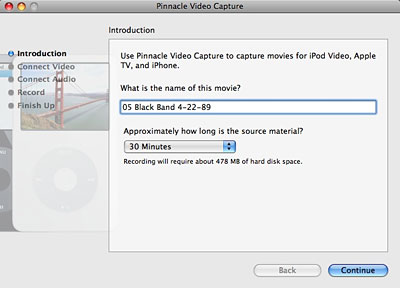
First, the software asks you to name your movie.
The software will refuse to run unless it finds the hardware connected - and if it finds its device, it first asks you to name the movie you want to capture and to set a projected length, choosing from lengths ranging from 30 to 120 minutes. The length you choose really doesn't matter unless, in a latter step, you choose the non-default option to automatically stop recording at the end of that time.
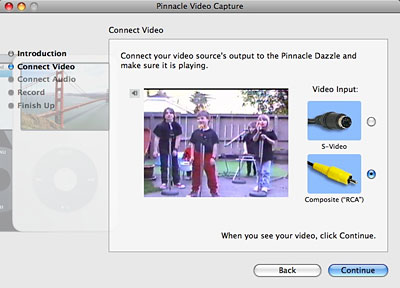
Next it needs to make sure you have a video source connected.
Next, the software waits to make sure the capture device is connected to a video source - in my case, a VHS video cassette player connected using RCA cables. If need be, it will wait patiently while you check your connections, waiting until you see that there's actually a picture before you click Continue.
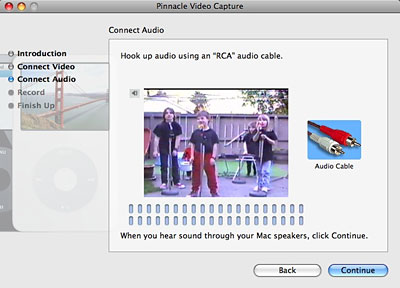
And then it needs to verify that you have audio input.
The next screen does the same for your audio connections - if you can hear sound through your Mac's speakers, everything's working correctly. It gives a visual indication of sound levels - if the sound level is too soft or too high, go to your Mac's System Preferences' Sound item, go to the Input tab, and adjust the Line In level up or down. (It would be nice if Pinnacle mentioned this in its software - or included a button to take users right there - but they don't).
To the left of the video picture - both in this setup window and while actually recording - there's a tiny button with a speaker icon. Clicking that turns off the sound, which can be handy. When I was digitizing my tape, the sound came out of both my TV and my computer - with a half-second delay between the two. Turning off the sound on my computer did not affect what was being recorded.
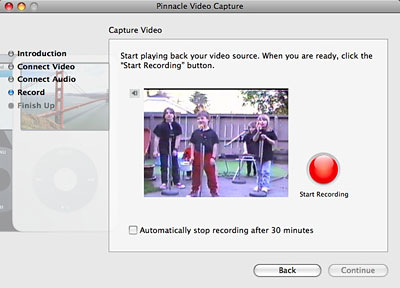
Click the big red button to start recording.
Click Continue and you're ready to go - just click the big red Start Recording button, and away you go. There's only a single option - whether to automatically stop recording at the end of the length you set in the first window. Unlike more sophisticated audio and video applications, there are no file format preferences to set, there are not even any choices to be made about where to save the files. In fact, Pinnacle's application has no preferences settings whatsoever, and while the menu bar has a minimalist set of standard menu items, none of them seems to do much of anything.
While you're recording, you'll see how much time is remaining from your original estimated length. (I would have preferred to see how much time had been recorded). The Start Recording button morphs to a blue Stop Recording button. When you click that, your video file is saved automatically, using the name you entered in the first window. It saves in MPEG-4 format into your iTunes Music Library's Movies folder, and the saved movie file automatically shows up in your iTunes library, ready to be sent to your iPod, iPhone, or Apple TV the next time you sync.
Simple and straightforward.
There is one oddity, however. Rather than simply digitize the two hours of video clips of my family into one large file, I wanted to save each event as a separate file. No problem - rewind the tape to the beginning, fire up the Pinnacle software, and start to record. Stop recording and pause the video at the end of the first clip. So far so good.
But when you stop recording, the Pinnacle software closes its record window. And even though the software's still running, there doesn't seem to be a way to start recording again. All I can see is to shut it down, start it up, and start all over again. (The ReadMe file promises a window with an 'Again' option - I never saw that!)
Inevitably, the resulting video files will suffer from any flaws that are in the original source material - many of the clips that I was digitizing were of pretty low quality: analogue copying from a camcorder to VHS player resulted in some pretty blocky video to begin with.
Considering that, the digital files look as good, played back onto a standard TV, as the VHS original did. They looked even better on the smaller screen of my iPod touch.
It would be nice if the device would work with iMovie; I opened iMovie '08 but was unable to get it import video from the Pinnacle device; after the clips are imported into iTunes, they can be used in an iMovie project. Since the Pinnacle Video Capture program automatically adds the clips to iTunes, it's easy to put them onto an iPod or iPhone - making a video DVD was more of a challenge, however.
iMovie/iDVD ought to work, but frankly, I've never found either - and especially iDVD - as easy to use as Apple claims, though the Magic iDVD option sort of works if you don't need to fine-tune the clips. Maybe I'll be happier with iWork '09....
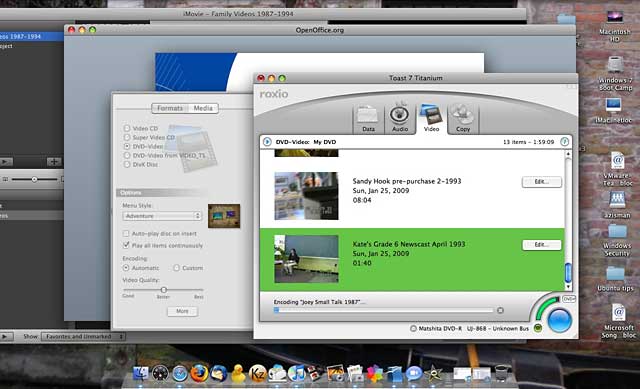
Toast, iTunes, and iDVD can all be used to record the video clips
onto a DVD.
Perhaps the quickest way to get a useable DVD was simply to create a data DVD disc. I could have used Toast for this, but I simply did it from an iTunes playlist, letting me print a nice mosaic-style cover. I was pleased to find that this data disc played just fine on my home DVD player hooked up to my TV, displaying a bare-bones menu letting me choose between the multiple clips.
There's been some discussion online about the Pinnacle device losing sync between video and audio, especially in longer recordings. I digitized a 60 minute video clip and didn't notice this, but your mileage may vary.
You're not going to get HD or DVD quality out of this device, but then you're starting with source material that isn't up to those standards. If straightforward digitizing of relatively low-quality originals is what you want, this could be an affordable way to get it.
If you need higher quality or more choice in video formats and other
options, there are lots of other higher-priced options.

Purchase Link
Join us on Facebook, follow us on Twitter or Google+, or subscribe to our RSS news feed
Alan Zisman is Mac-using teacher and technology writer based in Vancouver, BC, Canada. Many of his articles are available on his website, www.zisman.ca. If you find Alan's articles helpful, please consider making a donation to his tip jar.
Today's Links
- Mac of the Day: Motorola StarMax 3000, introduced 1999.09.07. This inexpensive clone used lots of off-the-shelf parts.
- Support Low End Mac
Recent Content
About LEM Support Usage Privacy Contact
Follow Low End Mac on Twitter
Join Low End Mac on Facebook
Favorite Sites
MacSurfer
Cult of Mac
Shrine of Apple
MacInTouch
MyAppleMenu
InfoMac
The Mac Observer
Accelerate Your Mac
RetroMacCast
The Vintage Mac Museum
Deal Brothers
DealMac
Mac2Sell
Mac Driver Museum
JAG's House
System 6 Heaven
System 7 Today
the pickle's Low-End Mac FAQ
Affiliates
Amazon.com
The iTunes Store
PC Connection Express
Macgo Blu-ray Player
Parallels Desktop for Mac
eBay

