
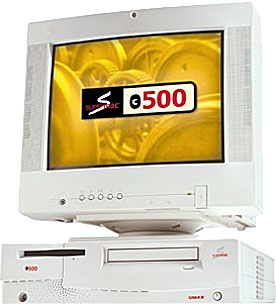
The SuperMac C500 and C600 used the PowerPC 603e CPU in a great variety of speeds, ranging from 140 MHz to 280 MHz on a 40 MHz system bus. The best performance, short of a G3 upgrade, comes from using a fast CPU along with the Cache Doubler module.
CacheDoubler replaces the stock 256 KB cache on the 40 MHz motherboard with a 1 MB (four times as large) 80 MHz (twice as fast) cache that sits between the motherboard and the CPU. Two different versions of CacheDoubler were produced: one for 200 and 240 MHz processors, and one for a 280 MHz CPU.
Installing the CacheDoubler in the C600 is apparently quite easy, but not so in the C500, which has a much more compact case. The CacheDoubler I ordered came with no instructions, so I had to figure it out as I went along.
Step By Step
- Turn off the computer.
- Unplug the power cord.
- Remove the lid. There is a thumbscrew on the back, as well as a pair of tabs, one on each side.
- Remove the front faceplate. There are three tabs which must be pushed down to release the faceplate.
- Remove the frontmost memory DIMM.
- Remove the two screws holding the floppy drive in place. On is to the left of the slot, the other just below it.
- Push the floppy drive back and remove it.
- Remove the cache from the motherboard. This is between the processor and the front of the computer, below the floppy drive.
- Remove the processor by lifting the silver lever and gently lifting the CPU.
- Install the CacheDoubler. The bulk of it goes beneath the floppy drive. It only fits one way. Be sure to lock it in place with the silver lever you used to remove the processor.
- Insert your processor in the ZIF socket on the CacheDoubler card. Again, it only fits one way. Be sure the silver lever is up before inserting the processor, then lock it in place.
- Reinstall the floppy drive. If you disconnected the cable, be sure to reconnect it.
- Replace screws that hold the floppy drive in place.
- Reinsert the memory module you had to remove so you could slide the floppy drive out.
- Reattach the faceplate.
- Reinstall the cover.
- Plug in your computer.
It’s not a difficult process, but there are a lot of easy steps. You may want to test the computer after step 14 to make sure the CacheDoubler, CPU, and memory DIMM are inserted correctly.
For a performance overview of CacheDoubler, see our benchmark page for the C500.
Although CacheDoubler does great things for performance, field reports indicate you cannot use a USB PCI card with CacheDoubler installed.
Keywords: #cachedoubler
searchqword: cachedoubler
