
2007: One of the biggest hassles of the vintage Macintosh hobby is loading software onto your first older Mac. To get that vintage Mac up-and-running, you need to be able to write downloaded software onto disks that an older Mac can read. And that’s what we’ll talk about: Free tools for writing Mac floppy disks and HFS CD-ROMs using modern Mac, Windows, and Linux computers.
Floppy Disk Images
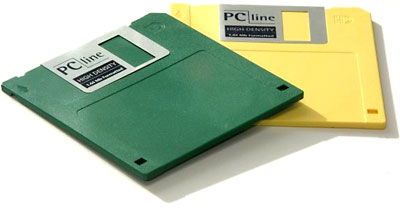 Installing System 6 or System 7.0.1 onto an older Mac is only possible using floppy disks, and the first step to installing System 7.5 is usually “boot from a floppy”. These floppies are distilled into disk images you can download from the Web. When written to a floppy, these images create exact copies of the master disks.
Due to physical differences between Mac and PC floppy drives, 800K double density Mac floppies can only be written by other vintage Macs. This means that boot disks for a Mac 128K, 512K, 512Ke, Plus, pre-FDHD SE, or un-upgraded Mac II cannot be made on a Mac OS X, Linux, or Windows machine. (All other vintage Macs have a 1.4 MB SuperDrive or FDHD [Floppy Disk, High Density] floppy drive, which is compatible with modern computers.)
StuffIt Expander
Many sources of Mac floppy disk images distribute them in StuffIt (.sit) format. Before these disk images can be written onto real floppy disks, they must be decompressed with StuffIt Expander. This free program is available for Mac, Windows, and Linux/i386.
If StuffIt Expander isn’t available, attempt to find the necessary disk image in uncompressed Disk Copy 4.2 format. These will be immediately useful without any decompression.
I’m currently cooking up some Mac boot floppies that will make installing System software a breeze. I hope to make them available soon using Disk Copy 4.2 format for maximum cross-platform convenience.
Writing a Floppy Disk from an Image
Classic Mac OS
With Mac OS 9 and earlier, just use Disk Copy 6.3.3, which you can freely download from Apple. From the Utilities menu, choose Make a Floppy… and follow the directions onscreen.
Windows
The Windows utility Rawrite can be used to write image files to a floppy using a PC. Put the disk image file and Rawrite into drive C, open a DOS window, type C:\Rawrite, and follow the directions. For more information, read this FreeDOS page.
Linux
Linux users can use the “dd” command to write floppies from image files. If the image file is a raw image, a simple “dd if=path_to_image_file of=path_to_floppy_drive” will do the trick. For a DiskCopy image, “dd if=path_to_image_file of=path_to_floppy_drive bs=84 skip=1” is the right way, according to The pickle’s Low-End Mac FAQ.
Mac OS X
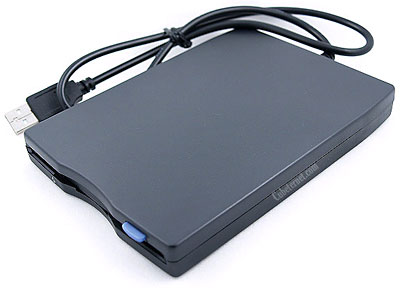 At this time, I am not aware of a good, user-friendly way to write floppies from disk images using Mac OS X. Highly advanced users will probably be able to connect a USB floppy drive, determine its device node, and use the method outlined above for Unix-like systems.
Readers with further information are encouraged to email their stories or techniques so we can update this article.
The Mac’s HFS File System
Before we talk about how to burn CDs for older Macs, it’s important to understand why it’s sometimes difficult. It has to do with the way the Mac stores its files using the HFS file system.
A Macintosh file has two “forks” inside it, the Data Fork and the Resource Fork. The Data Fork is like a file on any other computer system, and it’s where universal data (like MP3 songs, JPEG pictures, and plain text) reside. The Resource Fork is a special part that other computers lack. It stores various objects (such as icons, window and menu definitions, and sounds) and helps to make the Mac a Mac.
With the right software, it’s possible to teach other computer systems about the Mac’s resource fork; I don’t consider it to be worth the effort.
We’ll focus on how to burn HFS CDs containing data-only files, such as Internet downloads. It’s much more sensible to let the older Mac decode them itself than to try to do it on a modern computer.
Burning HFS CD-ROMs
Classic Mac OS
The Classic Mac OS makes this easy – every CD burning application has an obvious “HFS” format option. It’s usually the default choice. Even the built-in Disc Burner that comes with Mac OS 9 can make HFS CDs that work with System 7 Macs.
Mac OS X
Mac OS X speaks HFS, though it has mostly abandoned it for the newer HFS+ format. To burn a System 7-compatible HFS CD in OS X, first create a new disk image using Disk Utility. Select it in the left-side list and click on the Erase tab. Choose Mac OS Standard from the Volume Format dropdown and click the Erase button.
Now copy the files of your choice onto the disk image. When you’re done, unmount the disk image by selecting it and choosing Eject. Enter Disk Utility again and use the Burn Image command to create an HFS-formatted CD readable by all old Macs.
Update: This article was written before OS X 10.6 Snow Leopard. It and later versions of OS X cannot create disk images compatible with vintage Macs, although they can burn CDs from existing compatible disk images. OS X 10.5 Leopard and earlier can create compatible disk images.
Windows
Windows can create HFS CDs using free software called HFVExplorer. Although the program’s homepage seems to have gone offline, you can find it on archive.org. Once you’ve unpacked the software, choose New Image from the File menu. Name your image file and choose an appropriate size.
HFVExplorer’s user interface is modeled after Windows Explorer, so it’s easy to copy the files of your choice onto the CD image. Once you’ve copied the files, quit HFVExplorer. Change the .DSK filename extension to .ISO and write it to CD using your favorite CD burning application.
Linux
The Linux utility mkisofs (from the cdrtools package) has options to create HFS CDs. The easiest way to master your CD begins with putting all the files into a directory. The command “mkisofs -hfs -magic -o mac_cd.iso directory” will create an HFS CD image in mac_cd.iso. Then you can burn the .iso file in the standard way. Read “man mkisofs” for more information on the many advanced options.
Conclusion
With this information, nearly any modern computer can be used to write floppy disks and burn HFS CDs for use with a vintage Mac. Internet downloads can open a new vista of usefulness for these older Macs.
Buy some floppy disks or warm up your CD burner and get ready to put those old machines to good use.
Keywords: #makemacfloppies #burnmaccds
Short link: http://goo.gl/XWM9bp
searchword: makemacfloppies, burnmaccds
