

There are several kinds of Duo Docks of two main types: The full docks, such as the Apple Duo Dock, take the Duo inside much like a tape into a VCR; full docks provide ADB for keyboard and mouse, video, floppy, SCSI chain, two NuBus card slots, and two serial ports.
Clip-on docks attach to the back of the Duo and use the Duo’s keyboard, trackball, and display, with various port attachments on the back of the clip-on dock.
Opening an Apple Duo Dock
Opening a Duo Dock isn’t bad at all, though it is nowhere as convenient to install NuBus cards into a Dock as it is for a typical Mac, such as a IIcx. The process is:
- Remove the dock cover by pushing outwards on the inside of the slot where the Duo is inserted, tilting the lid slightly, then lifting upwards.
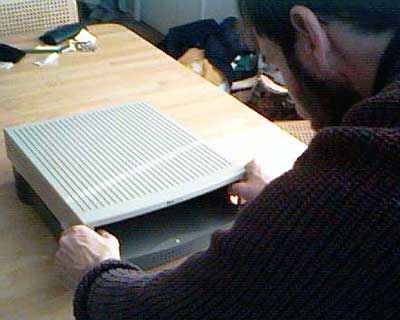
- Disconnect the power supply leads by pinching the leads and lifting up.
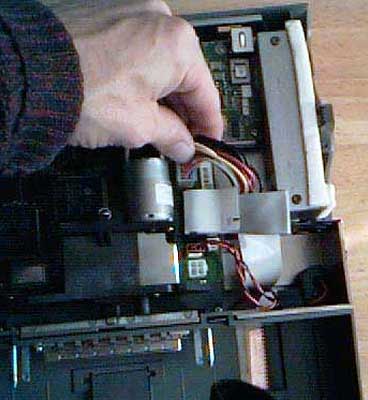
- Loosen the two normal screws under the horizontal area where the Duo usually slides in. There is one in the middle and one over to the right. These screws don’t come out, so just keep loosening them. You don’t need to worry about them coming out.
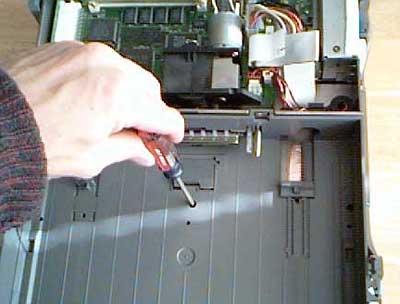
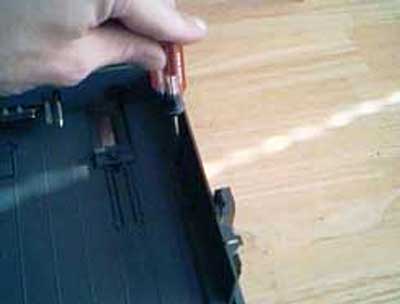
- Slide the whole non-case/non-power supply towards the front of the dock just a tiny bit, then lift up, turn it over, and set it down.
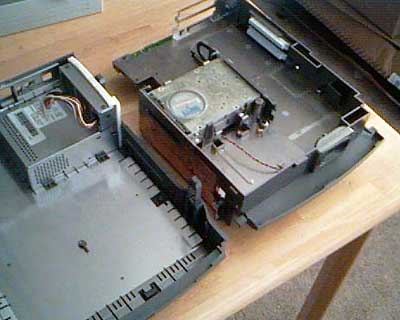
- You now have access to the NuBus slots. Note that you will need to remove the top card to get to the bottom card, so if you have two cards fill the bottom slot with the card you are less likely to want to remove. There is a little sliding piece to hold what would normally be the top of the card, but in a dock this will be the side.
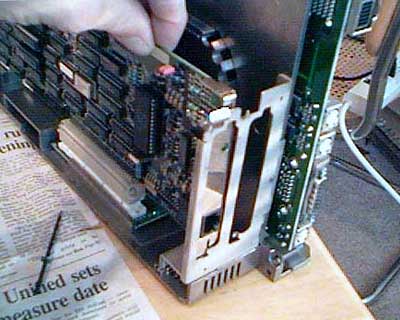
Reverse the steps above to reassemble the dock.
Diagnosing the Tick of Death
For whatever reasons, Duo Dock power supplies seem to fail after (sometimes) many years in a characteristic way.
Typical Symptoms
- There is a periodic ticking from the dock, particularly after periods of being unplugged.
- This can become more frequent. In mild cases, the ticking will go away after the dock has been plugged in for an hour or two. In other cases, the dock ticks just after the Duo is ejected and may continue ticking for a while.
- The dock eventually becomes useless as it ticks instead of working. If the Duo is stuck inside and won’t eject, you may need to take the lid off to get it out. To do that, thin screwdrivers will be needed to press on the tabs, since the Duo is in the way. Or you can wait and hope the ticking goes away and the Dock comes back to life for proper ejection.
- Avoiding having the dock unplugged seems to postpone the inevitable degeneration to uselessness.
The Culprit
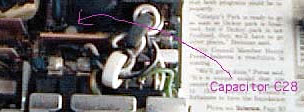
The usual failure is of the capacitor in location C28, which can be fixed by replacing the capacitor. Evidently some kind of design flaw causes the capacitor to fail and the ticking is related to the capacitor failing to charge fully.
Update: Apparently there are multiple models of Duo Dock power supplies out there. In some cases, the defective electrolytic capacitor is in position C24 – not C28. If the capacitor on your power supply board in C28 does not look much like your replacement capacitor, take a look around and see if you can figure out if it is in C24 before giving up. I have not observed this firsthand, but many helpful people have written in to describe this possibility.
Fixing a Power Supply with the Tick of Death
This has a number of steps. You will need:
- A replacement 100 mfd electrolytic capacitor. This is easily available at Radio Shack as part # 272-1028, 100 mfd electrolytic capacitor 25 WVDC, with radial leads and cost 99¢.
- Soldering iron, solder, and preferably a desoldering tool.
- Drill with a small bit for drilling out rivets.
- Torx T10 screwdriver. The really long tools for opening compact Macs are the right size for this (in case you still have your MacCracker set from 1984).
- Some small (#8 x as short as possible) sheet metal screws to close up the power supply.
The process:
- Open the dock as described above.
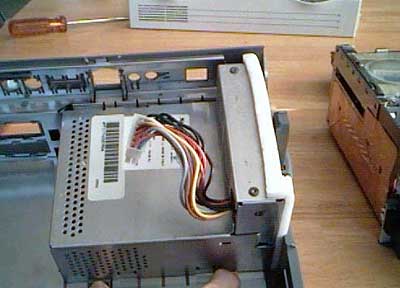
- Remove the power supply from the dock by pushing down on the two tabs that hold it in place while tipping the dock so that the power supply will slide out from gravity.
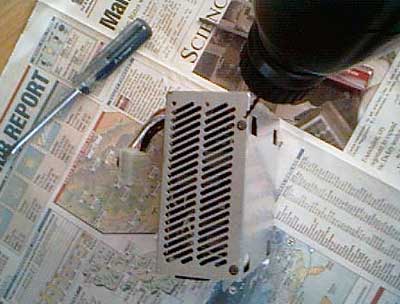
- Drill out the four rivets holding the two parts of the power supply case together. There are two on the top and two on the end.
- Open the power supply.
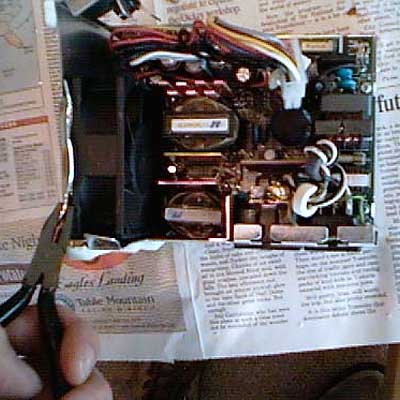
- Remove the fan. You will need to bend the flaps of metal (using pliers or fingers) to get to where you can slide the fan out. When you disconnect the power leads for the fan, make a note of the polarity for when you reassemble the power supply. Also note which way the fan is blowing air so that you don’t put it in backwards. (Just in case you forget, for mine the black lead for the fan is in the slot further away from the fan and the red one is in the slot closer and the fan is oriented so that the word “PAT” is readable from the viewpoint of the tall part of the power supply.)
- Remove the cluster of power supply wires passing through a keyhole opening in one of the side walls. There is a rubber collar holding them together; you may need to do a little bending of the metal to work it free and get the power supply apart. I have needed to.
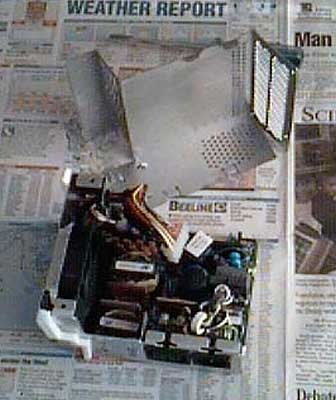
- Remove the 3 Torx screws holding the power supply circuit board to the power supply case and separate the board from the case as much as possible.
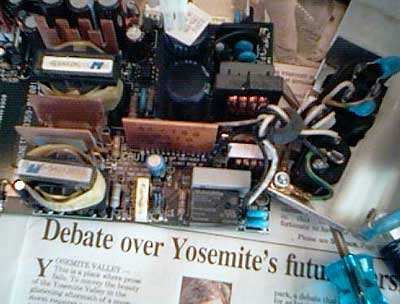
- Find capacitor C28 (or C24 – see above), quite close to the wall connection pieces but on the other side of a vertical circuit board. It is just on the other side of that board from the word “CAUTION” printed on the board, lined up with the letter O.
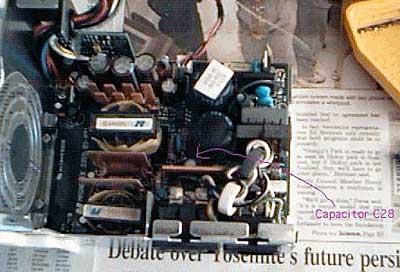
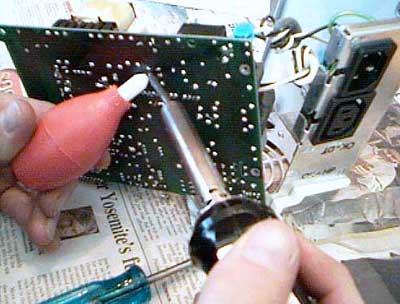
- Wiggle the board free to where you can get to the underside and unsolder the old capacitor at C28 and replace it with the new one. Note that electrolytic capacitors have a polarity – remember which way yours is and make sure the new one has the same orientation.
- Start putting things back together, reversing steps above. You will want to use the short machine screws to close the power supply back up. Some bending back of the metal case may be necessary; definitely to get the fan back in.
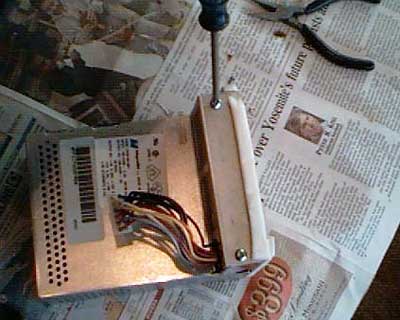
- Putting the power supply back into place in the case with the clips may take some finagling, as perhaps the shape has changed slightly.
- Plug it in and see if it no longer ticks – the moment of truth!
Disclaimer: If this doesn’t work, I have no idea what to do. You can always look for a replacement power supply; these ran about $50-90 (in 1998, when this article was first written), which gives some idea of the demand. (IIci power supplies are available for $10-20.) I have successfully done this for three docks, but there are certainly other ways that the power supply might fail. It does seem to be a common occurrence. As always, be careful! I always plug whatever I just worked on into a power supply and throw the switch from a few feet away, out of experience.
This page has been adapted from Sean Cleary’s Duo Dock and Tick of Death Page with his permission.
PowerBook Duo Links
- PowerBook Duo Information, Kim Brennan, March 1998
- FAQ About Macintosh Duos, Nicholas “Nick” C. De Mello, April 1994
- Duo Dock System for Apple, IDEO
- Apple’s Duo & Duo Dock: Frequently Asked Questions
- PowerBook Duo Dock, Applefool
- Apple’s First Subnotebooks: The PowerBook Duos and the 2400c, Charles W Moore, Low End Mac
- Resurrecting Apple’s PowerBook Duo, Austin Leeds, Low End Mac
- What to Do with a PowerBook Duo, Evan Kleiman, Low End Mac
- Why Choose a PowerBook Duo?, Adam Robert Guha, Low End Mac
- Hooked by a PowerBook Duo, Walker Quine, Low End Mac
- Getting Online with a PowerBook Duo, Julie Fugett, Low End Mac
- PDF version of Apple’s original Duo Dock manual
- PowerBook Duo, Wikipedia
Other Links
Keywords: #powerbookduo #powerbookduodock #duodock
Short link: http://goo.gl/nKT9Cf
searchword: duodocktickofdeath
