

The Compact Mac Trio
Upgrading Your Hardware
Dan Knight - 2001.07.31 - Tip Jar
The essential tool for getting inside a compact Mac is a long T-15 Torx screwdriver. The tip must be at least 6" from the handle so you can reach the recessed screws at the top of the case (way back inside the Mac's handle). We recommend the Sears Craftsman Professional series T-15 Torx screwdriver, #47431, as a good choice for about US$4.99. (Careful, Sears has changed the part number in the past and may do so again.)
Upgrading Memory
Unless you know you'll be sticking with System 6, upgrade your 8 MHz Mac to 4 MB of memory. System 7 can run on a 2 MB computer, but to really take advantage of it, you need more. Even System 6 can benefit from more RAM, especially if you use MultiFinder or a RAM Disk.
Mac Plus
Tools required
- long T-15 Torx screwdriver
- small wire cutter (nail clipper may work)
The Plus shipped with 1 MB of memory using four 256 KB SIMMs. Possible configurations are 1 MB (4 x 256 KB), 2 MB (2 x 1 MB), 2.5 MB (2 x 256 KB and 2 x 1 MB), and 4 MB (4 x 1 MB).
For full instructions on upgrading RAM in your Plus, click here.
Mac SE
Tools required
- long T-15 Torx screwdriver
- small wire cutter may be necessary depending on the motherboard (nail clipper may work)
The SE shipped with 1 MB of memory using four 256 KB SIMMs. Possible configurations are 1 MB (4 x 256 KB), 2 MB (2 x 1 MB), 2.5 MB (2 x 256 KB and 2 x 1 MB), and 4 MB (4 x 1 MB).
For full instructions on upgrading RAM in your SE, click here.
Mac Classic
Tool required
- long T-15 Torx screwdriver
The Classic has 1 MB of memory on the motherboard; a second megabyte is added with a memory card, which has two SIMM sockets. Possible configurations are 1 MB, 2 MB (memory card), 2.5 MB (memory card with 2 x 256 KB), and 4 MB (memory card with 2 x 1 MB).
For full instructions on upgrading RAM in your Classic, click here.
Picking a Hard Drive
If you believe that silence is golden, pick up a Mac Plus, add an external 800K floppy drive, and skip this section on hard drives. Everyone else should consider a hard drive essential equipment.
If you have an SE with a working 20 MB MiniScribe drive, consider it a minor miracle that it's working after all these years. The old MiniScribe was a decent performer in 1987, but it's slow and noisy by today's standards. We strongly suggest you replace it.
The 8 MHz compact Mac trio are the slowest Macs ever made with SCSI, so there's no need to look for a high performance drive. Pretty much any drive made since 1990 should provide all the speed any of these Macs can handle.
The key to picking the right hard drive is capacity. You can use any capacity SCSI hard drive you can find, although you will have to partition the drive if you choose something over 2 GB in size.
Odds are you won't be filling up your hard drive with MP3s or huge
Photoshop images; you may find a 40 or 80 MB hard drive is plenty for
your needs. My advice is to find someone who has replaced the drive in
their LC, LC II, or LC III with something even larger. These are
low-power drives compared with what's usually inside the SE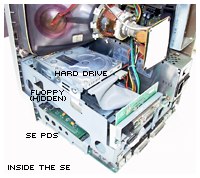 , so they will probably reduce the burden on the computer's
power supply. Best of all, you might get the drive for free, since most
people can't imagine using anything that small these days.
, so they will probably reduce the burden on the computer's
power supply. Best of all, you might get the drive for free, since most
people can't imagine using anything that small these days.
We recommend avoiding MiniScribe and Rodime drives, since both companies are long gone. Our top choices are Quantum and IBM; Conner and Seagate drives tend to be slower.
You might also want to consider an external hard drive. If you have a Plus, this is your only option, but even if you don't have a Plus, the benefit of an external drive is that you can easily move it to another Mac when you upgrade or just to swap files with a friend.
Installing an Internal Hard Drive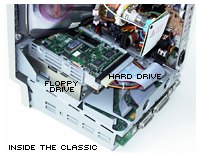
Putting a drive inside an SE or Classic isn't difficult; the hardest part is getting inside the case. You will want to be careful working inside any compact Mac - that picture tube can pack a real jolt, so don't touch it.
On the SE and Classic, the hard drive sits on top of the floppy. In both cases, it fits into a bracket. Put the drive into the bracket, tighten the screws, put the bracket in the computer, screw it in place, connect the power and SCSI cables, and then close up the case. Very easy.
Replacing the Battery
Apple has never made it easier to replace Mac batteries than on the earliest b&w compacts, from the 128K through the Mac Plus. There's a cover on the back just above the power switch. Remove the cover, and the battery's just waiting to be replaced. These models use a 4.5V #523 battery.
The SE and Classic have to be disassembled to get to the battery, which is a bit of a nuisance. On my SE - and I suspect on others as well - the battery is soldered to the motherboard. (Apple did the same thing with the Mac II.) I'm not handy with a soldering iron, so my advice is to find someone who is comfortable repairing computers and have them install a battery holder when your battery dies.
The Classic has the same kind of battery holder as most Macs built since 1989, so you can easily replace the 3.6V lithium battery.
Motherboard Upgrades
Although the SE can be turned into an SE/30 and the Classic into a Classic II by replacing the motherboard, we just don't think that makes economic sense. After all, you can often buy a whole used SE/30 or Classic II for less than the price of a motherboard upgrade - and then you end up with two Macs for the price of an upgrade.
If you really want a Classic II or SE/30, we won't discourage you from going there. But for now, let's get the old 8 MHz Mac running nicely so you can keep it as a spare or make it available to someone else.
That's the upgrade overview for the compact Mac trio. The next chapter looks at choosing the right operating system for your Mac and your way of working.
Accelerators
Unless you happen to buy a used Plus, SE, or Classic with an accelerator already installed, it probably doesn't make financial sense to pick up an accelerator. It's probably less costly to buy a used SE/30 or Classic II if you just want a faster compact Mac.
Other Links
- Celebrating 80 MB hard drives, Jonathan Ploudre, Back & Forth. "How much space is 80 MB? Well, the answer depends on your perspective."
The Compact Mac Trio
Recent Content on Low End Mac
- World Book Encyclopedia 2012 DVD, Tommy Thomas, Reviews, 2013.03.05. "You may be asking yourself, in an age of Wikipedia and instant information, is World Book still relevant?"
- Vintage Computer Festival SouthEast, April 20-21, 2013, Simon Royal, Mac Spectrum, 2013.02.25. Old Apple gear and old PCs.
Latest Deals on Low End Mac
About LEM Support Usage Privacy Contact
Follow Low End Mac on Twitter
Join Low End Mac on Facebook
Favorite Sites
MacSurfer
Cult of Mac
Shrine of Apple
MacInTouch
MyAppleMenu
InfoMac
The Mac Observer
Accelerate Your Mac
RetroMacCast
The Vintage Mac Museum
Deal Brothers
DealMac
Mac2Sell
Mac Driver Museum
JAG's House
System 6 Heaven
System 7 Today
the pickle's Low-End Mac FAQ
Affiliates
Amazon.com
The iTunes Store
PC Connection Express
Macgo Blu-ray Player
Parallels Desktop for Mac
eBay

