
It’s not the way most Mac users work, but I’ve been partitioning my hard drives since my Mac Plus days. Back then, it allowed me to boot into System 6 or System 7 from my 40 MB Microtech hard drive. (That was a good size drive back then.)
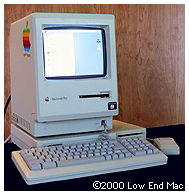 With that fast external hard drive, a 16 MHz processor upgrade, and 4 MB of RAM, I was something of a low-end power user in the early 90s. (The Mac Plus was introduced in 1986. I got mine in 1990 and used it into mid 1993.)
This morning I finished repartitioning the 400 GB hard drive in my dual 1 GHz MDD Power Mac G4. Now I can boot into Mac OS 9.2.2, OS X 10.4.11 Tiger, and OS X 10.5.5 Leopard. By today’s standards, 400 GB is a decent sized drive, and 2 GB of RAM is more than adequate for most people with PowerPC Macs.
My MDD Power Mac was introduced in 2002. I bought mine secondhand in 2005, and I’m still using it as 2008 draws to a close. And I’m still something of a low-end power user, with most of the Mac world zipping past me and using Intel-based Macs with two or more CPU cores and 1.6 GHz or higher CPU speeds. Still, for what I do, the 2002 Power Mac is generally a great performer.
Still Partitioning After All These Years
One thing that hasn’t changed over the years is partitioning hard drives. I like having the ability to choose between two or more versions of the Mac OS without needing a second hard drive. In fact, I also have a external 80 GB drive with Mac OS X 10.2, 10.3, and 10.4 installed on separate partitions – and room for 10.5 as well. It’s a great way to try different versions of OS X with my 400 MHz iMac, 1.25 GHz eMac, or dual 450 MHz Power Mac G4.
There are other reasons to partition your hard drive. Even if you never use two different versions of the Mac OS, it’s helpful to have a clean copy of the OS on a second partition for troubleshooting. Booting from a hard drive is a whole lot faster than booting from a CD or DVD installer or emergency disc. (When I did IT work for a local publisher, every Mac had a small “emergency” partition with the Mac OS and some utility programs, and sometimes it was a life saver.)
Back in the Mac Plus era, System 6 was definitely faster and snappier than System 7, but some apps – like the then-new ClarisWorks – required System 7. Every time Mac OS X gets a major revision, some old things break or are lost (Classic Mode, for instance), and some new apps require the newer OS version. With both installed, it’s relatively easy to switch as you need to.
Hooked on Classic – a Detour
In my case, I’m still hooked on the positively ancient Claris Home Page 3.0, a classic app that hasn’t been updated since 1997 – the year I began Low End Mac. Home Page is responsive, intuitive, and good enough for writing and editing articles. It’s outdated and has no support for HTML 4.0, XHTML, Cascading Style Sheets (CSS), PNG images, etc. – but it’s a great word processor for writing and editing Web content.
Anyhow, using Home Page means that I need Classic Mode, and that means sticking with Mac OS X 10.4.11 on my old Mac. I have tried SheepShaver with Leopard, and although it works, I much prefer the way Classic Mode works compared with SheepShaver emulating a Mac within a window.
The closest thing I’ve found to Home Page in the sub-$100 market is the freeware KompoZer, which is based on Netscape Composer and the Mozilla project. It does a reasonable job as an HTML word processor, supports modern Web standards, and works with CSS, so I get an even better preview than I do with Home Page. (SeaMonkey includes the Composer module as well, but unlike KompoZer, it doesn’t have a way to apply style sheets.)
KompoZer has been at version 0.7.10 for over a year now, and while it’s a huge improvement over the dead Nvu project that inspired it, it’s still somewhat unstable, slower than Home Page, and doesn’t work like a Mac app in some ways. For instance, when you triple-click to select a paragraph and then copy it, it doesn’t include the return at the end of the paragraph. Still, KompoZer is an adequate solution, and my brother is comfortable using it for his small business website.
Truth be told, because of its CSS support, I use KompoZer daily, and I’m the one who got him started with it. He’s a Windows user – as is most of my extended family – and I just didn’t want to see him use Microsoft FrontPage.
I recently discovered an interesting WYSIWYG HTML editor that almost works for me. Good Page has been around for three years and has one very clever feature: you can view your page in two ways at the same time, choosing among HTML, semi-WYSIWYG, and preview modes. It’s a bit sluggish with two views, and you can’t edit in preview mode, but it does work with Services such as Tidy to XHTML (donationware), which I currently use in TextWrangler (a wonderful free text editor).
Home Page is the only reason I can’t switch to Leopard, and once we get Joomla configured for Low End Mac, that should become a non-issue.* My current workflow is to write and edit in Home Page, use KompoZer to design and update pages, use TextWrangler with Tidy to XHTML to clean things up, and then go back to Home Page to upload site changes. It’s a tedious process, but I’m used to it. Good Page (US$99) could let me use one program for all the writing, editing, updating, designing, and XHTML cleanup.
Back to Partitioning
Because of the way I work, I’ve settled on using four partitions: one for my working OS, one for the next or previous version, one for Mac OS 9.2.2, and one for my work files.
I could get by without the Classic partition and install that 2.4 GB of System Folder, apps, and games on the Tiger partition, but it’s been nice being able to use a clean Classic partition with different versions of OS X as I’ve moved forward.
The Work partition is the controversial one. Why not store my work files on the same partition as my OS and apps? That’s what most users do.
Most users never partition a Mac’s hard drive, and those who do are generally partitioning only so they can use Boot Camp and run Windows.
I’m not most users, and as a Low End Mac reader, odds are that you aren’t either. You like to plan ahead. You like to play it safe. You like to experiment. And maybe you even do regular backup.
Backup was one of my reasons for partitioning when I put a 270 MB hard drive in my Centris 610, the 20 MHz Mac I used when I began Low End Mac over a decade ago. With a Zip drive, I could back up each of my three partitions to a different 100 MB Zip disk (remember those?). With a real backup program like SuperDuper, it’s a lot faster to back up your work partition on a regular basis and your OS partition less frequently. When I was using 200 GB and 250 GB drives, I used three separate 80 GB drives (pulled when I upgraded to those larger drives) for backup, so each partition had to be small enough to fit on an 80 GB drive.
A real benefit of having three partitions (your working OS, your emergency/legacy/new version OS, and your work) is that I don’t end up with two copies of everything on my hard drive, which is what Migration Assistant would have done when copying my user account from the Tiger partition to the Leopard one. The logistics of having two separate copies of Low End Mac and my other projects on my hard drive and having them getting increasingly out of sync as I work in one OS or the other is sufficient reason for me to have a separate work partition.
My Current Solution
Yesterday my hard drive was partitioned like this:
- Tiger – 144 GB, 51 GB used after running Delocalizer, clearing out some unneeded and old versions of apps, and moving some projects to the Work partition
- Classic – 16 GB, 8.8 GB used – Tiger also installed here for emergencies
- Work – 144 GB, 89.6 GB used
- Leopard – 68 GB, 60.1 GB used
The Leopard partition had been my spare partition, and I had to move a lot of DVD images and large .dmg files from it to the Work partition to make room to OS X 10.5.
I have a second hard drive in my Power Mac specifically for backups, and it was partitioned exactly the same way. I use SuperDuper about once a week to clone each partition from the main drive to the backup drive, something that the current version of Carbon Copy Cloner can do as well. (I’ve been using SuperDuper since before CCC had this capability and see no reason to switch. CCC is donationware; SuperDuper is a reasonable US$27.95.)
Anyhow, once I had these numbers, I decided to repartition the backup drive to give Leopard more room and reduce the space given to Tiger and the Classic Mac OS (with Leopard installed on a partition, I no longer need a second copy of Tiger). I also changed the order of the partitions so Leopard is first, as I expect to migrate to it in the coming months and the first partition may be marginally faster than the other ones.
- Leopard – 94 GB, 60.1 GB used
- Tiger – 64 GB, 51.1 GB used
- Classic – 4 GB, 2.4 GB used
- Work – 210 GB, 90.9 GB used
I consider this a good example of how and why you may want to partition your Mac’s hard drive. At the very least, it makes sense to have a second partition with a bootable version of the Mac OS, so if you have problems with your work partition, you can boot from the “emergency” partition to run Disk Utility and other diagnostics.
Whether you have two partitions (working OS plus work on one, emergency or alternate OS on the other) or more, you’ll be able to work more efficiently, do troubleshooting more easily, test a new OS more safely, and use your hard drive more intelligently.
Partition Warning
Bear in mind that repartitioning your hard drive is generally destructive – unless you use special software that can change partition sizes without data loss, you will lose everything on your hard drive. Always have a full, up-to-date backup before repartitioning.
Of course, you should always have a recent backup anyhow, one of the reasons Apple built Time Machine into Leopard.
For backup, we strongly recommend backing up to a hard drive, which is the most economical and the fastest backup method. Use Carbon Copy Cloner, SuperDuper, or some other app that can clone your hard drive to the backup drive while creating a bootable copy. Clone every partition on your main drive, then boot from the backup drive, repartition your work drive, and reclone everything to the newly partitioned drive.
And the next time you migrate to a new Mac or install a bigger hard drive, you’ll know how you want to partition it.
* Update: We never did make the move to Joomla. We moved to the WordPress content management system (CMS) in early 2013.
searchword: partitionharddrive
