
I’m a big fan of the optical mouse known simply as The Mouse. It was originally sold by MacMice and is now being marketed directly by its maker, the Chwang Yi Company.* By whatever name, it’s one of the the smoothest, slickest, most comfortable conventional computer mice I’ve ever used.
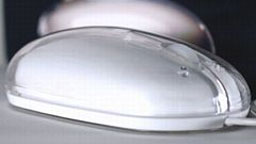
Chwang Yi sells The Mouse online for just US$19, and they also make a Bluetooth version, which retails at US$49.
My expectations of The Ball Bluetooth Wireless Optical Trackball were high, based on my experience with The Mouse.
Trackball Benefits
I haven’t used trackballs a whole lot, and most of my experience was on the old 100-series PowerBooks. However, I have friends who swear by trackballs as the most comfortable, low-stress pointing devices available – especially ones with large diameter balls.
I’ll reserve definitive judgment on that point, but my impression of The Ball is that it is indeed very comfortable to use.
Trackballs facilitate very precise tracking control and require less desktop real estate than a mouse, since they can stay in one place.
A trackball is essentially a computer mouse turned upside down. Instead of pushing the mouse around, making its tracking ball (or, more likely these days, optical sensor) register movement over the mousing surface. With a trackball you manipulate the tracking ball itself while the housing remains stationery.
It’s a quite different sort of body English, but it becomes intuitive quickly and may well prove less stressful for folks who suffer from mousing pain.
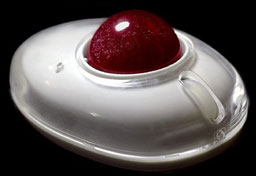 The manufacturer says The Ball is the result of a three-year research and design effort into the way people use trackballs. Their goal was to find out why such a practical input device has fewer users than might be expected.
Taking what they learned, they endeavored to create a product that was more appealing and that could make a larger number of people happy using a trackball.
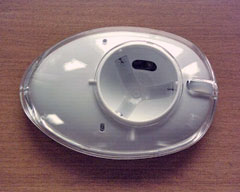 As a general rule, the larger the ball and the smoother its action, the more comfortable a trackball will be – and The Ball scores highly on both counts. At 1.5″ diameter, its trackball is more than twice the size of the trackballs in the old PowerBooks, and it rolls on three small ball bearings with almost zero effort.
One problem with traditional trackballs has been that the tracking rollers would quickly get gunked up with residue transferred to the ball from your palm and fingers. The Ball is an optical unit that doesn’t use mechanical tracking rollers, and the stainless steel ball bearings in their nylon seats should be pretty much self-cleaning.
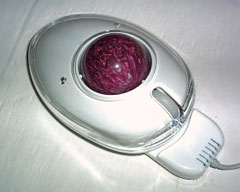 The Ball is a three-button device with an action similar to that of The Mouse, but not identical to it. Rather than having conventional buttons, you just press on the case to click left side and right side clicks respectively (this is similar to the way Apple’s Mighty Mouse works, but not identical). The entire top skin of the housing is really a big button pad mounted on central rockers, rather than depending upon case flex for the button action as with The Mouse.
The central scroll wheel, which is also very smooth in operation, is clickable as well if you have software support for a third button. The Ball’s right and left click action is pleasantly light, which suits my tastes, and the scroll wheel click is a bit stiffer than I would prefer – but I don’t use center clicks a whole lot.
Another cool feature is that the trackball housing glows red when the trackball is operated.
In styling, The Ball is again reminiscent of The Mouse with a white housing overlaid by the crystal clear “skin”. The trackball is a marbled burgundy, and the entire effect is both attractive and harmonizes nicely with Apple’s white and metal livery.
The Ball, which is made in China, has a high standard of finish and seems well-constructed. The only dissonant note I observed is that the button skin has just a little bit of extra play where it attaches to its central rocker pins, which allows it to rattle a bit. This isn’t a big deal – just a minor annoyance made more noticeable because of the generally high-quality look and feel of The Ball.
Other reviews of The Ball I’ve read have complained that cursor tracking is not as precise and steady as the reviewer would have liked. I haven’t experienced this as a major problem, although I have noticed a bit of cursor “nervousness” that would probably incline me to choose another pointing device for painstakingly precise graphics work. Some of the issue may relate to the device’s movement sensitivity, and I’ve found that a light touch on the trackball and removing one’s fingers from the trackball completely when performing a click-and-hold cuts down on perceived cursor jumpiness.
There is also sometimes a latency in response with Bluetooth devices related to Bluetooth itself. It would be nice if there were a wired version of this product for comparison. With the relatively stationary nature of trackballs, a wired model would make sense, and it would undoubtedly make for a less costly product.
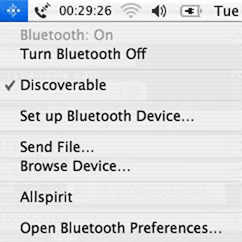 The Ball is a “pair it and work” device for any Bluetooth-enabled Mac or Windows XP system. To activate the mouse connection, make sure Bluetooth is active on your computer. In OS X, check the “Discoverable” check box in the Bluetooth preferences panel and also “Show Bluetooth Status in the Menu Bar”.
From the Menu bar menu selection, choose “Set Up Bluetooth Device” and follow the prompts. Make sure the batteries are installed and charged, turn The Ball on, and press the little “conn” button on its bottom for 10 seconds or so to make the device discoverable.
Mac OS X (10.2.6 or higher) and Windows XP have built-in drivers that support The Ball’s left and right buttons and the scroll wheel functions. Some applications will support the scroll wheel’s third button function as well.
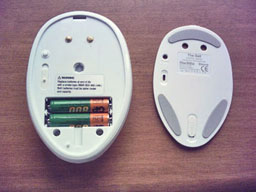 To conserve battery power, the Ball powers down automatically when left idle for few moments. A single click on the left button wakes it up, although there is a several-second lag that can be annoying. Speaking of power, The Ball comes with a pair of 750-920 mAh Nickel Metal Hydride (NiMH) AAA rechargeable batteries and supports either NiMH or Lithium rechargeables.
You don’t need a separate battery charger, because The Ball comes with one – a compact dock unit that draws power from a USB port on your computer. The charger unit has a pair of electrical contacts that correspond a pair on the bottom of The Ball’s housing.
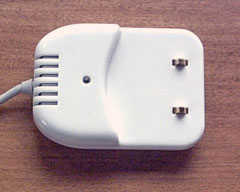 Just park The Ball on the charging cradle, plug in the USB cable, and you’re in business. A blue LED in the cradle flashes while the batteries are charging and glows continually when full charge has been achieved, which takes a couple of hours with the NiMH cells.
The blue LED is pretty (blue is my favorite color), but the LED is distractingly bright, especially when it’s flashing, so it’s best to charge the batteries when you’re not using the computer.
The Ball has a one year replacement guarantee. Priced at US$69, the Ball is available worldwide from the Chwang Yi Company website. Chwang Yi products are available to users in the US, Canada, Australia, New Zealand, the United Kingdom, and Europe. All items are priced in US dollars.
* Publisher’s note: The Chwang Yi Company website has been down for several years. Links within this article are to archived copies of those pages. GoMacPro currently (late 2013) has The Mouse BT II available for $33.87 and the USB MacMice Danger Mouse Red laser mouse for $18.99.
Short link: http://goo.gl/gS4Zxj
searchword: theball
