
Miscellaneous Ramblings
Miscellaneous Ramblings Review
3D-Space VFS: A Three-dimensional Dock Replacement and More
Charles Moore - 2005.08.29 - Tip Jar
3D-Space VFS (Visual File System) is a Dock/launcher substitute that features interactive 3D drawers with enough docking space for all your files and applications. Pitched as an alternative to the Dock, 3D-Space VFS represents files and folders with a 3D effect in a popup drawer to provide an easy, fast visual launcher with many times the capacity of the Dock - and quick access that stays out of the way when you don't need it.
3D-Space VFS uses a 3D window effect to give you a panoramic view of an expansive field where you can see all your files at once with no navigation necessary.
I'm usually a fan of minimalist unobtrusiveness when it comes to program launchers (e.g.: Tigerlaunch), but I have to admit that 3D-Space VFS is pretty cool. Pretty - literally; the graphical presentation is very attractive.
3D-Space features:
- Easy visual launcher/dock.
- Docks all your favorite items in glorious, spacious 3D
- Fast, high performance OpenGL graphics.
- Large capacity drawers conveniently dock hundreds of items.
- Power-user friendly, with minimal background CPU and screen space use.
- Finder-like features and navigation.
- Fast OpenGL graphics for a fluid user experience.
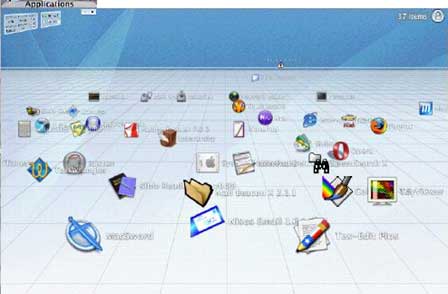
On first launch, 3D-Space VFS creates a sample 3D space with aliases to the standard OS X applications. A spacious three dimensional landscape appears, in which all items are neatly presented. According to the developer, each 3D space offers 20 times the capacity of the Mac OS X Dock, and is fully customizable. Your icons can be presented exactly the way you prefer, in arrangements that also make them easy to spot at a glance. 3D-Space VFS lets you navigate your existing folders and view their contents as 3D spaces. And full drag-and-drop is available so you can perform traditional Finder operations such as moving, copying, deleting and renaming files and folders.
You can:
- Magnify items by pointing the cursor at them.
- Drag the ground to pan the view (left, right, near, far).
- Resize the window. You can change its size, and also have it show more or less of the scene.
- Click and Drag up & down in the sky to zoom in & out (if you click and drag left & right instead, the view pans).
- Hold the option key and click in the sky. From there, option-click somewhere on the ground. You can also drag up & down while holding the option key (or the middle mouse button).
- Click the miniaturized panel in the top left corner and try the controls.
- Open items by clicking them.
- Select items with command-click, or command-click the ground and drag a selection marquee around items.
- Drag items around (by their icon, not the text). Use the shift key to prevent magnification while positioning items.
At the back of the 3D space is the icon for your home folder. Click the icon to open this folder as a 3D space. The items inside will be arranged by name, you can drag them around to create a more useful arrangement for your purposes.
Clicking other folders stored in the window will likewise open them as new 3D spaces. If you prefer to have some folders open in the Finder instead, change the "Open folders in..." preference (it is set by default to open folders in 3D-Space VFS). You can drag and drop more folders to any 3D space, and create new empty 3D spaces anywhere. The area separated from the rest of the ground at the back is set aside for items that will be visible in all your 3D spaces. You can use it to hold your favorite 3D spaces, so you can switch back to them from anywhere.
The following options are available in a contextual menu that appears when you control-click the ground:
- Snap to grid, or freeform.
- Open items with a single or a double click.
- Arrange items by name, or by the date they were added to the 3D space, or by creation or modification date, etc. Select "by Position" to switch back to the normal layout from any other.
- Change the background picture.
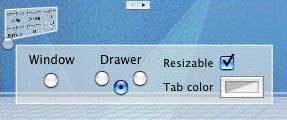 Along with
arranging items in any way you like, these settings let you
customize each 3D space to give it a distinctive look and fit the
way you work.
Along with
arranging items in any way you like, these settings let you
customize each 3D space to give it a distinctive look and fit the
way you work.
The drawers feature occupies minimal screen space and CPU use while standing by.
With the drawer controls (image below):
- Click the other miniaturized panel in the top left corner to show the drawer controls.
- To open a drawer, move the cursor to its tab and hit the edge of the screen.
- To close a drawer, move the cursor out of the drawer.
- While a drawer is open, click its tab to prevent it from closing.
- You can change the edge for the drawer, change its size and the size and color of its tab.
- The window mode is useful when you are moving many items between windows.
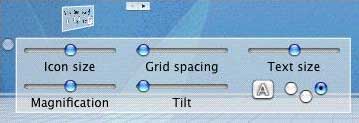 Control-click an item or the
ground to bring up the corresponding contextual menus.
Control-click an item or the
ground to bring up the corresponding contextual menus.
A 3D drawer displays a 3D representation of the contents of a standard Finder folder. Anything you drag to a 3D drawer is placed in the corresponding Finder folder. You can copy files and folders, move, rename, delete, make aliases, just like in the Finder. Hit command-R and the same folder opens in the Finder (when you want to see a list view).
The Horizon 3D space type can store 3 times as many items as the Grid type, but it does not support Snap to Grid or marquee selection. When you need to see a List View, press Command R or select "Reveal in Finder". 3D spaces are stored on disk as regular Finder folders, so you can freely switch between the Finder's representations and a 3D view as needed.
Also, like a Finder window, a 3D space can store documents, folders, and applications. It's not limited to aliases like launchers usually are. So the items you store in a 3D space do not also need a second, "real" storage space that you have to manage separately. Use the option, control and command keys when dragging items to a 3D space to choose whether to create an alias, make a copy, or move an item. When you drag an item to a 3D space, the cursor changes to indicate whether the item is going to be moved, or copied, or whether the program will merely create an alias pointing to the original item. Press the Command key to move an item, Option to make a copy, and Control to create an alias.
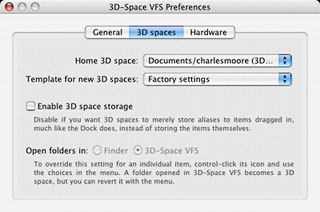 By default,
3D-Space VFS creates aliases to applications and special folders
that you drag to it. To delete an item, drag it to the recycle bin
in the Mac OS X Dock.
By default,
3D-Space VFS creates aliases to applications and special folders
that you drag to it. To delete an item, drag it to the recycle bin
in the Mac OS X Dock.
Pressing the Shift key while dragging disables magnification and prevents other items from opening when something is dragged onto them. Useful when rearranging items.
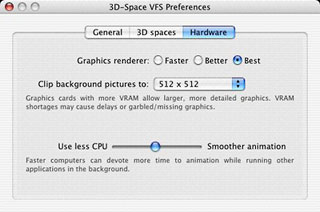
One or at most a few 3D spaces will be enough to "dock" all the applications and documents and folders that won't fit in the Dock. On the downside, especially for users of slower computers, 3D-Space VFS does put more demand on video resources, although aspects like icon rendering and animation smoothness can be adjusted in the Preferences to demand lower overhead. Older graphics cards such as the Rage 128 are supported, but you may get flickering or slow updates when dragging between windows. If you run out of VRAM, making windows smaller and not obscured by other windows (or the Dock) should restore normal speed.
 Fortunately, you can
also set 3D-Space VFS to require a click to open drawers rather
than popping up on mouseover (they still close automatically). I
find mouseover popups sometimes convenient but always annoying
because I tend to run the cursor to the edge of the screen a lot,
Full marks for making this aspect configurable.
Fortunately, you can
also set 3D-Space VFS to require a click to open drawers rather
than popping up on mouseover (they still close automatically). I
find mouseover popups sometimes convenient but always annoying
because I tend to run the cursor to the edge of the screen a lot,
Full marks for making this aspect configurable.
New in this version:
- Enhanced text contrast.
- Improved vertical positioning of Japanese text.
- Misc. other fixes and improvements.
Version 1.4 brought the following changes:
- New navigation bar.
- New highlighting option for selected items, they can now pulsate or bounce.
- New customizable defaults for new 3D spaces: select any 3D space to be used as template for new ones.
- New preference setting lets you keep your home 3D space anywhere.
- New Japanese and German versions.
- Compatibility fixes for Mac OS X 10.4.2 Exposé and drag and drop between 3D spaces.
- Smarter drawers will now remain open longer when needed, such as when making a menu selection.
- Localization improvements, including proper handling of files with non-Roman characters in their name.
- The settings for Arranged by Size, Date Added, Date Modified, Date Created, are now correctly preserved.
- Misc. other fixes and improvements.
New features since version 1.1 include:
- New Back and Forward buttons, for one-click navigation.
- New pan, zoom and tilt features.
- New adjustable, panoramic drawer and window format.
- New icon magnification method.
- Open any Finder folder in 3D, navigate from folder to folder.
- Improved icon label display and animation.
- Easy selection of even very small icons.
- Adjustable text size, adjustable grid spacing.
- New "Arrange by" features.
- Added support for Mac OS X 10.4 Tiger.
- 3D drawer capacity was more than doubled.
- Optional display of name in drawer tab.
- Faster 3D space switches.
- Full scroll wheel support
System requirements: Requires Mac OS X 10.2.8 or later
3D-Space VFS 1.0 is $29.00 trialware.
Join us on Facebook, follow us on Twitter or Google+, or subscribe to our RSS news feed
Charles Moore has been a freelance journalist since 1987 and began writing for Mac websites in May 1998. His The Road Warrior column was a regular feature on MacOpinion, he is news editor at Applelinks.com and a columnist at MacPrices.net. If you find his articles helpful, please consider making a donation to his tip jar.
Links for the Day
- Mac of the Day: PowerBook 190cs, introduced 1995.08.28. The last 680x0-based PowerBook could take a PowerPC upgrade.
- Support Low End Mac
Recent Content
About LEM Support Usage Privacy Contact
Follow Low End Mac on Twitter
Join Low End Mac on Facebook
Favorite Sites
MacSurfer
Cult of Mac
Shrine of Apple
MacInTouch
MyAppleMenu
InfoMac
The Mac Observer
Accelerate Your Mac
RetroMacCast
The Vintage Mac Museum
Deal Brothers
DealMac
Mac2Sell
Mac Driver Museum
JAG's House
System 6 Heaven
System 7 Today
the pickle's Low-End Mac FAQ
Affiliates
Amazon.com
The iTunes Store
PC Connection Express
Macgo Blu-ray Player
Parallels Desktop for Mac
eBay

