
1998 – JF writes: I’ve got a Power Mac 6100/60av, and I’m getting a 7100/66 for free. I want to “gut” the 6100’s 1.2 gig hard drive, (2) 32 MB RAM modules, etc., and put them into the 7100.
Is there any way to put the side-mounted AV card from the 6100 into the 7100? If not, can I put a big (9″?) NuBus Paintboard Lightning card into the 7100? It’s in a Quadra 650 now – same box as the 7100, right?
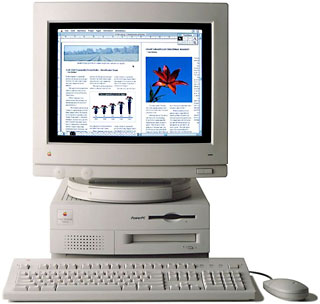 Mac Daniel writes: This is a good way to upgrade, since the 7100 (like the Quadra 650, which does share exactly the same case and 230W power supply) has lots of room for memory and drives.
To the best of my knowledge, the 6100, 7100, and 8100 all use the same AV card. I can’t be sure, though, since we never got any 6100 AVs at work. We ordered them, but the back order was too long, so we got different models.
Also, the 7100 will take full-size NuBus cards, unlike the 6100 (which was limited to 7″ cards – and needed an adapter to take even those).
CAT writes: I have a 7100/66 at work. It was recently upgraded with the Sonnet G3 card. I also wanted to upgrade memory, but am having trouble figuring out how to access the RAM slots. The computer now has 48 MB of RAM: the original 16 MB plus two 16 MB SIMMs. I bought two 32 MB SIMMs, but since the CD-ROM drive is directly over the SIMM slots, I can’t easily remove and replace the old SIMMs. I suspect this involves removing the CD-ROM drive and would appreciate advice from you or directions to where I might find instructions on exactly how to do this.
Mac Daniel writes: Some Macs are a piece of cake to upgrade, the LC family and Macintosh IIsi being among the easiest of all: pop the lid, insert the memory, seal it up, and start the computer.
The 7100, like the Centris 650 and Quadra 650 (which share the same case), isn’t one of them. Nor is it one of Apple’s worst designs. It’s not quite intuitive, but it is fairly easy. I recently upgraded my Q650, so this one’s pretty fresh in my mind.
After unplugging power cord from the computer and removing the lid, you need to find the plastic bar that holds the power supply in place. If you’re facing the front of the computer, this bar sticks out the left side of the chassis holding the power supply and drives. Squeeze the two protrusions toward each other and slip the bar out to the right.
Next, you need to remove the power supply. I don’t believe there’s a screw from the back of the computer case holding it in place, but there is on some Macs. If so, remove it. Then you’ll need to jiggle the power supply up. It’s a solid fit, and getting your fingers where they have some leverage isn’t easy, but once the power supply comes loose, you can just lift it out.
Now there are two screws attaching the drive chassis to the case, one to the left of the floppy drive, the other to the right of the CD-ROM. Remove both, then disconnect the floppy, SCSI, and power cables from the motherboard. Then lift the front of the drive chassis until you can separate it from the back of the computer case.
You can finally put in your SIMMs. Be sure to seat them correctly, since you’ll need to reassemble the whole computer before you can test things.
Then reseat the drive chassis by inserting the two rear prongs in the slots in the back of the computer case, then reseating the two screws that hold it in place. Reconnect the power, floppy, and SCSI cables (good thing each only fits one place). Slide in the power supply, insert the plastic bar that holds it in place, close the case, reattach the power cord, and check that everything works.
Except for removing the power supply, it’s very straightforward. It helps that Apple has been using robotic assembly for years, so they’ve had to design computers that are easy to assemble.
Keywords: #powermac7100
Short link: http://goo.gl/43vX17
