
Today we take a look at the ability to create, use and share custom graphics libraries in AppleWorks. As usual, we are concentrating here on AppleWorks 5 and ClarisWorks 4, but many of the comments should apply to other versions.
Today’s Agenda
AppleWorks already comes with a respectable built-in graphics library, and additional graphics are available on Apple’s website. Sometimes, though, you have need of some specific graphic unique to you or your organization – and wouldn’t it be nice to have it handy right within your current application without having to start up an external catalog program or search your file directory?
This being the Mac Lab Report, there is an ulterior motive relevant to the science lab: Once a photograph or diagram is created for use in a lab report – for example, a picture of the ports on an interface box – you can place it in a graphic library and even share it with others.
Creating a Custom Graphic Library in AppleWorks
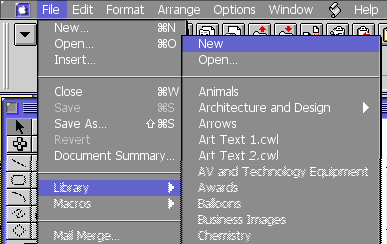
The first step is to start a new, blank library file. This appears at the top of the menu when you call up the list of preinstalled graphic libraries from the File menu:
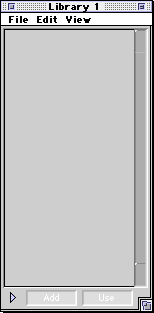 This presents you with a blank file library dialog that looks like this:
This the main window that you will use when creating, editing, and managing your graphic library. It looks like the window you see when you use any normal built-in AppleWorks library. Most of the time, however, when you are using the built-in libraries, you’re simply scrolling around trying to find a graphic, and when you find it, you copy it and move on, ignoring the other functions available in the window.
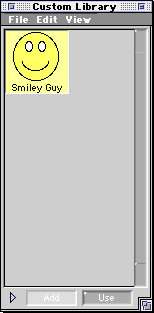 As an example, I drew a little smiley face in AppleWorks drawing mode, and then dragged the completed graphic onto the blank library window. The new graphic was deposited on the window and now is ready for future use.
When you create a graphic in drawing mode, make sure the elements of the picture are grouped together – otherwise they will be catalogued separately within the library window.
The only other thing you need to know regarding the basics of library management are that you must save the library you have created. From the File menu of the library window (not the open document window or the application menu at the top of the screen), select File and then Save or Save As, and give the library a name. By default it is saved in the AppleWorks Libraries folder, where it must be to appear on your Library Menu in AppleWorks.
Sharing Your Library with Others
Once this file is created, you can send it to other users who can install it in their AppleWorks Libraries folder and instantly have access to your graphics. “Installation” in this case simply means putting it in the right place. The library file contains all the graphics embedded within it, so you send one file to give access to all the graphics within it simultaneously. This does mean that library files can become quite large.
On an older Mac, it also means you can gain precious hard drive space by deleting graphics, or whole libraries that you know you’ll never use.
In my science classes, I plan to have some standard pieces of equipment drawn into a library that will be copied onto all student computers. Then students can create a graphic of the equipment used more efficiently.
I am also trying to promote the use of these libraries in pasting graphics related to our schools achievement goals (called ESLR’s in California), which are supposed to appear on documents we give the students. The graphic lists all the goals, and the ones appropriate to the specific document are checked off. Such an approach would be good for documenting the standards to which assignments are directed as well.
Other users may wish to put in company logos, standard signatures for the Big Boss (yes, I am a Dilbert fan), or symbols that appear in flyers or brochures repeatedly such as the LEM graphic ( ) that used to be at the end of Low End Mac columns.
Advanced Tips
This section walks you through menu by menu in the Library Window and tells you what you can do.
The Library functions are a little scattered. I find the implementation to be uncomfortably Windows-like with the File/Edit/View menus in the window and not at the top of the screen. I suppose this was done so you could simultaneously work on a document and manipulate a library, but it was not Mac-intuitive when I first tried to figure it out.
File
Under the File menu are commands for managing the library, not individual graphics. Close performs the same action as clicking the close button. It does not automatically save the library.
Save saves the current library under the current name.
Save as lets you change the name as you save the library. The default save directory is the AppleWorks Libraries folder (of course).
Edit
Cut, Copy, and Paste let you move the selected graphic to and from the clipboard. To select a graphic, click on it once. (Drag a graphic to place it on a page.)
Delete erases the graphic from the library. To delete more than one graphic at a time, follow the usual Mac system of shift-clicking graphics you want to manipulate.
Duplicate creates a clone of the graphic with a generic name in case you want to preserve the original. Choose Select All to pick all the graphics at once.
View
View controls how you browse the graphics in an individual library. You can view by name (a list) or by object (which shows thumbnails of each graphic.) When viewing in either mode, you can alphabetize the list. The default order is the order of creation. At the bottom, View Options lets you manually type in the size of the library window and number of rows and columns.
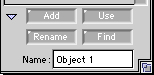 At the bottom of the Library window you will find a triangle and an Add and Use button. I think it is a little odd and inconsistent to have these functions here and not in with the other menu items – but hey, I’m just an end user here.
The Add button takes the currently selected graphic or text in the open document and pastes it into the library. The Use button takes the currently selected library object and pastes it at the cursor location in the open document. If nothing is selected, both buttons are disabled.
Clicking the triangle reveals additional functions.
Rename lets you change the name of a selected object, which you oddly cannot do by simply clicking on the object’s name as in the Finder. Also oddly, you must select the object, type its name, and then click Rename; my intuition was to click on Rename, pick an object, then type a name.
Typing a word in the name field and clicking Find will search for a graphic in that particular library. I would find it much more useful to be able to search all the libraries at once.
Well, that’s about it, because, frankly, that’s all it does. It’s handy for its intended purpose, but the interface is a little clunky and smells faintly of Windows. Otherwise, the drag-and-drop utility of the AppleWorks library system make it worth investigating and trying out.
I wonder if Dan Knight keeps pictures of all the Mac models in a ClarisWorks library? [No, I don’t. However, WordPress – the content management we adopted in 2013 – does a nice job tracking graphics. dk]
Next week’s column will look at registering a domain name.
Followup to OrangeLink Combo Card Review
Reader Phil Lefebvre had this to say about my review of the OrangeLink PCI combo card reviewed previously:
I saw your article on LEM about the combo card. I have the same card and am quite happy with it. While it doesn’t have the fast TI FW [FireWire] chip, it has proven very reliable with every FW and USB device I’ve used. Any device that didn’t work was fixed by a driver update for that device. I’ve never had a problem with the card itself, unlike most other cards, as reported on many of the Mac info sites.
Regarding the need for OS 9, I’m sure I’m not the first to tell you that this card works fine with OS 8.5/6. Let me say that while it is true that it is better to use Apple’s latest FW drivers, you have several choices.
First, if you can find a copy of FW 2.3.3 or 2.4; they are designed to work with OS 8.5/6 (they recommend 8.6). [FW 2.3.3 is on Apple’s support page – I found it when browsing the software updates list.– JA]
Also, to get around the FW 2.5 installer only working with OS 9, I “installed” FW 2.5 into my OS 8.6 system folder by copying the three FW extensions from my OS 9 System Folder. You can also extract them from the installer tome using TomeViewer, available via most Mac shareware sites.
Either way, the Apple FW 2.5 drivers work great with my Orange Micro combo card under OS 8.6. I also plan on trying FW 2.7 (and USB 1.4.8(?)), which came with OS 9.1, under OS 8.6. Each Apple driver upgrade has improved reliability.
Phil Lefebvre
Phil, believe it or not, I’d never heard of TomeViewer. It sounds like a wonderful utility, and I’ll definitely add it to my short list of power tools. Thanks for writing!
Keywords: #appleworks #graphicslibrary
Short link: http://goo.gl/lffquq
