Low End Mac Reader Specials
TypeStyler For Mac OS X is Now Shipping! Download The Free Fully Functional 60 Day Tryout at www.typestyler.com
OWC: Get the Right Memory for Your Mac Top Quality, Competitive Price, Lifetime Backed Free Expert Support + Installation Videos too! MacBook & mini 8GB, iMac 16GB, Mac Pro up to 32GB. Click here
Don't install Parallels to play poker online! Poker Mac will show you how
to download and install a native Mac poker application such as Full
Tilt Poker Mac.
Laptop Hardware Provided by TechRestore - Overnight Mac & iPod Repairs.
Compare products like desktop computers, apple laptops, apple macs, and LCD Monitors side by side! All the information and reviews to make the best purchasing decision for new mobile phones, sat nav systems, or MP3 players. The Ciao online shopping community makes searching products easy for you.
Mac Lab Report
Create a Random Number Picker in AppleWorks
2001.01.16 -
Today's Agenda
Creating a random number database in AppleWorks
Occasionally a teacher discovers that they ask the same students to answer questions over and over because some students are more enthusiastic, while others are content to melt into the background. In order to bring more students into the discussion, I ask students at random - selected by a dice roll or by computer - to respond, just to make sure I'm getting to everyone.
This tutorial will have you create a little AppleWorks database that picks a random number from 1 to 100 and displays it on the screen. Along the way you will also learn about how you can create macros, or a memorized series of commands, in AppleWorks. (Did you even know AppleWorks had macros?)
This tutorial is based on AppleWorks 5 and ClarisWorks 4, but from what I've seen it should work pretty well for other versions, including 6.
1. Open AppleWorks and choose Create New Document, and select Database from the list.
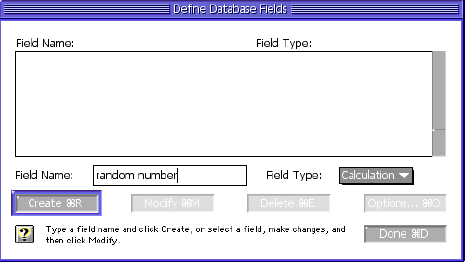
2. When you do this, a dialog automatically appears which assumes you are ready to enter the fields for the database. A database field is like a blank on an index card that always requires the same kind of information. The title of a book on an old-fashioned library card catalog is an excellent example.
In this dialog, enter "Random number" and set the Field Type to Calculation. Then click "Create."

3. When you create this field, AppleWorks will ask you to define the calculation. Calculations can be numerical or text functions which act on the values of other fields, merge data together, compute formulas, and so on. In this case, select the "RAND" function from the list at the right and type 100 where the word "number" appears, or simply type
This tells the computer to select a random number from 1 to 100, integers only.
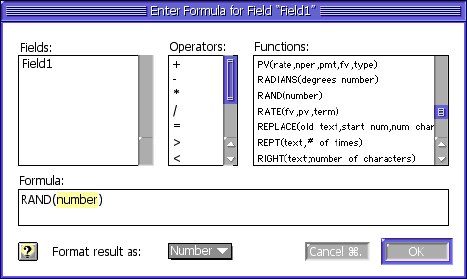
Use another value here if you want it to select numbers from 1 to 30, for picking students from a list, for example.
Using FileMaker Pro, you could set up a related database with student names in it and have the name of the student come up as a result of this random selection, but that's a topic for another day.
3. Now you have a database that will generate a new random number every time you create a new record. The rest of our steps are merely cosmetic, to make the random number appear easy to read when the database is displayed on a monitor, television scan converter, or projector (see last week's column).
Under the Layout menu, choose "Layout." This switches from the Browse mode (where you can flip through the index cards) to the Layout mode (where you can design the cards).
Once in Layout mode, select and drag the line underneath the random number field to make the body of the layout larger. You can select the line when the cursor changes from an arrow to a short horizontal line with arrows on top and bottom.

Make the body about as large as the visible window.
4. Change the size of the Random Number field by selecting a new font size - something 40 points or larger, depending on the resolution you have set your screen for. Pick a nice font if you like.
5. Add a background border or title using the drawing tools.
6. Next, switch back to Browse mode to see what your finished product will look like in use.
7. To use your database, simply select a new record cmd-R. This automatically generates a new random number. You can keep track of the number of times you have requested random numbers if you start with an empty database by choosing "Select All" and then "Delete Record".
Writing a function key macro
In my random number picker, I have a function key (F5) assigned to run a macro, (a series of prerecorded steps). My macro does the following thing each time I press F5:
- Selects all records
- Deletes all records
- Creates 5 new records
The creation of 5 new records adds a touch of dramatic flair to the random picker. It is sort of like seeing the balls pop around in the Lotto machine - it adds to the anticipation. This part of the tutorial will show you how to create this macro.
1. First, go to the File menu and select Macros: Record Macro.
2. In the dialog box that appears, make sure you pick "Document Specific." Otherwise, your macro will only work on your particular copy of AppleWorks.
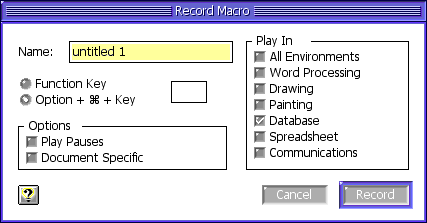
Give the Macro a name such as "Pick a random number", and choose the Function Key radio button and press F5 - or whatever key you prefer.
3. Select Record. From this point on, everything you do is recorded.
4. Go to the Edit Menu and select "Select All."
5. Go to the Edit Menu and select "Delete Record."
6. Go to the Edit Menu and select "New Record." Repeat for as many times as you want the screen to display your random number before stopping.
7. Finally, go the the Macros command under the File menu and select "Stop Recording."
8. Press F5 to test your new random number picker.
This tutorial is presented not as the ultimate use of a database or a macro, but just to introduce you to the possibilities.
By the way, FileMaker Pro is a much more powerful program than AppleWorks. It can handle related databases, and you can edit your scripts using the powerful programming language embedded within it. It is also fairly impervious to grammatical (programming) errors because the commands are selected from menus similar to the function list above. An adept user of FileMaker Pro can do almost anything a former user of HyperCard could do. (Ah, don't get me started on HyperCard. Steve, Steve, we miss HyperCard. We really do.)
Next week we'll be looking at creating your own library of graphics
in AppleWorks, and sharing the libraries with others.
Jeff Adkins is a science teacher who isn't afraid to state his preferences in computing platforms. In his classroom he has everything from a beige All-in-One to a a G4 XServe, and they all work together nicely. He calls himself the "poster child for technology integration" in the classroom. He was the 2006 Outstanding Educator of the Year for the California Computer Using Educators (CUE) organization. He also maintains a site for astronomy teachers at www.AstronomyTeacher.com.
Recent Mac Lab Reports
- Microsoft Word 2004 vs. iWork Pages 1.0 for writing a book, 01.10. Microsoft Word is great for technical writing, powerful yet slow, while Pages lets you concentrate on just writing, making it great for novels.
- iWeb a great tool for quickly creating an attractive website, 09.11. Apple's iWeb software isn't just easy to use, it also integrates nicely with .mac and other programs in the iLife bundle.
- Use your Bluetooth phone to control your Mac? Maybe, 02.27. Salling Clicker software turns many Bluetooth phones into remote controls for Bluetooth-equipped Macs.
- Two more markets the iPhone could conquer, 02.01. How Apple could redefine the ebook and calculator markets with a pair of free apps for the iPhone.
- More in the Mac Lab Report index.
Links for the Day
- Mac of the Day: 17" iMac G4/800 MHz, July 2002 - The iMac 'grows up' with a 17" 1440 x 900 display.
- Group of the Day: LisaList supports Lisa users.
- November 8 in LEM history: 99: OS 9: I think I like it - 01: The simplified Mac life - Soured on Windows - Flea market Mac - 02: Little room for improvement in new 'Books - Combo drive upgrade for iceBooks - 04: Re-Porter - 05: Fix the old iMac or buy a Mac mini? - Apple's Copland project - 06: MacBook Core 2 - MacBook value equation - Cheap is as cheap does - 07: Problems with Classic mode in Tiger - The G4 Power Mac that won't run Leopard
- Support Low End Mac
Recent Content on Low End Mac
- Quad-Core CPU Makes Sense in MacBook Pro, OS X 10.6 Causing Overheating, Overseas Power, and More, The 'Book Review, 11.06. Also Late 2009 MacBook reviewed, how to add RAM to new MacBook, 18.4in Acer notebook used Intel i7, and SanDisk SSD chosen for Sony VAIO X.
- Dumping Macs for Google Apps, SSD in iMac, Late 2009 iMac Performance Problems, and More, Mac News Review, 11.06. /newsrev/09mnr/1106.html
- WiFi Paranoia, iMac-O-Lantern, Magic Mouse Does Click, Free Clipboard Managers, and More, Charles W. Moore, Miscellaneous Ramblings, 11.05. Also strange time stamps, problem with ColorIt on Intel Mac, and the story behind OS X 10.5.4 install discs.
- IDE Is Dead; Long Live SATA!, Dan Knight, Mac Musings, 11.04. SATA has displaced parallel ATA. While IDE hard drives haven't disappeared, the best deals are in SATA hard drives.
- QuickTime X in Snow Leopard Imports, Trims, and Publishes Video Quickly and Easily, Alan Zisman, Zis Mac, 11.04. The long, slow process of importing video into iMovie to edit it, then render it to another format, is history as QuickTime X does that much more quickly.
- More links in our archive.
Recent Deals
- Best Mac Pro Deals, 11.03. Used 2.66 GHz 4-core, $1,300; 3.0 8-core. $2,299; refurb 2.66 4-core Nehalem, $2,149; 2.93, $2,549; 2.26 8-core, $2,799; 2.93, $4,999.
- Best iPhone Deals, 11.03. New 8 GB iPhone 3G, $$99; refurb 16 GB 3GS, $149; new, $199; 32 GB, $299.
- Best 12" PowerBook G4 Deals, 11.03. Used 867 MHz SperDrive, $348; 1 GHz, $499; 1.33 Combo, $298; SD, $559; 1.5 Combo, $448; SuperDrive, $589.
- Best Power Mac G3 and PCI Video Card Deals, 11.02. Used beige 300 MHz, $25; G4/366, $49; blue & white 350, $80; 400, $90; 450, $105; PCI video cards from $15; shipping additional.
- Best Power Mac G4 and AGP Video Card Deals, 11.02. Used 400 MHz, $50; 733 MHz, $69; 933 MHz, $209; 1.25 GHz dual, $299.
- Best 15" MacBook Pro Deals, 11.02. Used 2.0 GHz, $800; 2.2, $900; 2.4, $1,000; refurb 2.53, $1,449; 2.66, $1,699; 2.8, $1,949; 3.06, $2,169; new 2.53, $1,579; 2.66, $1,799; more.
- Best Mac mini Deals, 10.30. Used 1.33 GHz G4 mini, $379; 1.42, $389; 1.5, $419; 1.83 GHz Core Duo, $350; Core 2, $439; new 2.26 GHz nVidia, $580; 2.53 GHz, $770; Server, $990.
- Best G4 iBook Deals, 10.30. Used 12" 1.07 GHz Combo, $225; 1.33 GHz, $298; 14" 1 GHz, $349; 1.33 GHz, $398; 1.42 GHz SuperDrive, $498.
- Best Classic Mac OS Deals, 10.30. System 6.0.8 floppies, $10; 7.1, $12; 7.5, $20; 7.5 CD, $4; 7.6 $13; 8.1, $11; 8.5, $20; 8.6, $90; 9.0, $20; 9.2.2, $30.
- More deals in our archive.
About LEM | Support | Usage | Privacy | Contacts
Navigation
Used Mac Dealers
Apple History
Video Cards
Email Lists
Favorite Sites
MacSurfer
MacMinute
MacInTouch
MyAppleMenu
InfoMac
Macs Only!
The Mac Observer
Accelerate Your Mac
RetroMacCast
PB Central
MacWindows
The Vintage Mac
Museum
DealMac
DealsOnTheWeb
Mac2Sell
ramseeker
Mac Driver Museum
JAG's House
System
6 Heaven
System 7 Today
the pickle's Low-End
Mac FAQ
Abandonware
Petition
Mac vs. PC Info
Affiliates
The Apple
Store
Mac
Connection
B&H
MacMall
TechRestore
ExperCom
Crucial
Memory
batteries.com
Advertise
MacMinute
MacInTouch
MyAppleMenu
InfoMac
Macs Only!
The Mac Observer
Accelerate Your Mac
RetroMacCast
PB Central
MacWindows
The Vintage Mac
Museum
DealMac
DealsOnTheWeb
Mac2Sell
ramseeker
Mac Driver Museum
JAG's House
System 6 Heaven
System 7 Today
the pickle's Low-End
Mac FAQ
Abandonware
Petition
Mac vs. PC Info
Mac Connection
B&H
MacMall
TechRestore
ExperCom
Crucial Memory
batteries.com