
For math and science teachers, entering equations into typewritten (or word processed) documents is often a challenge. For the novice, many tabs, spaces, underlines, and struggles with the Symbol font yield unsatisfactory results.
But for years, a tool has been embedded in both AppleWorks and Microsoft Word that allows you to create publication-quality equations with a minimum of fuss. This article serves as a brief introduction to Equation Editor and how to learn more. Equation Editor is sufficient for most users’ needs, particularly in high school (and even elementary school).
Equation Editor is actually a third party program licensed by both Apple and Microsoft for use in their word processing programs. It is a “lite” version of Mathtype, available for $129 ($99 educational) at http://www.dessci.com/en/products/mathtype/default.htm. The vendor’s website goes into considerable detail explaining what the differences are between Mathtype and Equation Editor; the gist of it is that many automation and simplification tools exist in Mathtype. If you write equations regularly, you might want to consider the upgrade.
It’s interesting to compare your old version of Equation Editor on Word 5.1 or ClarisWorks to what is included with Microsoft Word 98 – they’re virtually identical.
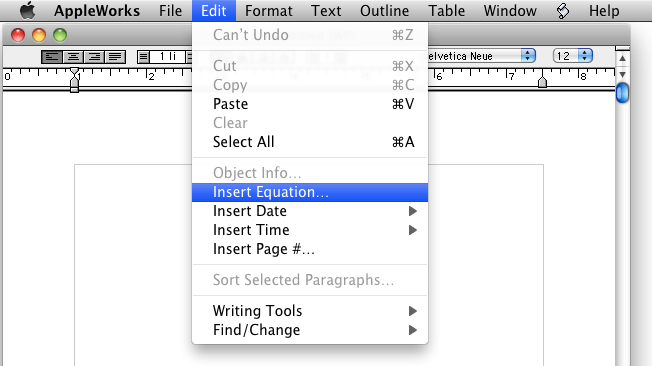
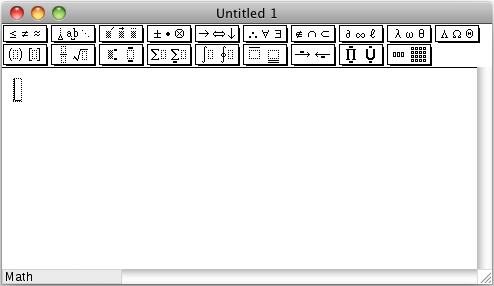
To call up Equation Editor, you can either locate the program on your hard drive (it was most likely installed in your AppleWorks folder) and open it like any other program, or, while using the word processor, choose Insert Equation from the Edit menu. Equation Editor starts up and becomes the topmost application using this window:
Converting a document to a web page or other file may cause the graphic to be converted into inline GIFs that can no longer be edited without a paint program, so it’s a good idea to keep your original documents as word processor files.
However, the real power of Equation Editor is its ability to write complex formulas without resorting to superscripts and subscripts. Let’s consider a simple physics formula for projectile motion, such as:

- Type “y = y”
- Type Command-shift-“-” to start subscripts
- Type “0” (zero)
- Type Command-shift-“-” to end subscripts
- Type “+ v”
- Type Command-shift-“-” to start subscripts
- Type “0” (zero)
- Type Command-shift-“-” to end subscripts
- Type “t +”
- Type Command-shift-“+” to start superscripts
- Type “1” (one)
- Type Command-shift-“+” to end superscripts
- Type”/”
- Type Command-shift-“-” to start subscripts
- Type “2” (two)
- Type Command-shift-“-” to end subscripts
- Type “gt”
- Type Command-shift-“+” to start superscripts
- Type “2” (two)
- Type Command-shift-“+” to end superscripts
- Then select the zeros and twos and reduce their font sizes.
On the other hand, entering this equation in Equation Editor takes the following 9 steps:

- Type “y=y”
- Type Command -“l” (lowercase L) “0” then Tab;
- Type “+v”
- Type Command -“l” (lowercase L) “0” then Tab;
- Type “t+”
- Click the button for setting up fractions;
- Type “1”, Tab, “2”, Tab;
- Type “gt”
- Type Command -“h”, “2” then close the window, which inserts the equation into the document.
It’s still not beautifully elegant, but it’s quite clear that it is more efficient than typing in equations with only word processing tools. Equation Editor also includes tools for square roots, integral signs, the entire Greek alphabet, special mathematical symbols such as set notation and vectors, and matrices.
This is a powerful tool that I plan to have students use in their writing this fall. If you want more help, try using the online help included with the program (press the Help key on your extended keyboard). This is mainly concerned with keyboard shortcuts. For even more tips to get as much out of the program as possible, visit http://www.dessci.com/en/products/mathtype/default.htm; even though they are giving you an extended sales pitch for the upgrade, the Equation Editor Tips page has a lot of valuable content. One valuable tip, for example, suggests that you create an equation document with templates of frequently used equations for you to cut and paste into other documents.
Keywprds: #equationeditor
Short link: http://goo.gl/NljhQ8
