
2001 – Your Mac was so darn fast when you bought it. It was a top-of-the-line and state-of-the-art computer, but it suddenly seems older than you. You have the impression that with all its power, it could deliver the goods in much less time than it does now.
- Description: Modifying the system to make it faster
Difficulty level: Easy
System version: System 7 to Mac OS 9
Required: A bit of patience
You are absolutely right. Here are a few tips to give some life back to your Macintosh and preserve its power in the future.
Memory
Your memory, in the form of your RAM and hard drive, is one of the keys to your Mac’s speed. If you manage it correctly, you are more likely to use all its power at maximum speed.
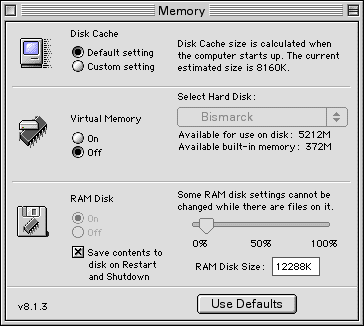
Disk Cache
The disk cache is very important for your overall performance. The first tip is to avoid giving it less memory than its default setting. It can be tempting to see the disk cache as a RAM hog, but if you decrease the amount of allocated memory, you will find out quickly that your Mac will choke on even the least demanding tasks, Web browsing included. Make sure to give it at least its default setting – and if you have some spare RAM, increase the caches memory by 1-2 megabytes.
Virtual Memory
I already talked about this in iBasics. The virtual memory (VM) setting is simple: Turn it off. Your RAM is the fastest memory available on your Mac, and that is why it is the most expensive per megabyte. By turning VM off, you reduce hard drive accesses and allow your RAM to take over a few things that your hard disk used to do. As long as you are not tight on RAM, you can afford to turn virtual memory off. VM can be useful for file mapping, but it will slow you down.
RAM Disk
What about the RAM Disk in the control panel? Refer to a Speed Up Internet Explorer on the Classic Mac OS to learn how to use it, and remember that it can be used for any file that you use frequently.
Memory Usage
The way you use your Mac will impact your use of memory. When you launch and quit applications all the time, you abuse your system greatly. The memory structure of the Classic Mac OS (before Mac OS X) is a bit outdated and does not handle application memory as well as a modern operating system, such as Mac OS X. Don’t abuse it by repetitive application launching and quitting unless you are tight on RAM. If you launched Internet Explorer, keep it open, since you know you may use it in a few minutes anyway.
Avoid having everything open at the same time. If you are short on RAM (less than 5 megabytes available) when you are working on your Mac, you will see a serious speed hit. Your desktop picture or background will seem messed up, and switching between applications will be a pain. Turn off a couple of applications when this happens; you will regain speed.
Restarts
Speaking of memory management, a great way to wipe everything clean and start over is to restart when you notice a speed decrease. When you launch applications and work with files, your RAM collects and loads libraries as well as data. Your clipboard will contain the last bit of information you copied and pasted.
All of this takes RAM space and forces your Mac to carry more weight around when you execute other tasks. A restart will refresh your Mac’s memory by eliminating all the stored information that you will not use later in your session. It cleans up everything.
Desktop Pictures
Ah, that sunset at the mountain was dazzling when you shot the picture during your last vacation! But it slows down your Mac when it is in the background. If you need a temporary speed boost, or if you simply think that you can live without the sunset picture, turn it off and replace it with a desktop pattern. Whenever I want a speed increase, I just revert to an entirely black desktop pattern. It is dark, but it works and is easy on the eye.
Networking
Whenever your Mac does network operations, it executes pauses, even if they are not always perceptible. The pauses are greater if you use network protocols such as Web sharing, File Sharing, and AppleTalk. Those are useful features, but they can really slow down your Mac when they are turned on and in use.

Unless you need them 100% of the time, turn them off until you need to use them. Go to the control strip (above) and turn off AppleTalk. Go to the Web Sharing control panel and make sure to turn it off by clicking on Stop. Do the same in the File Sharing control panel.
Manage Extensions
The best way to improve your performance is to manage your extensions with the Extensions Manager control panel. Turn off all the extensions that you do not need – or turn them off until you need to use them. Whenever you install software, you get an installation report that tells you what has been installed and where. Referring to such files is an excellent way to find out what extension is used with what software. Otherwise, you can click on the arrow besides Show Item Information to figure things out.
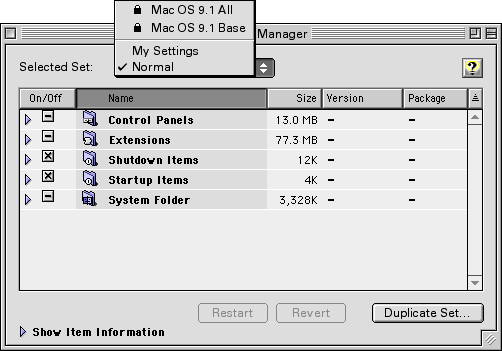
If you wish to have an “everything loaded” configuration, keep it as a set. You can rename it by choosing Rename Set in the File menu. Then click on Duplicate Set to create a set where you turn off extensions and control panels that you do not use all the time. Name that set. When you have multiple sets, all you have to do to switch between them is to click on the popup menu called Selected Set (see screen shot) and select one, then click on Restart.
In all the available sets, the best one to use for maximum speed is Mac OS All. The other set (Mac OS Base) is not a very appropriate extension set, since its prime use is troubleshooting.
In the Extensions Manager, the Startup Items are easily visible. Those are useful if you want the same item to launch at every startup, but you will quickly note that it slows you down during startup when you arrive on the desktop. This can get annoying. Make sure not to put anything in Startup Items unless the items in question are essential to your use.
Here are a couple of extensions and control panels that create a speed hit when activated: Kaleidoscope, StuffIt Deluxe’s True Finder Integration, Timbuktu Extension, and anything that adds something directly to the Finder and its menu bar.
Rebuild the Desktop
The desktop files store all the icons that you have seen on your screen since the latest rebuild. If you are one to download icon sets from the Web or to use CD-ROMs often, the number of unused icons stored in your desktop files can be scary.
Wipe everything clean by restarting and holdin downg the Command and Option keys. When you get an alert about rebuilding your volumes’ desktop, click on OK each time you get the alert. You will notice a speed boost after the rebuilding process.
Beware of Upgrades
Always be careful with software updates and upgrades. Get them only if they fix bugs or add features that you cannot live without. Software always grows bigger and adds more hardware requirements. The upgrade cycle can make a new Mac look very old within two years, while conservative upgrading behavior will make your Mac shine for years to come.
That’s it for this week. Enjoy your faster Mac.
Links
Keywords: #classicmacos #diskcache #virtualmemory #ramdisk
Short link: http://goo.gl/L6NahP
