Low End Mac
Search LEM 
Donate · Amazon.com · MacResQ · Advertise
Other Cobweb sites: Low End Living · Reformed.net

Quicklinks: · Power Macs · 'Books · Early Macs · Week's Best Deals · Best Buys · OS Downloads

iBasics

Speed Up Internet Explorer

Low End Mac Reader Specials

Memory To Go Special: MacPro 8 Core Memory 4GB kit $154 / 2GB kit $94, New 2008 iMac 2GB $46. MacBook Pro / MacMini / iMac Intel Core2 DUO 2GB $44 / 1GB $23--Free shipping available.

Download Typestyler, still the Ultimate Styling Tool for Internet, Print and Video Graphics. Works great in Classic with a Native OS X Version on the way. Free Tryout: www.typestyler.com

LA Computer Company: Specials on AppleCare, iMac's, Apple Batteries and Apple A/C Adapters. Also Great prices on Used Apple Computers. Call 1-800-941-7654 Click Here.

Mac users can finally play Party Poker for Mac. Not only that, they can also learn how to play PokerStars for Mac.

Laptop Hardware Provided by TechRestore - Overnight Mac & iPod Repairs.

Compare products like desktop computers, laptops, and LCD TVs side by side! All the information and reviews to make the best purchasing decision for a new cell phone GPS products or MP3 players. The Ciao network makes searching products easy for you.

New iMac 800Mhz Memory 4GB $98, 2GB $50. Click to Maximize your Macs...

- 2001.02.21

Since the release of version 5, Internet Explorer became the Mac world's number one browser, with many Netscape users dumping the Navigator or Communicator 4.x in order to get Microsoft's latest offering. In any case, Explorer is very popular in the Mac crowd, and a few of you may want to maximize its performance. Here are tips to achieve this.

Make it breathe

First off, you need to know that the amount of memory that you allocate to an application is likely to play a role in its overall performance. The more memory you give it, the more breathing space you give it when it has to face demanding tasks. In this spirit, you should allocate Explorer more memory than its default amount. How much? The more the better, as long as you can afford it. I would recommend giving it between 20 MB to 25 MB. Those are reasonable amounts to make things work better. More than 25 MB may not give tangible results.

To do it, find the application's icon in the Internet Explorer folder, and click on it once. Make sure to quite IE before doing it! Go to the Finder's menu bar and highlight Get Info, and select the Memory submenu. You can do the same via contextual menus (control-click and selecting Get Info --> Memory). It should give you this window.

About Internet Explorer

Once you do that, you need to increase the number in the Preferred Size field. The number is in kilobytes, and it takes 1024 of them to make a megabyte (MB). Grab a calculator and decide how many megs you want to allocate. Say that you want to allocate 20 MB. Twenty times 1024 equals 20480, and all you have to do is to type that as the Preferred Size.

The cache

In Explorer, the cache is the file where the browser stores the information for the Web pages you visit. It saves them there, retrieves them from there when you go back to pages in the same session, and retrieves information from there if IE finds out that a page or an image hasn't been updated since the last visit.

As a result, this use and "consultation" of the cache can slow you down if the cache is not stored at the right place. To make it short, your cache will perform as fast as the place where it is stored. You have two choices. You can store it in RAM, or on the hard disk. IE chooses a folder in your System Folder by default. Your RAM is the fastest memory on your computer, so put it to good use! You should definitely put your Explorer cache in RAM. It speeds things up when visiting Web pages and does wonders when hitting the Back button.

My favorite way to achieve this is to create a RAM Disk on my desktop and store the "cache.waf" file in there.

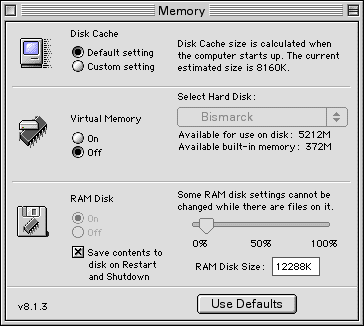
The first step to this is to create the RAM Disk. Go to the Apple Menu, highlight the Control Panels item and in the submenu, select Memory.

Memory Control Panel

Once there, you can easily set up a RAM Disk. All you need to do is to click on the On radio button and set its size. Again, 1024K equals 1 MB, therefore you need to calculate the amount you wish to allocate. I would recommend a bit more than 10 megabytes for the RAM Disk and a browser cache of 9 megabytes. In fact, this is what I use. Note that you need to make your RAM Disk slightly bigger than your browser's cache. Make sure to click the "Save contents to disk" checkbox, since your cache will easily be stored in your RAM Disk each time you shut down and start up. Use the sliding button to adjust the amount. Once done, close the window and restart. (Yes, you do have to restart for your Mac to create the disk cache at startup.RAM Disk)

After restarting, you should see the RAM Disk icon on your desktop.

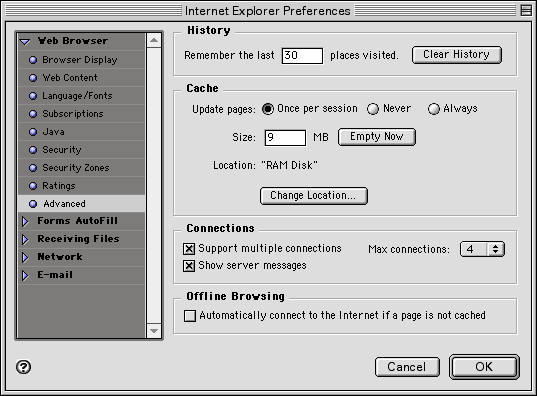
We are not done yet. You need IE to use the RAM Disk in order to really enjoy the speed. Launch Internet Explorer. Open the Preferences from the Edit menu, and then click on the advanced category, under Web Browser. You will see the Cache rectangle, where you have to click on Change Location. You will get a navigation window, where you have to go to the desktop and highlight the RAM Disk icon. Click on Choose. Quit Internet Explorer. Launch it again and start browsing. Enjoy the speed boost!
The History

The first two measures already increased the performance of IE, but we are not done yet. We can make sure that this gained speed is sustained through time, which requires us to do a bit of history. Pun intended. In the same Advanced Preferences as before, we need to take down the number of places visited, because the more IE remembers, the slower it gets. The default setting is way too high. I would recommend about 30 places, just enough to back to the last few pages where you went.

I know that it is annoying not being able to go back to the pages you visited a week ago, but the tradeoff will prevent IE from slowing down all the time. Your best bet is to store URLs in your Favorites or in a separate URL handler if you have any reason to think that you may one day be tempted to go back to a certain site. You want some speed, don't you?

A Word about Virtual Memory

We are basically done here. If you applied the three measures I recommended and took two aspirins with a good night of sleep, your browser speed headaches should be gone. Can it get better? Yes, if you have been using virtual memory so far. As I already explained, your RAM performs faster than your hard disk. If you wish to do one more thing to make Internet Explorer (and your whole Mac!) faster, then turn off virtual memory (VM) from the Memory control panel and restart.

I know, there is more to virtual memory than the speed difference between RAM and a hard disk drive. With VM on, your Mac will handle a some things in a smarter way without loading everything into RAM, which will slow you down if your RAM is almost full and your Mac out of elbow room. One fact remains: if you can afford the RAM, this is not a problem! Just turn VM off, pile up the RAM chips, and increase the amounts of memory given to your applications.

This advice on virtual memory is optional, but IE and your Mac as a whole could really benefit from it. See you in the fast lane of browsing!

Recent Content on Low End Mac

Michel Munger is a journalist who lives in Montréal. He discovered the Mac in 1994, and his work on a PC reminds him every day why he embraced Apple's platform. Munger has also authored some MacDaniel columns.

You can learn more about him on his personal website.

Recent columns by Michel Munger

Recent Content on Low End Mac

  • US Customs Can Seize Any Laptop, Aluminum and Ultraportable MacBook Rumors, and More, The 'Book Review, 08.08. Also thoughts on the next generation of MacBooks, "I want to marry the Apple MacBook Pro", do it yourself MacBook Pro hard drive replacement, bargain 'Books from $490 to $3,069, and more.
  • iPhone Could Reach Vermont, Huge Demand for Original iPhone, 19 Bible Translations for iPhone, and More, iNews Review, 08.08. Also tethering your computer to your iPhone, BlackBerry vs. iPhone for smart phone lead, ColorWare colors the iPhone, $1,000 'I Am Rich' iPhone app, and much more.
  • New Life for Old Macs, 4 of 5 Businesses Using Macs, 5th Annual Mac Mod Challenge, and More, Mac News Review, 08.08. Also tips for switchers, time saving tips for Leopard users, Logitech's new Mac keyboard, NewerTech updated miniStack, Ukelele keyboard layout editor, and more.
  • Best Titanium PowerBook G4 Deals, Low End Mac Deals, 08.08. Used 500 MHz DVD, $480; 667 MHz Combo, $530; 867 MHz, $550; 1 GHz, $678; SuperDrive, $839.
  • Best Time Capsule and AirPort Deals, Low End Mac Deals, 08.08. 500 GB Time Capsule, $279; 1 TB, $459; AirPort Extreme Card, $39; 802.11n Base Station, $156; 802.11g AirPort Express, $60; 802.11n, $79.
  • Best Xserve Deals, Low End Mac Deals, 08.08. Used G4, $1,250; G5 from $1,700; refurb 3.0 4-core Xeon, $2,299; new 2.0 4-core, $1,900; 2.8 GHz, $2,888; 8-core, $3,299; 3.0, $4,059.
  • Mac of the Day: Power Mac 7500, Aug. 1995 - This workhorse introduced a new desktop case and CPU daughter cards.
  • List of the Day: Mac-N-DOS is for those who use Windows and the Mac OS.
  • August 8 in LEM history: 97: Confessions of a Microsoft user - 00: My perfect PowerBook - 01: CD-ROM and system problems - 02: PayPal insecurity - Astronomy, Macs, and Windows PCs - Macs in the workplace - 03: Macs, making music, and crashes in OS 9 - USB Memory Mouse - 05: WorkStrip: Much more than a Dock replacment - 06: Quad-core 64-bit Mac Pro and Xserve - 07: 2007 Mac mini value equation - PowerBook 100: Sony miniaturizes the Mac Portable - Apple's new keyboards - Charge your iPod with Griffin's $30 PowerBlock
  • Creating Classic Mac Boot Floppies in OS X, Paul Brierley, The 'Book Beat, 08.07. Yes, it is possible to create a boot floppy for the Classic Mac OS using an OS X Mac that doesn't have Classic. Here's how.
  • Apple Could Sell 20 Million iPhones in 2008, Frank Fox, Stop the Noiz, 08.07. Apple sold 2.4 million iPhones in the first half of the year. How can it even hope to sell the 10 million it predicted?
  • Is Wirecard a Real Alternative to PayPal?, Carl Nygren, Classic Macs in the Intel Age, 08.07. PayPal has an established worldwide presence, but Wirecard is offered by a real bank and has lower fees. Any drawbacks?
  • Best iBook G4 Deals, Low End Mac Deals, 08.07. Used 12" 800 MHz Combo, $350; 1.2 GHz, $390; 14" 1 GHz, $450;1.33, $520; SuperDrive, $550; 1.42 GHz Combo, $530; SD, $625.
  • Best iMac G4 Deals, Low End Mac Deals, 08.07. Used 15" 700 MHz CD-RW, $279; 800 Combo, $300; 1 GHz $390; 17" 800 MHz SD, $429; 1.25 GHz, $449; 20", $569.
  • Best iPod shuffle Deals, Low End Mac Deals, 08.07. Refurb 2G/3G 1 GB, $39; new 3G, $46; refurb 2 GB, $59; new, $68.
  • More links in our archive.

  • Mac of the Day: Power Mac 7500, Aug. 1995 - This workhorse introduced a new desktop case and CPU daughter cards.
  • List of the Day: Mac-N-DOS is for those who use Windows and the Mac OS.
  • Channels
     Power Macs
     iMac Channel
     iBook/PowerBook
     MacInSchool
    Computer Profiles
     iMac
     Power Mac
     PowerBook/iBook
     Performas
     Mac Clones
     Older Macs
     LisaNeXT
    Editorial Archive
    Mac Daniel's Advice
    Email Lists
    LEMchat (uses AIM)
    Online Tech Journal
    Consumer
     advice, reviews
     guides, deals
    Software
    Apple History
    Best of the Web
     Best of the Mac Web surveys
    Miscellaneous Links
     Best Used Mac Buys
     Used Mac Dealers
     Video Cards
     Mac OS X
     Mac Linux
     Macspeak
     RAM Upgrades
    About Low End Mac
    Site Contacts

    Open Link

    Support LEM

    Affiliates

    The Apple Store
    .mac
    iTunes Store
    Club Mac
    MacMall
    MacResQ
    ExperCom
    eBay
    Amazon.com
    PayPal
    PCMall
    PC Zone
    Crucial Memory

    Our advertising is handled by BackBeat Media. For detailed price quotes and advertising information, please contactat BackBeat Media (646-546-5194). This number is for advertising only.

    All iBasics articles ©2001-2005 by Michel Munger. Entire Low End Mac website copyright ©1997-2008 by Cobweb Publishing, Inc., unless otherwise noted. All rights reserved. Advice presented in good faith, but what works for one may not work for all. Please report errors to .
      LINKS: We allow and encourage links to any public page as long as the linked page does not appear within a frame that prevents bookmarking it.
      Access our RSS news feed at http://lowendmac.com/feed.xml.
      Email may be published at our discretion; email addresses will not be published without permission, and we will encrypt them in hopes of avoiding spammers. If you prefer your message not be published, mark it "not for publication." Letters may be edited for length, context, and to match house style.
      PRIVACY: We don't collect personal information unless you explicitly provide it. For more details, see our Terms of Use.
      Low End Mac is an independent publication and has not been authorized, sponsored, or otherwise approved by Apple Inc. Apple, the Apple logo, Macintosh, iBook, iMac, eMac, iPod, PowerBook, MacBook, Mac Pro, Apple TV, and AirPort are registered trademarks of Apple Inc. Additional company and product names may be trademarks or registered trademarks and are hereby acknowledged.