
2001 – Hi everybody and welcome to iBasics.* The intent of this weekly column is to help you to tame your Macintosh and get the most out of it, whether it is old or new. Not everybody is a power user who relies on the use of a Macintosh for a living, but everybody wants to know how to use it to the fullest.
This is what we intend to explore here. Each and every week, piece by piece and bit by bit, we will go through the widely used software and the Mac OS itself to find out how their features can be used to unleash all the (perhaps hidden) power. You may not be a power user yet, but if you read iBasics faithfully, you are on your way to becoming one.
As a trained journalist who practices the profession for a living, I love to teach. There is a teacher in every journalist, since it is our job to understand the world and explain anything that readers want to know. Helping people is a natural thing to me, and I will definitely enjoy showing you the ins and outs of the Mac. Hopefully you will enjoy the ride with me.
Kickoff!
It seems that everybody has Microsoft Word. Most students, freelance writers, and business users choose it for compatibility, since it is the de facto standard in word processing. However, few of those who use it really know how to take full advantage of all the goodies in the package.
We will discuss Word in the next few months, but for starters, let’s customize and personalize it to make it work your way, not the Microsoft way. (This tutorial was written when using Microsoft Word 2001. You should find most of the features mentioned in Word 98 as well.)
Appearance
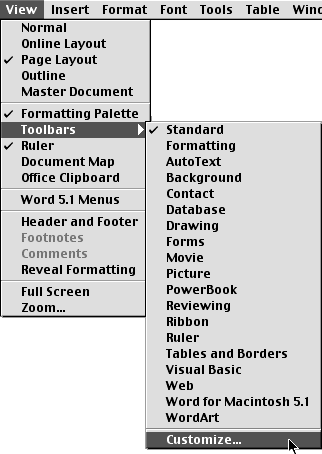
The very first element you want to touch up is the interface. Do you want a Mac OS X look or an Appearance Manager compliant interface? Is it better to have large icon toolbars or small ones? Do you need screen tips when your mouse rolls over a button? Do you like the font menu to preview the fonts as you scroll? Whatever are your answers, make sure to hit the View menu, select Toolbars and go to your right to finally select Customize.
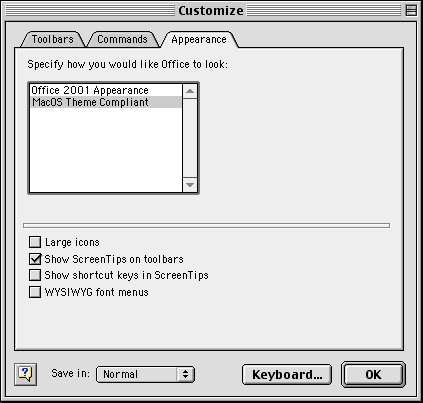
Once there, click on the Appearance tab and customize your appearance preferences. Make sure to click OK or to go to the other tabs for further levels of customization. You should note that MacOS Theme Compliant will force all Office applications to work with the Appearance Manager, which is part of the system since Mac OS 8.5. This gives the Platinum look instead of a Mac OS X theme, and Kaleidoscope users will be happy to see their color schemes taking over MS Office, at last!
Now, click on the Toolbars tab. You need to get this done, since remembering shortcuts can be confusing, and trips to the menu bar take too much time. As you can see below, the toolbar is filled with a bunch of standard icons that you may not use all the time. In order to use Word efficiently, you need to remove some of them and add some of your own. You could just activate toolbars as you need to use some of their elements, but it is less cumbersome to customize one toolbar with all the icons you use regularly.

The standard toolbar is the one you want to work with. The manipulations are simple. Dragging and dropping icons, as well as elements, is all you need to do! First, drop the icons you don’t need. Just drag them out of the toolbar, and you will see a black X. This means that if you release the mouse button, the icon will be deleted from the toolbar. Clean it up.
In the Categories column, click on the category where you will pick elements to add to your toolbar. In the example below, I clicked on Insert and selected From file…, which is short for inserting a picture from a file on my hard drive. I added it to the toolbar by dragging and dropping it. (See above the Format menu in the screen shot).
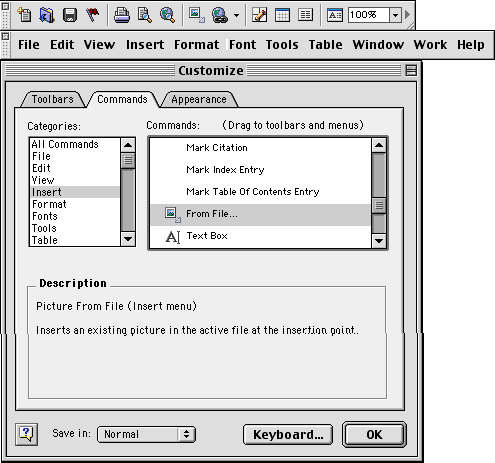
After a serious round of manipulations, your toolbar will be as optimized as it needs to be. Mine takes less screen space than the default toolbar, and it’s all useful! I cleaned it up, and then I added the Labels and Insert Picture From File elements.

Add a Menu
Your menu bar has a bunch of menus. You can get rid of any of them by control-clicking on one and selecting Delete Command. If you deleted a menu by mistake, you can always reset the menu bar from the Toolbars tab.
Now add your own menu, filled with the elements that you use most often. Click on New Menu in the Categories column and drag the menu from the window to the “menu bar” that appeared when you opened the Customize window. Insert it where you want it and notice the highlight when you are about to drop it. Name it by control-clicking the new menu and selecting Properties. Type the name, click on OK, and add items to it, always selecting elements from the Customize window and dragging them to your new menu.

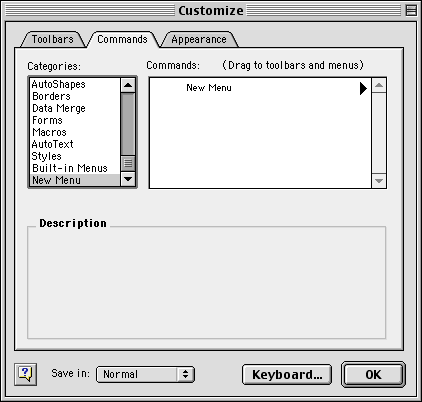
As you can see below, I added a Commands menu to my menu bar!

More on the View Menu
Before your hit the Preferences, do one last thing. Hit the View menu and make a few selections regarding how you want pages to appear on the screen, if you want traditional Word 5.1 menus, the formatting palette as well as the ruler. All these options can be useful or cumbersome, depending on what your needs are.
The Preferences
The last step to make Word obey is to customize its preferences. In Office 2001, hit the Edit menu and select Preferences. In Word 98, use the Tools menu, and select Options. From there, hit each tab and peruse the preferences to make them your own.
Once done, you will have customized the appearance, toolbars, menus, and all the preferences of Microsoft Word. The software will become more adapted to your needs, thus more efficient. Enjoy!
Further Reading
- Writing and Editing with Microsoft Word. Tips for getting the most out of Microsoft Word on the Mac.
* Mac OS X 10.0 arrived in March 2001, after this series of articles had begun. Few people actually used OS X in 2001. iBasics articles covering the Classic Mac OS have been placed under the iBasics Classic heading to differentiate from articles that cover Mac OS X.
Keywords: #microsoftword #word2001 #microsoftword2001 #word98 #microsoftword98 #wordformac #classicmacos
Short link: http://goo.gl/6WyvJg
