
2001 – This week’s piece could be named iSimples because of the simplicity of the problems we’ll solve. Some little bugs can make a difficult day an even more annoying one. Let’s go through them and solve them, one by one, to make your life a little easier.
- Description: Fix little bugs without tech support
Difficulty level: Easy
System version: Mac OS 7.1 to 9.2.2 for Silent Mac, n/a to other issues
Required: ADB or USB Mac
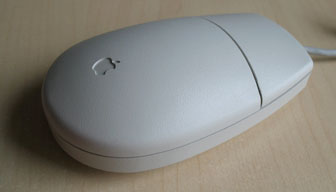 Sticky Mouse Ball
If, after using your mouse for a while, you feel that it has lost precision in pointing, don’t let that friend of yours convince you that it is time to buy a trackball or some different device. All you really need is to do some quick maintenance, and your rodent will be as smooth as ever. [These instructions do not apply to optical mice. If you are having problems with the scrollball on the Apple Mighty Mouse, check out iFixit’s disassembly and cleaning instructions.]
Disconnect the mouse from the keyboard or computer, grasp it, and turn it upside down. At the bottom of the device, you will see a plastic disc that you should be able to turn and remove. When you take it off, remove the mouse ball.
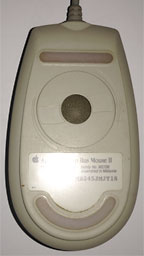
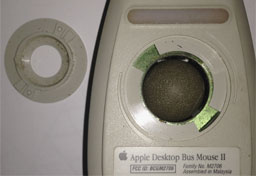
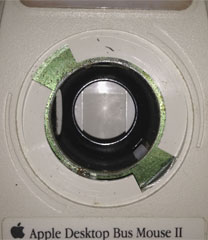
Bottom of mouse, retaining ring removed, mouse ball removed to show rollers.
Once the ball and the disc are out of the way, look inside the opening. You should find small wheels or rollers that the mouse ball rolls against when you move your mouse. It is highly likely that the rollers have gathered dust from the ball, and the dust has stuck together with a little humidity. You have to remove it, since the mouse ball needs to have direct contact with these rollers to work properly. The dust interferes in the process.
Just find a piece of cloth, dampen it, and wipe the dust away from the rollers and the ball. Make sure to clean the rollers in their entirety by making them turn a bit while cleaning. Once finished, just put everything back into place. You could do the same job by scratching with a fingernail, but you want clean and classy nails, don’t you?
Further Reading
- When Mice Had Balls: Remembering the Apple Desktop Bus Mouse, Christopher Phin, Macworld, 2015.04.14
Dead Input Devices
Let’s start with the keyboard. If you own a Mac that works with ADB devices, first check that the cable is seated tightly at both ends. A restart may also do the trick. If not, make sure that another keyboard works on the same Mac, or that your keyboard works on another Mac. If one of these tests fails, you know what deserves inspection by a technician – or replacement.
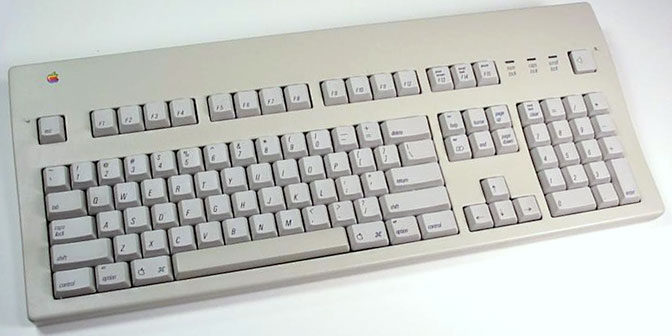
In the case of USB devices, the problem can be more frequent and very easy to fix! If any or both of your input devices gives no sign of life, unplug the keyboard from the Mac and the mouse from the keyboard. Plug everything together again. In most cases, this will work. If not, try a restart.
USB devices can fail to power up during the startup process, or they can lose their usually reliable contact with the computer during use. Generally, this is not a problem. If such measures do not solve the problem or it happens all the time, then you may want to repeat the switch I suggested above for the ADB Macs. If nothing works at all, you may have failing hardware on your hands.
Silent Mac
If you notice that your Mac is quiet – even more than you would ever like it to be – and that it has no sound, stay calm. This can (often) go away after two simple procedures, which I recommend doing simultaneously.
First, go to your System Folder and open the Preferences folder. Locate Sound Preferences or Monitors & Sound Preferences and put the file in the Trash. After that, restart your Mac. Once the screen has darkened, apply the second measure immediately! Hold down the following key combination – Command-Option-P-R – and wait until you hear the startup chime five times in a row. Once you’ve heard it for the fifth time, release the keys. Normally, your Mac will resume outputting sound. You will lose some minor system settings in the process, but the purge has proved to be a good way to give Macs their voice again.
If you have external speakers, this is another matter. USB speakers that work without drivers (such as the Harman Kardon SoundSticks) may just need to be unplugged and plugged in again. If you have speakers that work with drivers (something I never dealt with – do they exist anyway?), reinstalling drivers may be the answer.
Conclusion
If you look back at everything in this article, you can see some standard troubleshooting measures to solve a problem with your hardware. Some need physical maintenance. Some problems respond to preference files. Some simply need to be disconnected and connected again. On top of this, a little restart can cure a few annoyances.
Many minor hardware problems require very little effort, and some of the suggestions here can be used for many types of problems. Experimenting with such methods in other situations can develop into a great learning process to handle your Mac without external help. Before you know it, you will be the neighbourhood geek!
Keywords: #macmaintenance #stickymouse #dirtymouseball #unresponsivekeyboard
Short link: http://goo.gl/1j4d72
