
Linux to Mac
Tips for Linux Users Coming to Mac OS X
- 2007.09.24 - Tip Jar
After five years running Linux on the desktop, I switched to Mac OS X 10.4 ("Tiger").
I'm still a huge Linux fan, run several Linux servers, and make my living with Linux. Nevertheless, the OS X desktop interface - dubbed Aqua by Apple - was too compelling to ignore. The BSD Unix core of OS X made the move relatively painless, allowing me to bring most of my shell scripts along. If you're thinking about switching from desktop Linux to OS X, a few tips can make the journey more pleasant.
Windows and Menus
The Linux desktop offers a smorgasbord of choices. The core GUI is based on the X Window system with any number of window managers running on top. The loose coupling between X and the window manager allows a lot of variety. Window managers create and manage windows, window controls, backgrounds, and other basic graphical chores, while additional programs typically handle desktop icons, interactive widgets, etc. A collection of related GUI programs is often bundled into a Linux "desktop environment". The most popular desktop environments are GNOME and KDE.
All of this choice can be wonderful - or confusing. My last couple of years in Linux were spent mostly in GNOME, which took more design queues from Apple than KDE. Regardless of which desktop environment or window manager you prefer in Linux, things work differently in OS X. In most cases, differently means better, and in all cases, more consistently.
The layout of the Mac desktop consists of three main elements: the menu bar at the top of the screen, the dock at the bottom of the screen, and the desktop area in the middle with icons and windows.
The window controls in Linux (and Windows) are typically on the right side of the title bar, and consist of a minimize, maximize/restore, and close control. In OS X, the controls are colored circles on the left side in a different order, close (red), minimize (yellow), and zoom/restore (green). When a window is minimized in OS X, it shrinks to an icon in the Dock. When a window is maximized, it expands to fill the entire screen except the menu bar and dock, and when restored, it shrinks back to it's original size. When a window is closed, it disappears (but the program keeps running).
There are three big behavioral differences you need to know right away regarding windows and menus:
- The program in the foreground replaces the menu bar with its own menu. Instead of seeing the program menu inside the window below the title bar, you access the program menu at the top of the screen. Changing the active program changes the menu.
- Closing all windows of a program does not close the program (with a couple of exceptions). The program continues to run until it is exited from the menu or ended with the Cmd-Q key combination.
- You can only resize a window from the bottom right corner of the window. You can't resize it from any edge of a window.
Once you understand these differences, navigating the Mac interface won't seem so mysterious.
Friendly Finder
The Finder is the default file manager in OS X. In Mac parlance, a directory is called a folder. You see the word folder used extensively in Mac documentation.
The Finder has two panes, left and right. The left pane shows icons for the Network, HD (hard disk), mounted volumes, Desktop, home directory, Applications, and various subdirectories within your home directory. The right pane shows the contents of each directory in one of three views: Icon, List, or Columns. The Icon and List views work like they do in the GNOME Nautilus file manager. The Columns view splits the right pane into columns and lets you drill into subdirectories while still viewing each level above it. I find Columns view disorienting and rarely use it.
By default, the Finder will not show hidden files (file names that start with a period). You can change that by running a Terminal command:
defaults write com.apple.finder AppleShowAllFiles -bool true
Once you can view hidden files in the Finder, you may notice a some extra, unwanted files. In every directory visited by Finder, it creates a ".DS_Store" file. The .DS_Store saves your preferred view of that directory. At the root of every volume visited by Finder, it creates a .Trashes directory - even on remotely mounted Linux or Windows directories.
Some people have a strong aversion to "Finder droppings". I think .DS_Store files can be turned off for external volumes, but not for Mac native volumes. While they were an annoyance when I first switched, I've learned to mostly ignore them.
Applications can be launched from Finder by double clicking on a program icon.
Grok the Dock
The Dock is a strip of icons at the bottom of the screen, though it can be positioned vertically along either side. The Dock serves two main purposes. First, it is a quick launch pad for applications. You can drag icons of your favorite applications to the Dock, then launch them by clicking on the icon. You can also right click on an icon in the Dock or click-hold and drag it to the Trash to remove it. Removing an application icon from the Dock does not delete the program.
The second function of the Dock is like the GNOME/KDE task bar. Minimized applications shrink down to an icon in the Dock. Running programs with icons in the Dock show a small triangle at the bottom of their icon, whether they were launched from the Dock or not.
Virtual Desktops
With OS X 10.4 (Tiger), there are no virtual desktops, the one killer feature of X I missed immediately. The next release of OS X ("Leopard"), due in October, will finally provide native virtual desktops. I was used to working with six desktops, so having to manage with one felt stifling. My solution was to try out various third-party applications that provided virtual desktops. The one I currently use is Desktop Manager 0.5.3.
Eye Candy and More
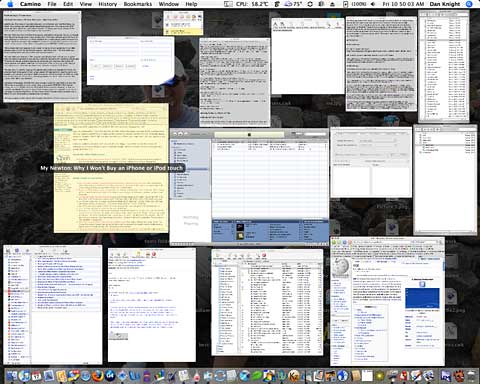
OS X is packed with handy features like Exposé. Pressing F9 on the keyboard shrinks all open windows until they are all visible. Then you can select one to gain focus by clicking on it, after which all windows return to their original size and position, with the selected one on top.
Pressing F12 fades the desktop and displays the Dashboard, a collection of HTML-based widgets that show time, weather, news, etc. Press F12 a second time to restore the desktop. You can download hundreds of third party widgets to add to the Dashboard, though adding too many will slow your machine down. As an exercise, I even wrote my own ugly widget that gathered system information using the "w" command.
Finally, the Spotlight desktop search tool, accessed from the upper right corner, indexes files and their contents continuously, providing a powerful and easy way to find things.
Apps on OS X
The collection of applications that is bundled with each Mac is astounding. Every bundled Apple software application works as advertised. OS X ships with 50 or so applications that not only work but are extensively documented. The help system is quite useful.
In addition to the iLife suite and a set of useful utilities, you get a respectable Terminal for command line fans, a full set of development tools, the GCC compiler, scripting languages, and staple open source servers like Apache and OpenSSH. You can download Mac versions of Firefox, OpenOffice (NeoOffice), and others. Java apps work out of the box with the preinstalled Sun JVM.
Native X applications can be run after installing Apple's custom X11 Server from DVD. Once installed, you can use popular open source X apps like Gimp and Inkscape. Most BSD and GNU command line applications can be compiled and run without problems.
There is a healthy ecosystem of freeware, shareware, and commercial applications for all tastes.
Gain without Pain
I found the switch relatively painless and became more productive by spending less time on system maintenance or odd hardware problems. I started with a Mac mini, and now use a G4 iBook as my desktop.
The one hardware feature that still amazes me is the smart power management on the iBook. I can close the lid with 20 applications running, walk downstairs, open it, and my wireless connection is up immediately, sound works perfectly - everything works. I've done that 10 times in one day without a blip, something I've never seen work well in Windows or Linux. If you are new to the Mac world, it is something you will appreciate.
Don't misunderstand, I still prefer Linux for servers, but as a
desktop operating system, OS X is hard to beat. 
Join us on Facebook, follow us on Twitter or Google+, or subscribe to our RSS news feed
Keith Winston is a recent Mac convert after five years of Linux on the desktop. He also writes for Linux.com and created CommandLineMac to focus on the Unix-y power of the Mac. If you find Keith's articles helpful, please consider making a donation to his tip jar.
Today's Links
- Mac of the Day: PowerBook 190cs, introduced 1995.08.28. The last 680x0-based PowerBook could take a PowerPC upgrade.
- Support Low End Mac
Recent Content
About LEM Support Usage Privacy Contact
Follow Low End Mac on Twitter
Join Low End Mac on Facebook
Favorite Sites
MacSurfer
Cult of Mac
Shrine of Apple
MacInTouch
MyAppleMenu
InfoMac
The Mac Observer
Accelerate Your Mac
RetroMacCast
The Vintage Mac Museum
Deal Brothers
DealMac
Mac2Sell
Mac Driver Museum
JAG's House
System 6 Heaven
System 7 Today
the pickle's Low-End Mac FAQ
Affiliates
Amazon.com
The iTunes Store
PC Connection Express
Macgo Blu-ray Player
Parallels Desktop for Mac
eBay

