
It is very simple to install Tiger on a G3 Mac that doesnt officially support it. I did this trick a few years ago to get Mac OS X 10.4 Tiger installed on an unsupported Lombard PowerBook G3, and it seems very few people know about it or can get it to work, so I thought I would revive it. There also seem very little on the Net about it.
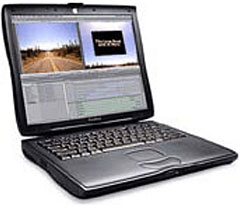
While Tiger will run perfectly well on a G3, there were a few models that don’t meet the official criteria simply because they do not have a built in FireWire port, the Lombard PowerBook G3 being one, and the original Clamshell iBook G3 being another (as is the 366 MHz graphite Clamshell).
There are a few other methods, such as removing your hard drive and installing Tiger on it using another machine and then reinstalling it, or using XPostFacto to get round the installer issues. Taking out your hard drive is simple in a Lombard, but not in a Clamshell, and using the XPostFacto method requires having an earlier version of Mac OS or OS X installed.
What you will need is a Mac running OS X 10.4 or 10.5 (it may work with 10.3, but I am not sure), a DVD burner (or CD burner for the CD version), and some time and patience.
Step by Step
Pop in your Mac OS X DVD. (This can also be done with the CD version, which is especially handy for installing on pre-DVD G3s.)
Next, make an image of your disc. Open Disk Utility, and down the left hand side you will see your Mac OS X DVD or Mac OS X Install Disc 1 (if you are using the CD version) listed. Click on it to highlight it, then select New Image from the top, and it will ask where you want to save the file. Select your destination, and be sure to choose DVD/CD Master under the dropdown menu labelled Image Format. It might ask about file formats; if it does, choose .cdr.
Let Disk Utility do its thing, which should only take a few minutes. Then you will need to convert the newly created image file to read/write so you can edit the contents. To do this, use Disk Utility and select Convert from the top. Find the image file you just created and select read/write under the Image Format, and then choose a destination to save it. It might once again ask about file formats and whether to use .cdr or .dmg or both. I choose both at this point.
Once that is done, mount the newly created image. Find the System folder, then the Installation folder, then the Packages folder. In there is a file called OSInstall.mpkg.
Control+Click on the OSInstall.mpkg file and select Show Package Contents. This will open the innards of that file. Select the Contents folder, and in there is a file called OSInstall.dist. Once again, Control-Click on it, and this time select Open With and select Other. This will bring up the list of apps in your Applications folder. Scroll down until you find TextEdit, select it, and click Open.
‘Bad Machines’
This will open the file in an editable text window. This is where you get rid of the list of “bad machines” – machines the installer will reject by default.
Find the lines that look like this:
function checkSupportedMachine(machineType){
        var badMachines = ['iMac','PowerBook1,1','PowerBook2,1',
        'AAPL,Gossamer', 'AAPL,PowerMac G3', 'AAPL,PowerBook1998',
        'AAPL,PowerBook1999'];
See the list of badMachines? There are 11 machines in total. If you remove this list, it should enable you install Tiger on all G3 Macs – although I don’t think it will work on Beige Power Mac G3 or Kanga PowerBook G3* models. It does allow you to install OS X 10.4 on pre-FireWire/tray-loading G3 iMacs, Lombards, and Clamshells.
Change the above text to this:
function checkSupportedMachine(machineType){
        var badMachines = [];
Then close and save it. If you get a message about not having enough privileges, you need to save the file to your desktop via Save As – and make sure you add .dist on to the file name. Once saved, close the file.
Then go back to the Contents folder and copy the file you just saved from your desktop to the Contents folder. You might need to Authenticate by putting in your Administrator password when asked.
That is the editing completed. Now you can unmount the image file, and you are ready to burn it.
If you are using the CD version of Tiger, you will need a blank CD-R. If you are using the DVD version, you will need a blank DVD-R. Tiger will fit fine on a single-layer disc. (Leopard and upwards require a dual-layer disc and are trickier to burn.)
Open Disk Utility and select Burn from the top of the window. Then find your image file and select it. Under the burn options, you can set the speed. When burning any OS, it is recommended to use a lower speed – however, I did burn this at 24x, and it was fine.
Using the Modified Installer
OS X 10.4 Tiger still wants at least 256 MB of memory – more is always better – and 3-4 GB of free hard drive space, although you can get by with 2 GB with a custom install that eliminates unnecessary languages and printer drivers. Hacking the installer doesn’t change that.
I tried this method a few years ago on the DVD version, and it worked fine, and I tried it a few days ago on the CD version, and this worked too. I didn’t actually use the CD version to install Tiger, but it booted to the installer fine. I have used the DVD version – which is exactly the same hack – to install Tiger on a Lombard.
I hope to be picking up a first gen Clamshell iBook G3 shortly to revive and upgrade, which is what sparked this project.
* The Kanga PowerBook has never been certified for any version of OS X.
Follow Simon Royal on Twitter or send him an Email.
Like what you have read? Send Simon a donation via Tip Jar.
keywords: #macosx #osx #tiger #hack #unsupported #g3#techspectrum #simonroyal
short link: http://goo.gl/JHq0Qj
searchword: tigerunsupportedg3

Pingback: Installing Mac OS X 10.4 “Tiger” without the use of XPostFacto on an iBook G3 Clamshell without FireWire | luttztfz