
With the introduction of Mac OS X 10.5 Leopard, Apple upped the ante on Mac remote control. All of the methods covered in previous articles still work, but new options now exist in the operating system and via associated services.
Part 1 of this series covers general considerations and Apple-supported methods available for remote system control that will generally work on any version of Mac OS X (Jaguar, Panther, Tiger, and Leopard) – and even OS 9. Part 2 addresses some commercial solutions that also support multiple OS versions, along with how to force-reboot a remote Mac.
Screen Sharing.app
Apple now offers Apple Remote Desktop (ARD) and VNC viewer application for screen sharing called Screen Sharing (how original) in the Sharing pane of System Preferences. On a local network, shared systems will appear via Bonjour in the Finder’s sidebar. Click on them, and you’ll see a Share Screen… button.
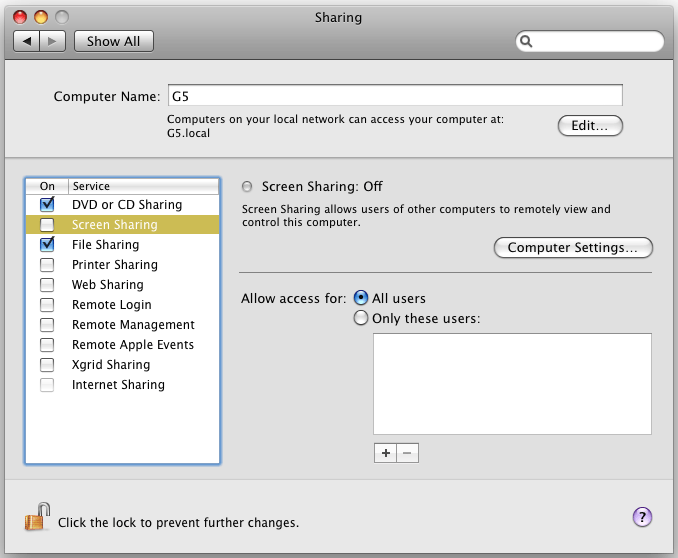
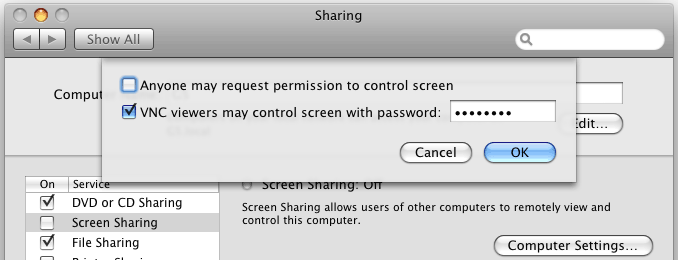
Access is usually fast and elegant on a local network, although shared systems sometimes come and go in the sidebar. Restarting the local and/or remote Mac usually fixes the problem. I attribute this behavior to bugs in early Leopard releases and suspect this will become more stable with subsequent updates.
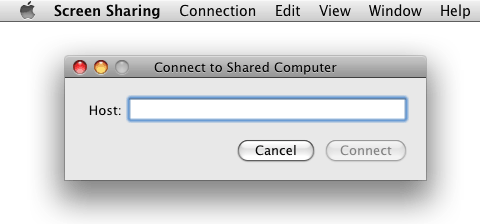
ScreenSharing.app has a minimal interface.
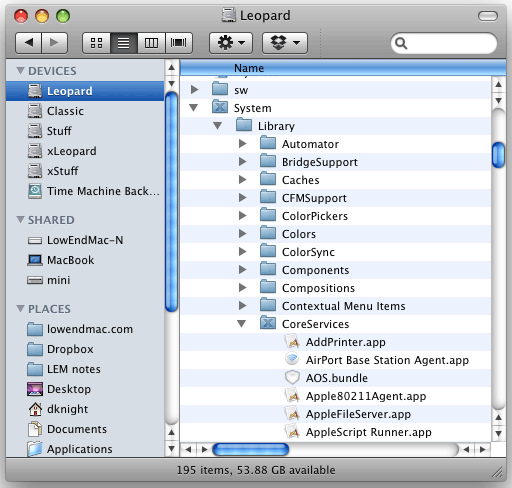 You can use Screen Sharing to access remote systems not on your local network, but you need to manually launch the program and know the IP address of the remote computer. Screen Sharing.app is located in System/Library/CoreServices (along with lots of other useful things).
Don’t move the program from this location. Instead put an alias in the Dock or on the desktop for easy access. When launched this way, you will be asked for the IP address of a server to connect to.
Power users may want to turn on a hidden window of the Screen Sharing app by entering these lines at a Terminal prompt:
LocalMac:~ localuser$ defaults write com.apple.ScreenSharing ShowBonjourBrowser_Debug 1
This adds a menu of VNC enabled systems accessible via Bonjour. Screen Sharing.app is a basic VNC viewer; it will satisfy many users, and the price is right.
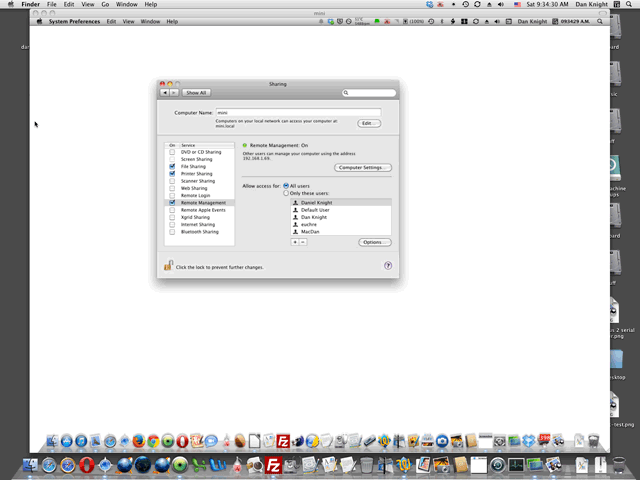
Here’s a screen shot of a Mac running Leopard displaying and controlling the screen of one running OS X 10.6 Snow Leopard via Screen Sharing:
Back to My Mac
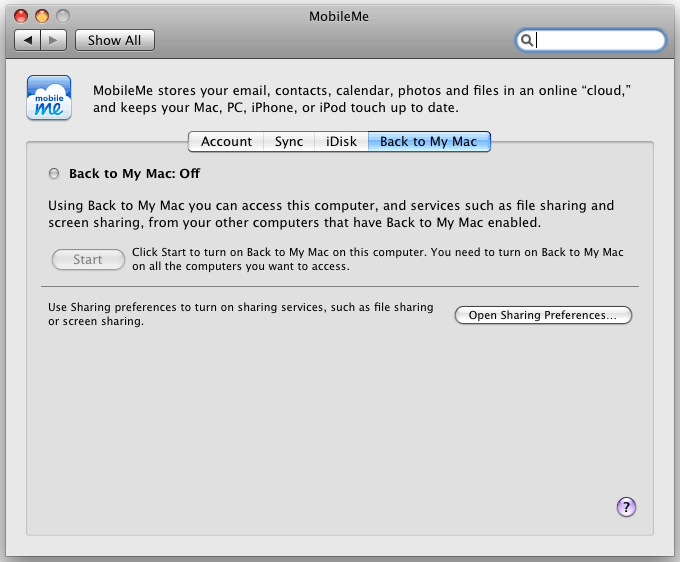
A companion service for remote system control across the Internet is Apple’s Back to My Mac capability. [The rest of this paragraph has been updated. The .mac service originally discussed no longer exists. It was replaced by MobileMe, which was subsequently replaced by iCloud.] You must have a current iCloud account to use this service, and all systems must be running Leopard or later. Use Leopard’s MobileMe System Preference pane to login to the same account on both systems and enable Back to My Mac on each machine. On the Mac to be controlled, you must also enable Screen Sharing and (if desired) File Sharing from the Sharing Preference Pane.
On the control (local) Mac, when you’re away from your home or office the remote Mac should show up in the Finder’s sidebar. You can choose to share the remote screen using Screen Sharing or mount one or more drives if File Sharing is enabled. The combination provides the one-two punch of (scalable) screen sharing and file transfers, and when it was available it worked very efficiently in my tests.
There’s one big potential impediment to Back to My Mac working correctly, however: Both the local and remote network routers must support pass through of Universal Plug’n’Play (UPnP) services. Some routers do this by default, some can be configured appropriately, and others are incompatible. At my home office I could not get a Sonicwall TZ170 small business router configured to pass Back to My Mac traffic, but an inexpensive Linksys WRT54G worked fine. Apple says its AirPort Extreme routers support Back to My Mac and publishes a list [no longer on Apple’s servers but avaialble on archive.org] of known compatible third party hardware.
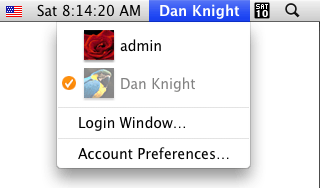 One security consideration: Once enabled, this service is available for anybody who has access to your MobileMe account. Apple recommends using a strong password for MobileMec, which is always a good idea, but for additional security turn on Fast User Switching on the remote system in System Preferences –> Accounts –> Login Options. This creates a menu with your account name in the right side of the menu bar (right). Choose Login Window from this menu when you’re done using your shared machine or otherwise away from home to hide the screen and require a password for subsequent access.
iChatAV
NOTE: iChat in OS X 10.5 and 10.6 no longer appears to support screen sharing after the discontinuation of Apple’s MobileMe service. It may still work using Bonjour, but several attempts to make it work at Low End Mac headquarters have not worked.
iChat continues to mature and expand in capability, and with Leopard it has expanded to include screen sharing and file transfer capabilities. Implementation is excellent, and for the computer guy or gal in the family who always has to support their parent’s and grandparent’s computers, Apple has delivered a nice – and free – solution with this package. For this option, somebody needs to be present at the remote computer during the session.
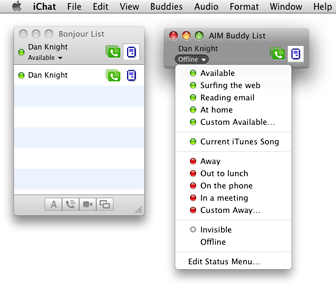 You will need a different iChat account setup on each system to establish communication; you can use an existing MobileMe, iCloud, or AIM account if one is available, otherwise you can signup for an iChat account upon first launch. On a local network, iChat can also use Bonjour to find remote systems, but this option in initially disabled in iChat preferences.
You must have Leopard or later on both systems, and iChat must be launched on both Macs before attempting a connection.
The remote system will show up in either the AIM Buddy List or the Bonjour List, depending on the protocol used. Double-click a name to connect a chat session. The remote system will be prompted to accept the incoming connection (here’s where the remote user assistance is needed), then off you go.
Once connected, use the Buddies menu and Ask to Share the remote screen. Another dialog box at the far end requires acceptance of the sharing request. Apple uses it’s graphics wizardry to show both the local and remote screens, properly scaled, simultaneously on your screen. Very slick. Click on the smaller window in the bottom right corner to switch between local and remote screens.
To transfer files, go to the Buddies menu and choose Send File… The remote user must again accept the request. Once transferred the sent file shows up in the Downloads folder in the remote user’s home directory.
By itself iChat doesn’t make a good option for unattended systems, due to the acceptance prompts which must be answered on the remote end before an action takes place. For attended remote desktop systems, or as a second option where you have another screen sharing solution in place like VNC, iChat is a viable solution. You don’t need to know any IP addresses or perform firewall configurations, and it can perform file transfers between computers. You also have good security, since you don’t have to leave the remote control on at all times – when you quit iChat the session is done.
Mac OS X Server Admin
As a final option, system administrators running the Leopard version of Apple’s Server Admin application can take advantage of Apple’s built-in screen sharing (ARD/VNC) direct from Server Admin.app – just choose Share Screen from the File menu when connected to a remote server. I typically use VNC alongside the Server Admin app for this purpose, but it’s always nice to have multiple options.
Leopard and Leopard Server both show a maturation of remote access and sharing capabilities, which is welcomed on the Macintosh. Options should only improve with time.
Methods of Mac Remote Control
- Part 1: Remotely Control Your OS 9 or OS X Mac
- Part 2: Software to Remotely Control and Reboot Your Mac
- Part 3: Mac Remote Control Options Built into OS X Leopard
This article was originally published on Adam’s Oakbog website. It has been adapted, slightly updated, and reprinted here with his permission.
Keywords: #macremotecontrol #vnc 3screensharing
Short link: http://goo.gl/y7AaTa
searchword: macremotecontrol
