
'Book Value
MacSpeech and a MacBook Complement Each Other Nicely
Charles Moore - 2010.06.23 - Tip Jar
Rating: 
I got along quite happily through the Macintel era's first three years sticking with a 1.33 GHz 17" PowerBook G4, which continued to offer pretty satisfactory performance for my purposes throughout - and the BigAl 'Book is still in daily service as my wife's computer. Indeed, hanging in with PowerPC in what had become Intel space, I still didn't (and don't - I still log about one-third of my computer time on my two old Pismo PowerBooks) perceive myself to be missing a whole lot by sticking with PowerPC 'Books, except for one particular software application - MacSpeech Dictate.
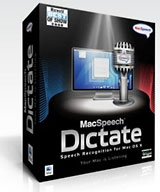
I have been a dictation software user, somewhat dependent on it, for more than a decade. I have used several voice recognition software applications on my PowerPC machines over that time, but principally MacSpeech iListen, which I was reasonably satisfied with - at least until early 2007, when MacSpeech released a completely new dictation program called Dictate, based on the superb and theretofore Windows-only Dragon NaturallySpeaking speech engine, to an enthusiastic reception.
However, Dictate only supports Intel-based Macs.
 By all
accounts (at least all I encountered), Dictate had ratcheted up the Mac
speech recognition game by more than a few notches, and when I finally
did take the platform plunge to an Intel-based Mac 15 months ago, one
of the things I most eagerly looked forward to was giving Dictate a
whirl.
By all
accounts (at least all I encountered), Dictate had ratcheted up the Mac
speech recognition game by more than a few notches, and when I finally
did take the platform plunge to an Intel-based Mac 15 months ago, one
of the things I most eagerly looked forward to was giving Dictate a
whirl.
I wasn't disappointed.
iListen was pretty good dictation software, and it served me well, but Dictate is amazing dictation software. Teaming up the powerful, accurate, and fast NaturallySpeaking speech engine with Intel Core 2 Duo power is a software/hardware marriage made in heaven. Dictate running on my modestly powered (by today's standards) 2.0 GHz unibody MacBook with 4 GB of RAM isn't just convenient and helpful in a utilitarian sense - it's genuinely fun to use, and for anyone with a need or desire for a compact, powerful, portable dictation platform, I could hardly recommend the combination of Dictate and MacBook or MacBook Pro too highly.
While I expect you could get reasonably satisfactory performance from Dictate on a MacBook Air, I haven't tried it, and the MacBook - either the Pro aluminum model or the entry-level white plastic-bodied model - offers the advantages of a faster Core 2 Duo processor, two USB ports to the Air's lonely one, and room to upgrade your RAM to as much as 8 GB from the standard 2 GB or 4 GB - expansion latitude the Air doesn't support, although I'll note that I did get along quite well with Dictate on my MacBook with 2 GB of memory before I installed the 4 GB upgrade from Other World Computing, but it's slicker with 4 GB.
A Wide Audience
While my own interest in dictation software, at least originally, stemmed from my chronic health issues, dictation programs actually address a variety of users along a spectrum from "need" to "want". The most intense sort of "need" is for people with major disabilities who simply cannot type. Then there are folks like me, for whom typing is possible, but less than comfortable for long-form text entry tasks, and for whom speech recognition makes computing and composing prose much more enjoyable and less painful. As the MacSpeech folks observe, given enough hours of straight typing, just about anyone can fit in that second category.
Then there are dictation software users who are motivated by the technology's potential for enhancing productivity - writers who find oral composition flows naturally, and just about anyone who discovers that entering words into electronic documents by voice can be substantially faster than even a very proficient typist working on a keyboard. It's definitely faster than the 50 words-per-minute or so I, as a non-touch typist, can manage.
MacSpeech Dictate is designed to accommodate users in all those categories.
Complex Technology Made Easy
Speech recognition software used for dictation is more complex than most kinds of consumer software, with arguably more "moving parts" than in just about any other kind of application.
When dictating to your computer, it's necessary to speak punctuation, which I've never found terribly difficult to get into, although on occasion I've absentmindedly - particularly when reading aloud - started pronouncing punctuation when addressing fellow human beings.
MacSpeech vigorously discourages using a hybrid mode of part dictation and part keyboarding and/or mousing, maintaining that alternation between speech recognition and keyboard/mouse is "a fantastic way to confuse the software". I've attempted to break myself of the habit, but still find I tend to get impatient and resort to keyboard and mouse for most editing and correction.
Using Dictate
Dictate has four modes: Dictation Mode, Command Mode, Spelling Mode, and Sleep Mode. Dictation Mode is self-explanatory, but while you're in it you can also issue commands, while in Command Mode (which could be considered "command only" mode) the program recognizes and executes only commands.
Spelling Mode is new and perhaps not quite as sophisticatedly developed as some of the program's other features - a completely new Spelling Mode made its debut with MacSpeech Dictate 1.2 (the current version is 1.5.9), allowing users to spell words, names, or acronyms by using either natural language or the International Radio Alphabet.
Sleep Mode simply lets you toggle the microphone and application on and off.
For someone with a disability that renders even small amounts of typing difficult, the Command and Spelling modes would be a priceless help.
Phrase Training
Another new feature introduced with MacSpeech Dictate 1.2 was phrase training, which helps you increase accuracy by letting you train your voice profile as you proceed. MacSpeech notes that most of the speech recognition industry refers to this feature as "correction", which is accurate in the sense that it can indeed be used to correct text in your documents, but the company contends that this descriptor somewhat misses the point, because ongoing training also helps refine MacSpeech Dictate's ability to recognize what you intended to say.
 With phrase training, you're not stuck with the level of
accuracy from your initial voice training until you take the time to
read more training stories, and you don't have to specifically train
the recognition engine from a document or selection. Instead, you can
train a phrase immediately when you see that it was misrecognized. Then
the next time you dictate that phrase or a word in the phrase,
MacSpeech Dictate is more likely to recognize it accurately.
With phrase training, you're not stuck with the level of
accuracy from your initial voice training until you take the time to
read more training stories, and you don't have to specifically train
the recognition engine from a document or selection. Instead, you can
train a phrase immediately when you see that it was misrecognized. Then
the next time you dictate that phrase or a word in the phrase,
MacSpeech Dictate is more likely to recognize it accurately.
The way you proceed with this is when you notice that the program's transcription has misinterpreted a word - such as substituting the word "cause" when you intended to say "pause". While in Dictation Mode, say "select the word cause." Confirm that the word has been correctly selected, then say "pause" and check to ensure that the word actually has been changed to "pause". That's all there is to it.
Spelling Mode and Phrase Training work much the same way. You pause between navigation or spelling/correction instructions and general dictation in order to allow the program to distinguish between the two.
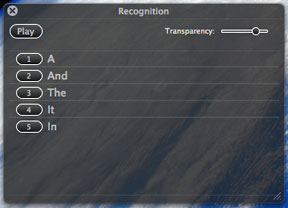
With Phrase Training, you speak the phrase you want to train, then open the recognition window, which will display several possibilities from among which you can select the correct phrase using its respective button, or say "edit one" "spelling mode" [ pause ] and spell out your words.
MacSpeech notes that sometimes it can take two or more attempts before Dictate learns to properly recognize a particular phrase.
Dictate's "New Move Command" facilitates more sophisticated navigation within a document than was supported by the initial Dictate versions and iListen before them.
Installation
Installation is reasonably straightforward, although it does involve inserting two installation discs in sequence, and the data files disc takes quite a while to export its contents to your hard drive. You're also obliged to register the software within four days of installation, which requires an active Internet connection.
Once the installation process is complete, it will be necessary to train the program to recognize your voice efficiently. This step is not nearly as time-consuming or onerous as it once was. I'm getting just amazing accuracy after only reading the five-minute initial training story, a treatise on speech recognition. Transcription speed is close to real time - much better than the previous high water mark of ViaVoice X in its day.
Effortless
Installed, initially trained, and down to business, the most apt descriptive for Dictate that springs to mind is "effortless".
With iListen, even at its best in version 1.8 on my G4 laptops, one always felt like there was hard work and effort involved using it. You had to remain conscious of sloppy pronunciation and so forth, which can be a challenge late at night when you're already propping your eyelids open with the proverbial toothpicks trying to stay lucid to meet a deadline.
Impressive Accuracy
With Dictate, I find I can just babble away, and still get impressive accuracy. The Dragon NaturallySpeaking speech engine is quite obviously superior to the Philips FreeSpeech 2000 Speech Recognition engine MacSpeech uses in iListen.
Dictate's voice transcription capability is a dream come true, and it's so accurate that not a whole lot of correction is necessary anyway, although at the level of training I've gotten around to giving it, it does usually require a bit.* I also find it useful for instant messaging or composing short emails or whatever if the program is already up and running. It's seductively slick.
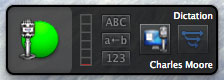 That
said, Dictate is not perfect. I wish there was a way to hide the
floater control palette (which is a lot prettier than the old one in
iListen) when it's not in use other than closing the program. Working
on a 13.3" MacBook screen, one cherishes every square millimeter of
desktop real estate.
That
said, Dictate is not perfect. I wish there was a way to hide the
floater control palette (which is a lot prettier than the old one in
iListen) when it's not in use other than closing the program. Working
on a 13.3" MacBook screen, one cherishes every square millimeter of
desktop real estate.
The program still takes a relatively long time to start up, which I suppose is somewhat inevitable when it has to load a voice profile and dictionaries before you can get underway, a process limited by hard drive speed. A 7200 rpm hard drive would probably speed things up noticeably.
Since version 1.3, Dictate will work with any document, including ones that were not created with Dictate, and its "Cache Document" command allows MacSpeech Dictate to read a document's contents in order to navigate the document, and to enter and edit text.
With Dictate 1.3 also came an extensive new Help Book system, two new visual microphone status indicators, and new commands for "Cache Selection", "Press the Key", "Press the Key Combo", and "Cancel Training".
The microphone status indicators provide a quick visual cue of whether the microphone is "on" or "off" by quickly looking at either the new Menu Bar status menulet or the new microphone status badge on the MacSpeech Dictate Dock icon. To augment the User Manual and other helpful resources, Dictate's new searchable, indexed Help Book for MacSpeech Dictate is now available from the Help menu.
MacSpeech Dictate 1.5 has the following system requirements:
- An Intel-based Macintosh computer
- Mac OS X 10.5.6 (Leopard) through 10.6 (Snow Leopard)
- 512 MB of RAM (1 GB or more for better performance)
- 2.0 GB of available hard drive space
- MacSpeech-certified noise-cancelling microphone recommended (included with new purchase).
MacSpeech Dictate isn't cheap, selling for $199 (including the Plantronics headset), but if you need dictation software, it's well worth the cost. Even if you can type all day without discomfort, productivity gains provided by Dictate could pay for the software quickly.
Dictate is available from the MacSpeech store.
* As Low End Mac's senior editor (we proofread and lightly edit everything we publish, even press releases), I can attest to this. For instance, Moore would type PowerPC, but Dictate transcribes it as Power PC (with a space), and it often confuses then and than. One glaring error in this column was sophisticated lead developed instead of sophisticatedly developed. Overall, I'm very impressed at how far dictation software has come, but you can never trust it to be 100% accurate (ditto for spell checking, which has no sense of grammar or usage and will never catch a typo if the misspelled word is a real word). dk
About LEM Support Usage Privacy Contact
Follow Low End Mac on Twitter
Join Low End Mac on Facebook
Favorite Sites
MacSurfer
Cult of Mac
Shrine of Apple
MacInTouch
MyAppleMenu
InfoMac
The Mac Observer
Accelerate Your Mac
RetroMacCast
The Vintage Mac Museum
Deal Brothers
DealMac
Mac2Sell
Mac Driver Museum
JAG's House
System 6 Heaven
System 7 Today
the pickle's Low-End Mac FAQ
Affiliates
Amazon.com
The iTunes Store
PC Connection Express
Macgo Blu-ray Player
Parallels Desktop for Mac
eBay

